Recent Files List Never Updates on Windows
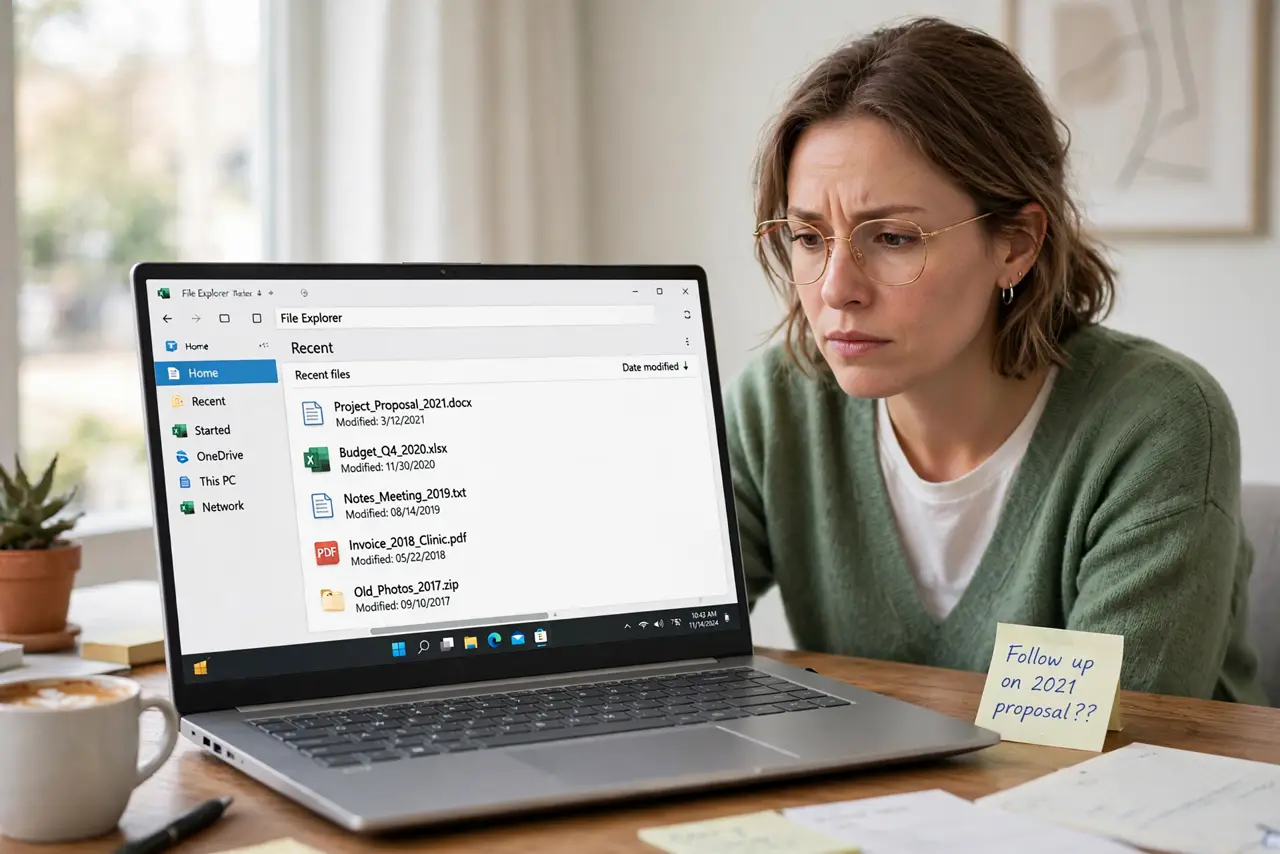
Your Recent files in File Explorer show the same old documents no matter what you open. Windows tracks recent files through a privacy setting that is easy to turn off by accident, and some tools disable it deliberately. Re-enabling the tracking and clearing the stale list restarts it — closely related to Start recommendations that will not clear.
TL;DR / Quick Fix
Quick fix: open File Explorer's folder options and make sure the privacy checkboxes for recent files are turned on. Clear the stale history once, then open a few documents and check that new entries appear. If a privacy tool keeps turning the setting off, exclude it.
Follow these steps
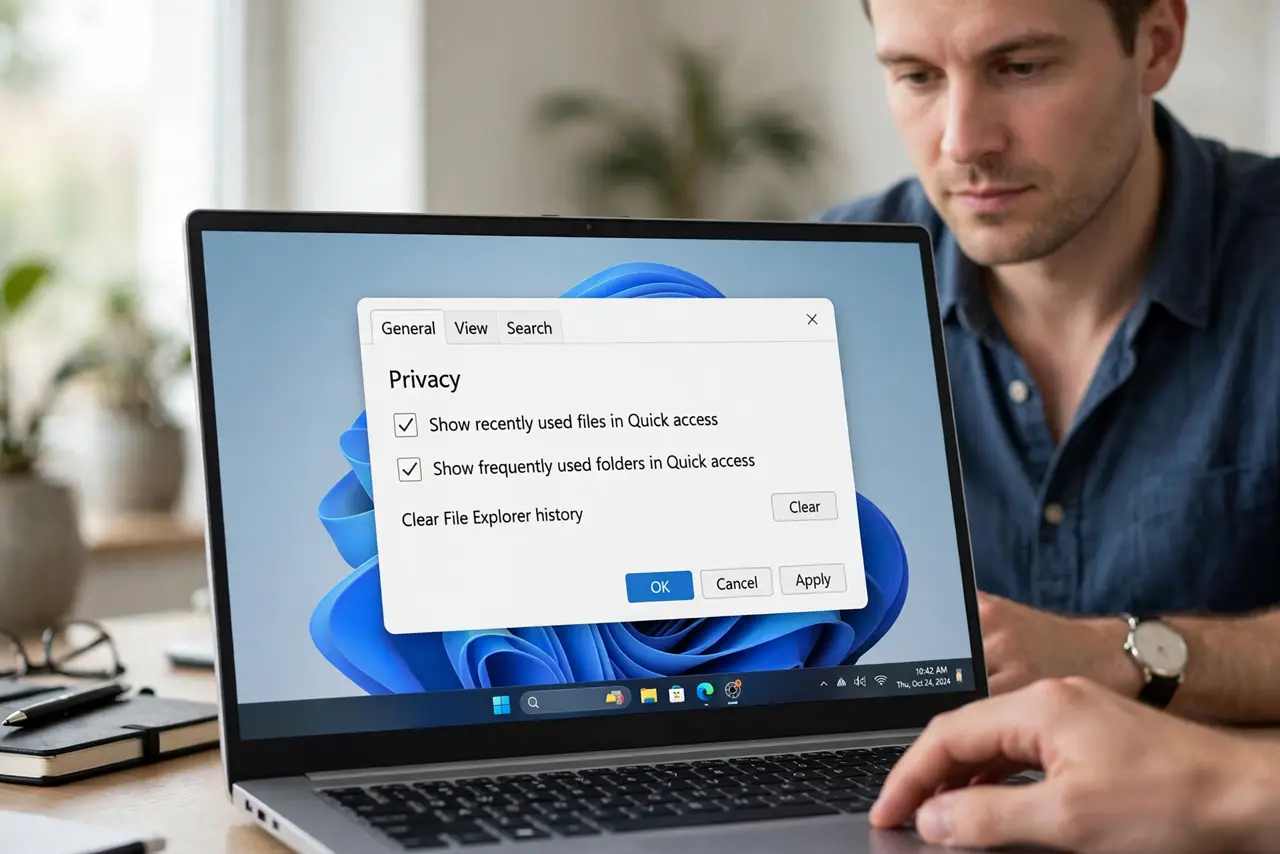
- Open Folder Options privacy settings. In File Explorer, open Folder Options and look at the Privacy section at the bottom of the General tab. The two checkboxes there control all recent-file tracking.
- Turn both recent-file checkboxes on. Enable showing recently used files and folders in Quick Access. If either is off, Windows simply stops recording, which is the most common cause.
- Clear the existing history once. Use the Clear button in the same dialog. A stale or corrupted history can block new entries, and one clean wipe restarts tracking cleanly.
- Open a few files and watch the list. Open three or four documents from different programs, then check the Recent list. New entries should appear within seconds of opening each file.
- Check privacy tools and group settings. If the checkboxes turn themselves off again, a privacy tool or a managed-PC policy is disabling them. Check your tools' settings before assuming Windows is broken.
- Verify it survives a reboot. Restart the computer, open a new file, and confirm it appears in Recent. Tracking that survives a reboot is tracking that is truly fixed.
What NOT to do
- Do not confuse Recent files with pinned items. Pinned items are manual and stay put; Recent is automatic and depends on the tracking setting.
- Do not enable tracking on a shared PC without thinking. Recent files reveal what you opened, so on a shared computer the off state may be intentional.
- Do not reinstall Office to fix this. Recent-file tracking is a Windows Explorer feature, and no Office reinstall will touch it.
- Do not clear the history repeatedly hoping it helps. One clear restarts tracking; clearing daily just keeps the list empty.
Frequently asked questions
Why did recent files stop updating suddenly?
Usually a privacy tool, a Windows update, or an accidental settings change flipped the tracking checkboxes off.
Does this affect the Recent list inside Office apps?
Office keeps its own recent list separately, so a Word recent list can work while Explorer's is stuck, and vice versa.
Is it safe to clear File Explorer history?
Yes. It only clears the tracking lists, not the files themselves. Your documents are untouched.