Back Up the Registry First
A forum post says 'just delete this registry key' to fix your problem — and it's actually good advice, except for the missing first step. The Windows registry has no undo button, but a thirty-second export gives you one. Never touch the registry without this backup.
TL;DR / Quick Fix
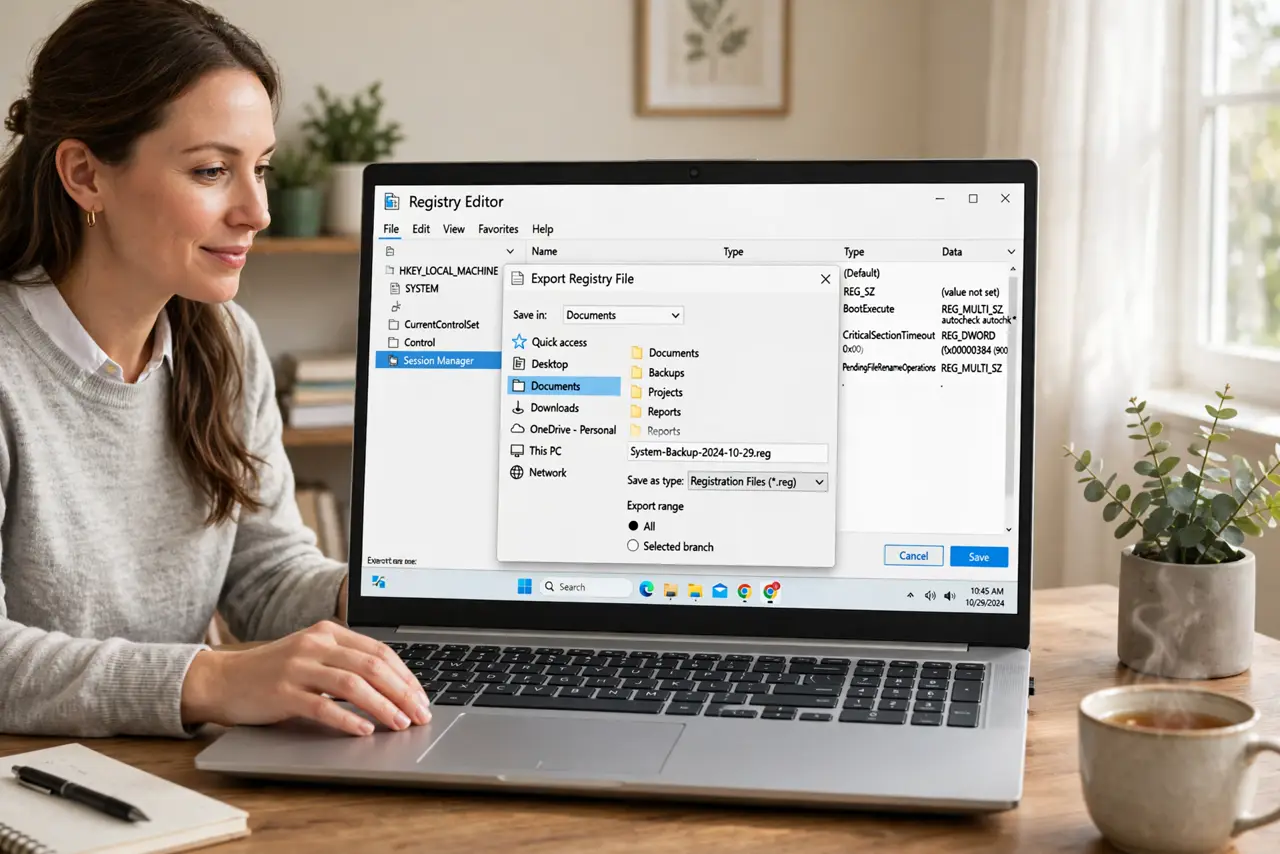
Quick fix: before touching anything, open Registry Editor, click File, then Export, choose All, and save the file with today's date in the name. Also create a System Restore point for a second safety net. To undo, double-click the saved file and confirm — it merges the old values back.
Follow these steps
- Open Registry Editor. Press Windows+R, type regedit, and press Enter. Confirm the admin prompt — you're about to handle the system's most sensitive database.
- Click File, then Export. In Registry Editor's menu, choose File and then Export. This is the backup command — it writes the registry to a file you can re-import.
- Choose All and pick a safe location. At the bottom of the export dialog, select All (not just a branch) for a full backup. Save it somewhere memorable with today's date in the filename.
- Create a System Restore point too. Search for Create a restore point and make one. It's a second safety net that can roll back drivers and system files alongside the registry.
- Now make your planned edit. With both backups done, proceed with the actual change. Work slowly, change one thing at a time, and note what you changed.
- To undo: double-click the backup file. If anything goes wrong, double-click the saved .reg file and confirm the merge — your old values return. The restore point is there for bigger messes.

What NOT to do
- Do not edit the registry without a backup. This is the rule — no exceptions, no 'it's just one key.' The registry has no undo button.
- Do not download .reg files from forums and merge them blindly. A .reg file can change anything — read it in Notepad first, or don't run it.
- Do not delete keys you don't understand. Deleting the wrong branch can make Windows unbootable — research first, delete never (rename instead).
- Do not skip the System Restore point. The .reg backup restores values; the restore point rescues you from the bigger disasters.
Frequently asked questions
Where should I save the backup?
Somewhere you'll find it: Documents with a dated name works. Not the desktop — desktops get cleaned in panics.
What can actually go wrong?
Wrong values can break apps, logins, or boot itself. That's why the backup exists — most mistakes are fully reversible with it.
Is there a safer alternative to regedit?
For many tweaks, Settings or Group Policy do the same job safely. Use those first; regedit is for what they can't do.