Remove Copilot from the Taskbar
The Copilot icon showed up on your taskbar after an update and you'd rather have the space back. Removing the button is a simple toggle — no uninstalling, no registry surgery, no sketchy debloat scripts. Here's the safe way to hide it, and what to do when an update brings it back.
TL;DR / Quick Fix
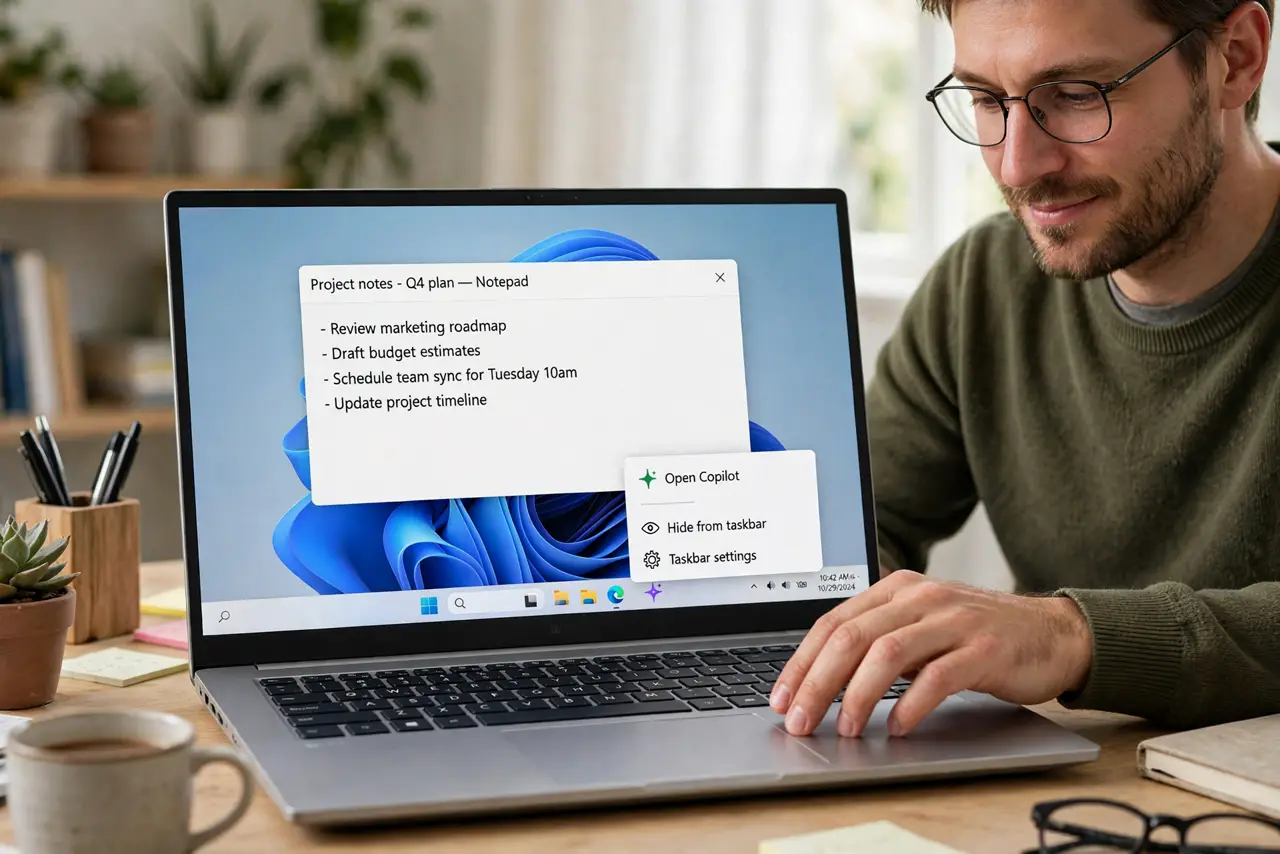
Quick fix: right-click the taskbar, open Taskbar settings, and switch the Copilot toggle off — the icon disappears immediately. This hides the button; it doesn't uninstall anything. If the icon returns after a Windows update, repeat the toggle — major updates sometimes reset taskbar settings.
Follow these steps
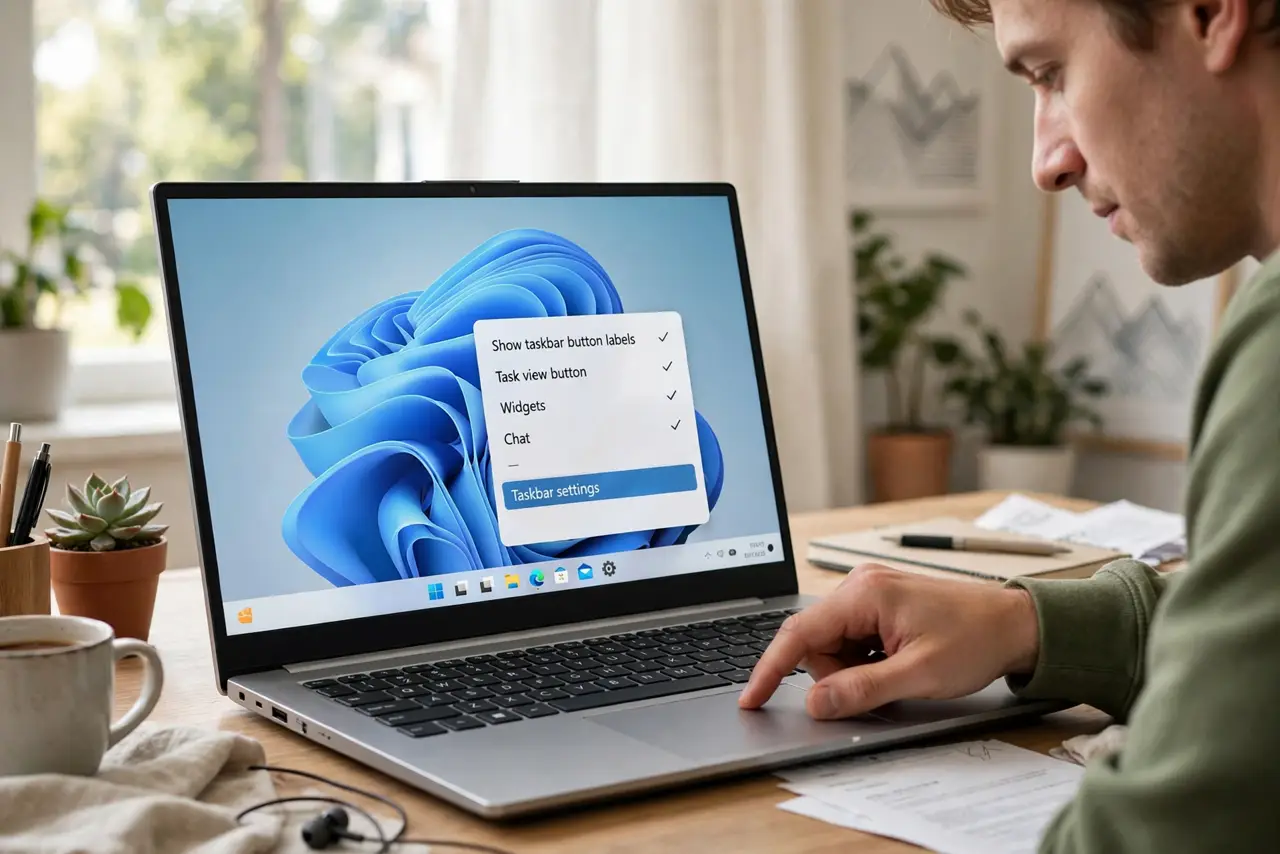
- Open Taskbar settings. Right-click an empty spot on the taskbar and choose Taskbar settings. This is the official control — not a registry hack, not a script.
- Switch the Copilot toggle off. Find the Copilot entry and turn it off. The icon vanishes from the taskbar instantly. Learn the taskbar layout options while you're here.
- Understand what this does — and doesn't do. This hides the button only. Copilot itself stays installed and available; you're just reclaiming taskbar space. That's all most people actually want.
- Check after major Windows updates. Big updates sometimes reset taskbar toggles. If the icon reappears, repeat the same toggle — it takes ten seconds.
- For managed PCs, ask IT before going further. On work computers, deeper removal via policy is an admin decision. The taskbar toggle is still yours to use; anything deeper is not.
- Leave the registry alone. Forum guides that delete Copilot via registry edits risk breaking updates. If you ever do touch the registry for anything, back it up first — but for this task you don't need to.
What NOT to do
- Do not delete system files to remove a taskbar icon. Deleting Windows components breaks updates and can't be cleanly undone.
- Do not run random 'debloat' scripts from forums. They remove more than Copilot and leave systems in states Microsoft never tested.
- Do not expect the toggle to uninstall Copilot. It hides the button — if your goal is reclaiming taskbar space, that's the win.
- Do not edit the registry for this. The Settings toggle does the job safely; registry edits add risk for zero extra benefit.
Frequently asked questions
Does this uninstall Copilot?
No. The toggle only hides the taskbar button. Copilot remains installed and reachable — this is about taskbar space, not removal.
Why did the icon come back after an update?
Major Windows updates occasionally reset taskbar settings. Repeating the toggle takes seconds and sticks until the next big reset.
I'm on Windows 10 — where's the toggle?
The Copilot taskbar button is primarily a Windows 11 thing. On Windows 10, check the Copilot basics for what's actually available.