Remote Desktop? Plain Basics
Remote Desktop lets you control one Windows PC from another — see its screen, open its files, run its programs — as if you were sitting in front of it. It is built into Windows Pro, which surprises people paying for third-party tools to do the same job. It is brilliant for helping family or grabbing a file from home, but it needs the right setup and the right caution.
TL;DR / Quick Fix
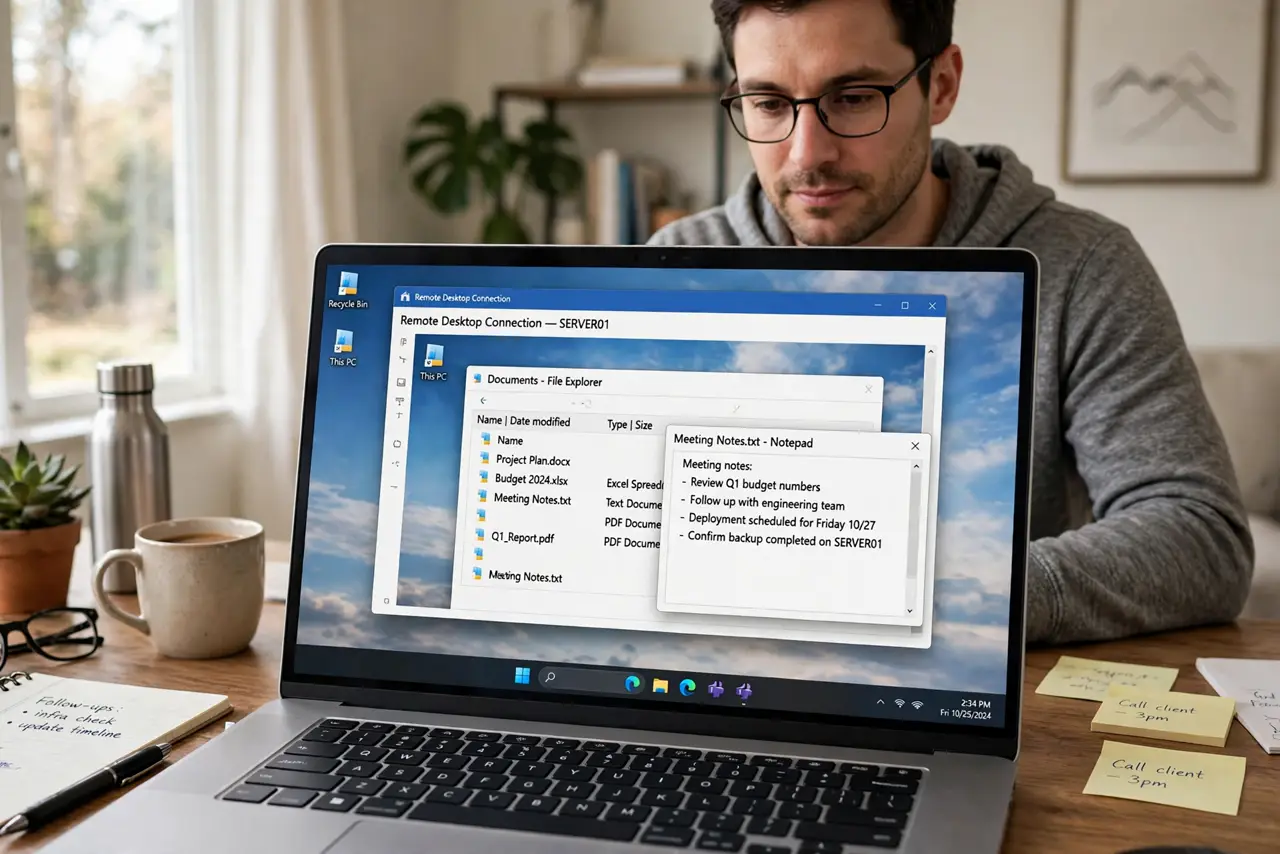
Quick fix: Remote Desktop is built into Windows Pro and lets you control another PC over the network. Enable it in Settings under System then Remote Desktop, note the PC name, and connect from the other computer's Remote Desktop app. Keep it off when you do not need it.
Follow these steps
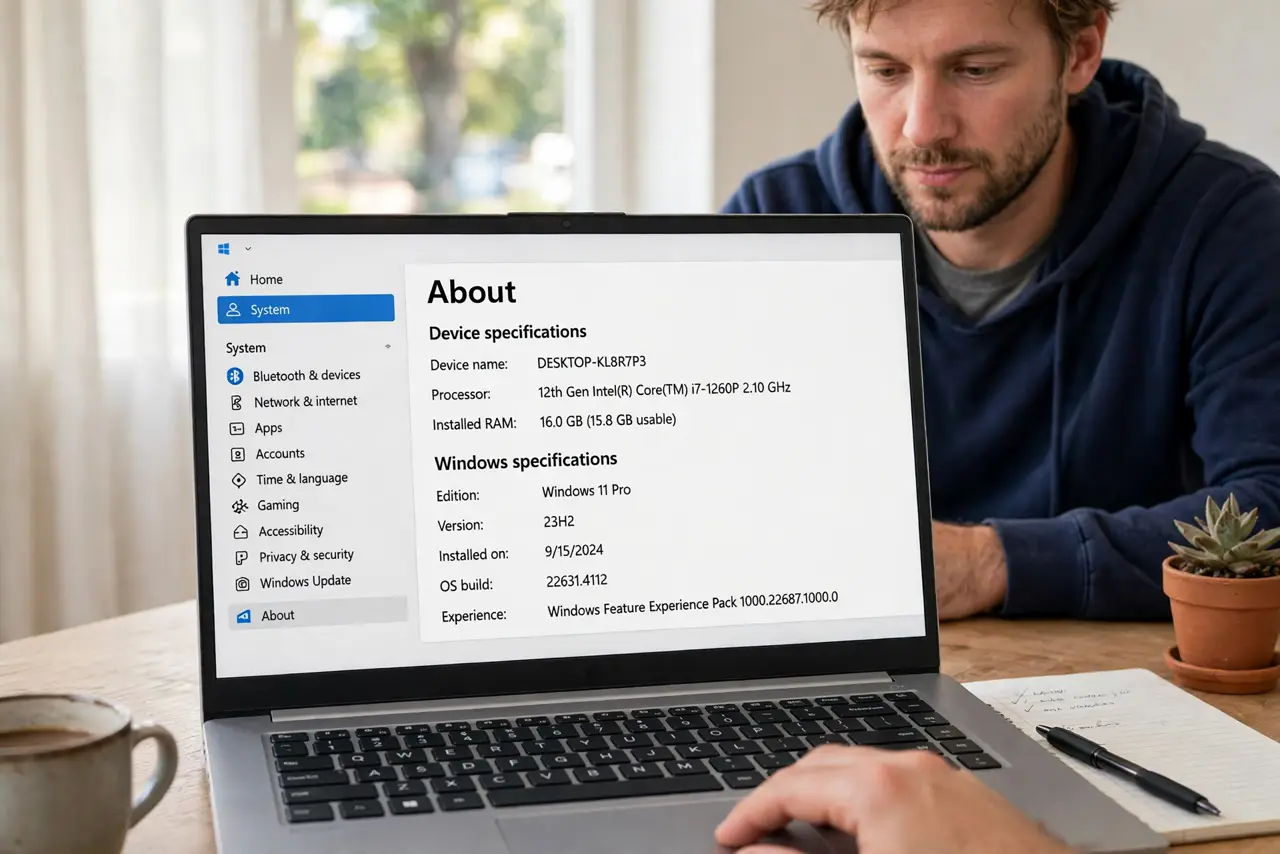
- Check your Windows edition. Remote Desktop hosting needs Windows Pro or Enterprise — Home edition can only connect out, not receive. Check in Settings, System, About: if it says Home, you will need an upgrade or a third-party tool.
- Enable Remote Desktop on the host. On the PC to be controlled, go to Settings, System, Remote Desktop, and turn it on. Note the PC name shown there — you will type it into the connecting computer.
- Make sure the user account has a password. Remote Desktop refuses passwordless accounts. If the host logs in without a password, set one first — this is a security requirement, not a suggestion.
- Connect from the other PC. On the second computer, open the Remote Desktop app (built into Windows, free from the Microsoft Store on other systems), enter the PC name, and sign in with the host's username and password.
- Mind the network. On the same home network it usually just works. Connecting over the internet needs port forwarding or a VPN — do not expose Remote Desktop directly to the internet without knowing exactly what you are doing.
- Turn it off when done. Remote Desktop is a door into your PC. Disable it in Settings when you are not actively using it — an open remote service you forgot about is a security liability.
What NOT to do
- Do not expose Remote Desktop directly to the internet. Bots scan for it constantly — use a VPN if you need access from outside your home.
- Do not use it on an account without a password. It will not work, and the password requirement is protecting you.
- Do not assume Home edition can host. It cannot — check the edition before troubleshooting a connection that can never succeed.
- Do not leave it enabled forever 'just in case.' Disable it after each session; enabling takes seconds when you actually need it.
Frequently asked questions
Can I use Remote Desktop from my phone?
Yes — Microsoft's free Remote Desktop app works on phones and tablets. It is usable for quick fixes, though a real keyboard and screen are far better for real work.
Why is the remote session so laggy?
Usually the network: weak Wi-Fi on either end shows up as stutter. Lower the display settings in the connection options to trade visuals for speed.
Is Remote Desktop safe to use?
On your own network with strong passwords, yes. The danger is exposing it to the internet or using weak credentials — that is what gets exploited.