Remove a User Account
An old roommate's account still sits on the sign-in screen, or the kids outgrew their profiles. Removing a Windows user account is easy, but it can delete that person's files with it — so back up first, and make sure you're not deleting the last administrator.
TL;DR / Quick Fix
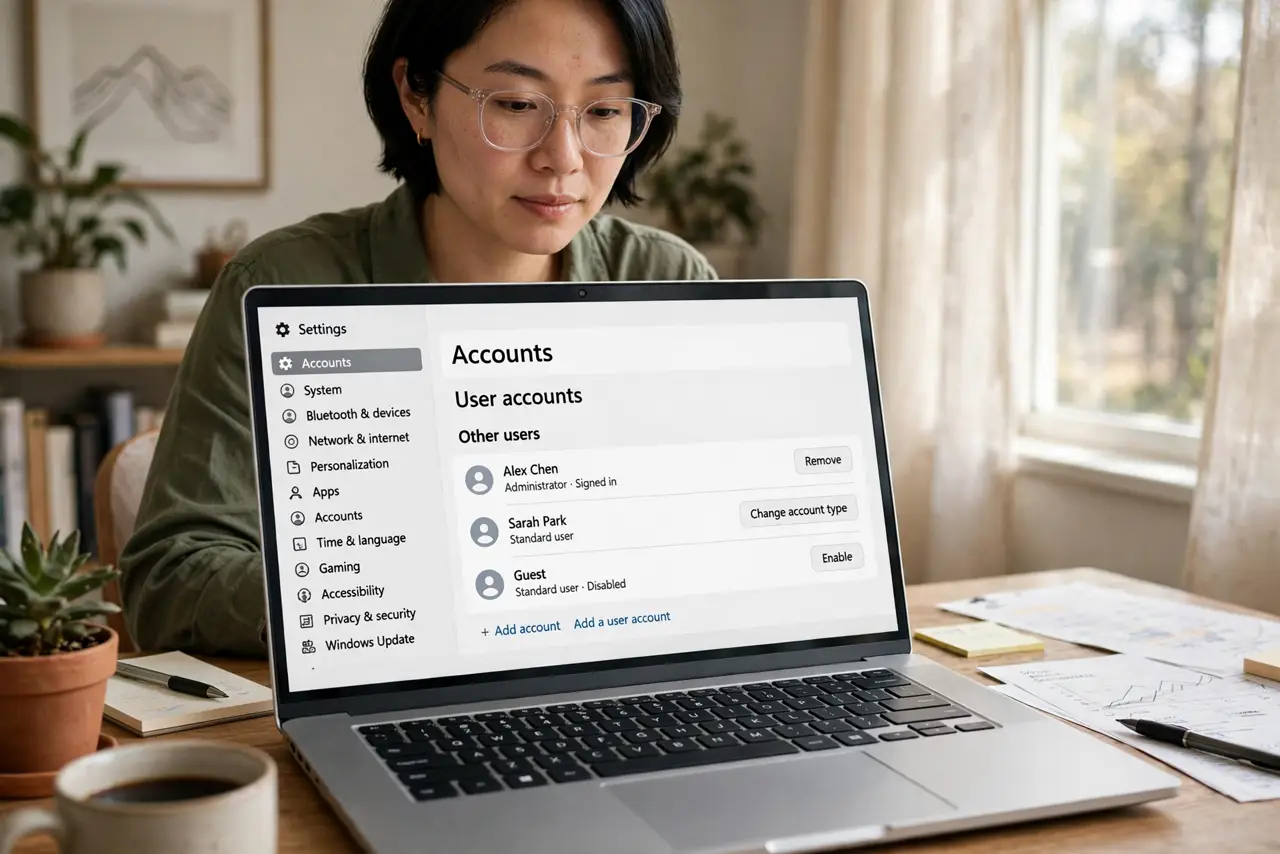
Quick fix: open Settings, go to Accounts, then Other users, select the account, and choose Remove. Back up that person's files first, since removal can delete their data — move anything important to your own folders or an external drive. Never remove the last administrator account on the PC.
Follow these steps
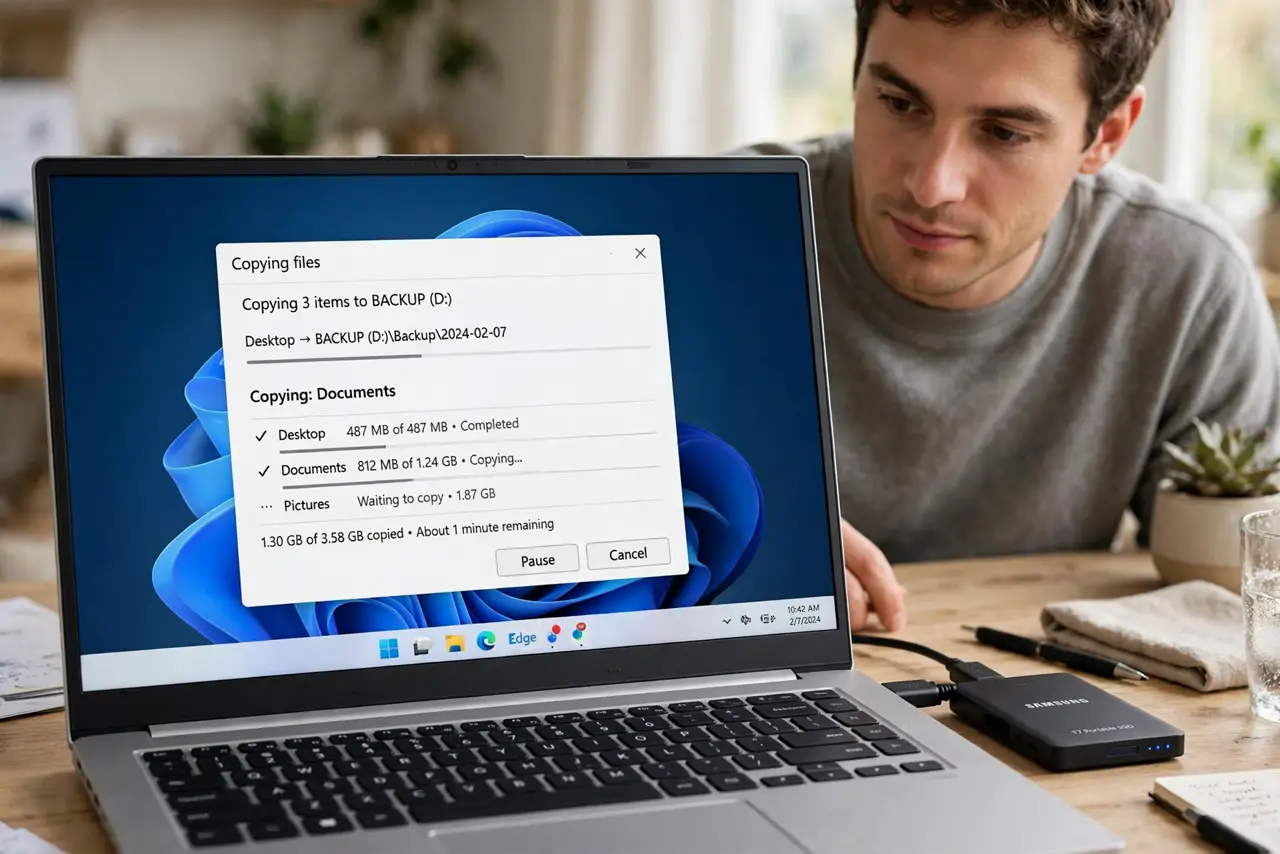
- Back up the account's files. Copy anything worth keeping from their Desktop, Documents, and Pictures to your own folders or an external drive. Once the profile is gone, recovery is painful.
- Sign in as an administrator. Only an admin can remove accounts. If you aren't one, see how to change who's an administrator first.
- Open the users list. Settings > Accounts > Other users (or Family & other users). Every removable account is listed here.
- Remove the account. Select the account, click Remove, and confirm. Windows asks whether to delete the person's data — choose based on your backup in step 1.
- Verify the sign-in screen is clean. Sign out and confirm the removed account no longer appears. Its profile folder under C:\Users lingers sometimes — delete it only after double-checking the backup.
- Watch for the phantom guest account. If a Guest or unknown account keeps appearing, that's a different problem — see why a guest account appears by itself.
What NOT to do
- Do not delete the account before backing up. Windows offers to delete the data, and 'yes' is unrecoverable without a backup.
- Do not remove the last administrator. Windows will warn you — heed it, or nobody can manage the PC afterward.
- Do not remove someone's account to 'punish' them while they still need files. Copy first, remove second, always.
- Do not confuse removing with disabling. Removal deletes the profile; if you just want to block sign-in temporarily, change the account type or password instead.
Frequently asked questions
Will removing an account free up disk space?
Yes — the profile folder with its documents and app data is deleted. Run a space check afterward to see the gain.
Can I remove a Microsoft account from the PC?
Yes — removing it from the PC only unlinks the local profile. The Microsoft account itself, with its cloud data, stays intact online.
I removed the wrong account — can I undo it?
The account can be re-added, but deleted profile data is gone unless you backed it up. This is why step 1 exists.