Always Run an App as Admin
An older program crashes on launch, can't save its settings, or throws 'access denied' for no clear reason. Running it as administrator gives it the permissions it expects — but doing it blindly for every app is a security downgrade. Here's the targeted way.
TL;DR / Quick Fix
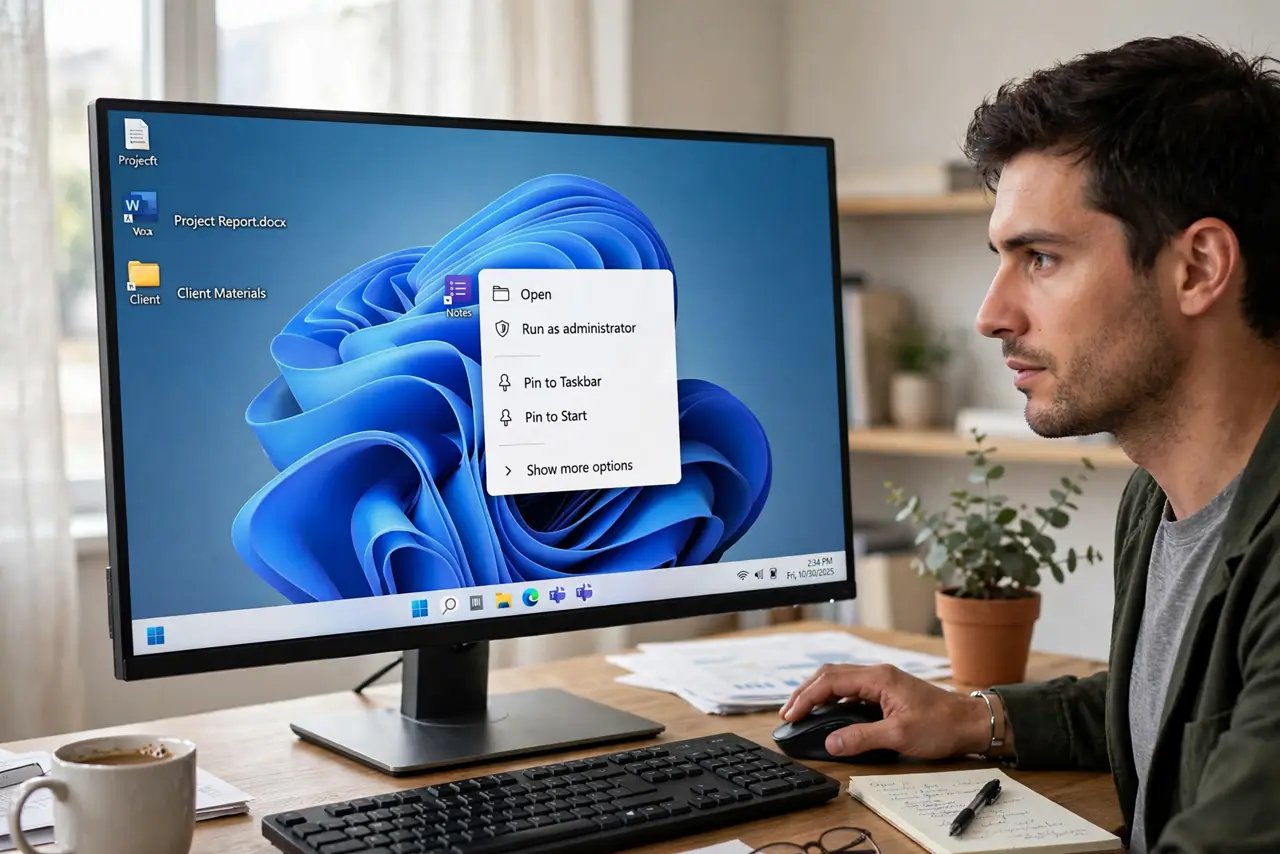
Quick fix: right-click the app and choose Run as administrator for elevation, or open the shortcut's Properties, go to Compatibility, and enable 'Run this program as an administrator' for every launch. Reserve this for trusted programs that genuinely need it, since elevated apps can change anything on the PC.
Follow these steps
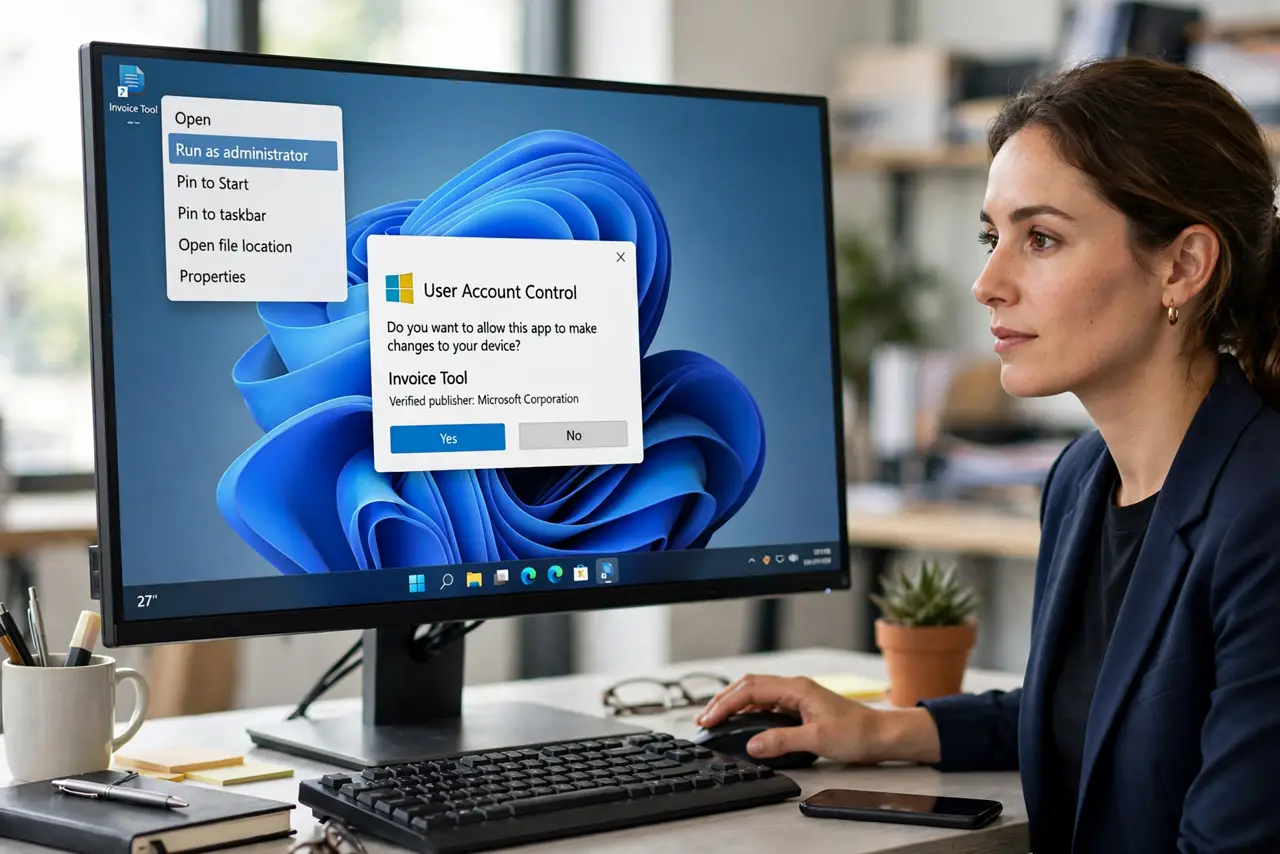
- Run it once as admin. Right-click the app or shortcut > Run as administrator > Yes at the prompt. If the problem vanishes, elevation was the missing piece.
- Make it permanent in the shortcut. Right-click the shortcut > Properties > Compatibility tab > check 'Run this program as an administrator' > OK. Every launch from that shortcut now elevates.
- Prefer the shortcut over the exe. Setting it on the shortcut leaves the actual program file untouched. Other ways of launching the app stay standard — contained elevation.
- Confirm the app truly needs it. Old programs that write to their own install folder are the classic case. Modern apps that demand admin for no reason deserve suspicion, not elevation.
- Expect the UAC prompt every launch. That 'Do you want to allow this app' dialog is the price of elevation. If an app asks for admin every time and shouldn't, fix the app instead of silencing the prompt.
- Undo it when the need passes. Uncheck the Compatibility box if a program update fixes the underlying issue. Permanent elevation should be reviewed, not forgotten.
What NOT to do
- Do not run random downloads as administrator. Elevation gives malware the keys to everything — the prompt is a security boundary, not an annoyance.
- Do not disable UAC to avoid the prompt. You'd trade one click for system-wide vulnerability.
- Do not set every app to run as admin 'just in case.' Elevated apps bypass protections silently — elevate only the one that needs it.
- Do not elevate a browser or email client. Those face the internet constantly and should never run with full system rights.
Frequently asked questions
Why does this old program need admin rights?
It was written before standard-user installs were normal, so it tries to write settings into protected folders. Elevation grants the access it assumes — or reinstall it properly for all users.
Can I make it elevate without the prompt?
Technically yes via Task Scheduler, but you shouldn't — the prompt is the security check. If a daily app needs silent elevation, something is misconfigured.
Does running as admin make the app faster?
No. Elevation changes permissions, not performance. If the app is slow, the cause lies elsewhere.