Switch Out of S Mode
Your new Windows laptop refuses to install anything that is not from the Microsoft Store — that is S mode, a locked-down configuration meant for simplicity and security. Switching out is free and permanent, and takes about a minute. Here is the safe way to do it.
TL;DR / Quick Fix
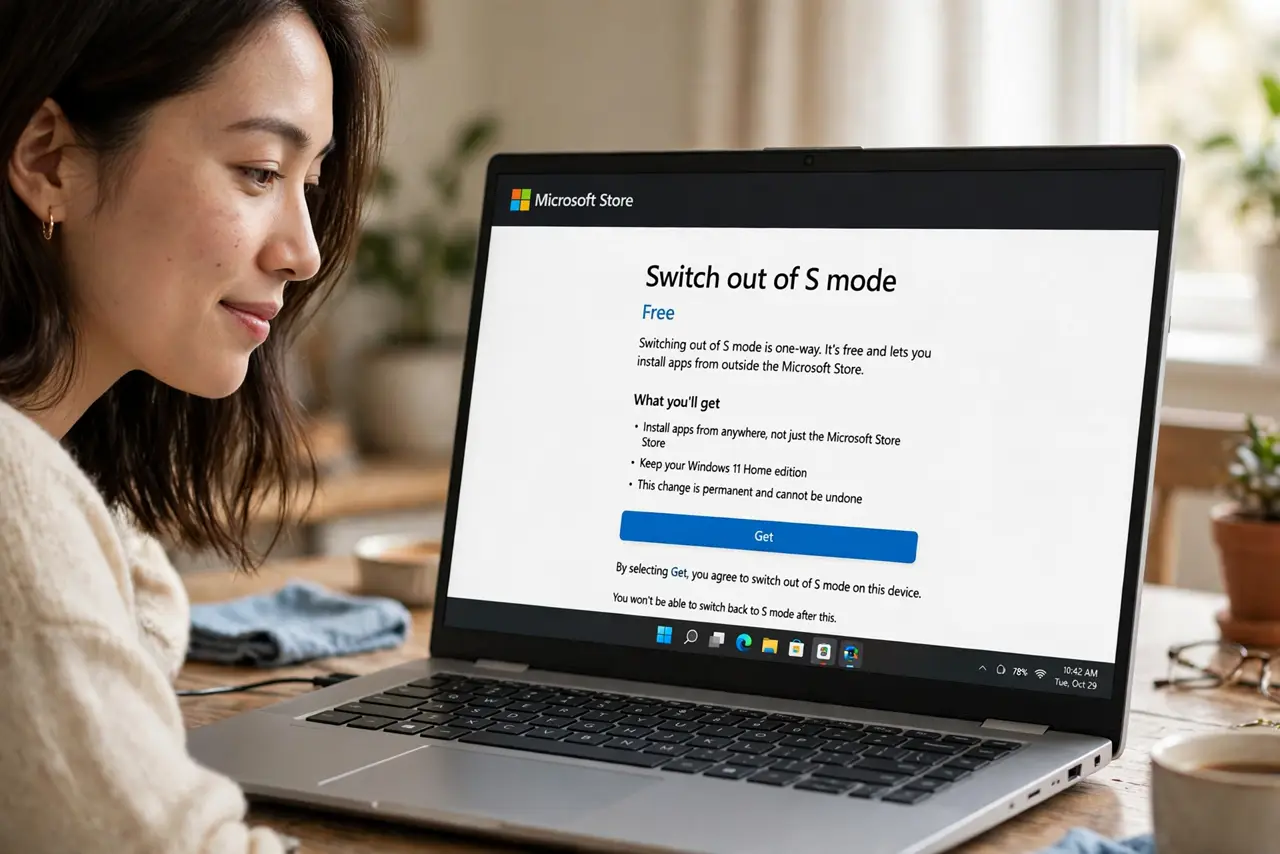
Quick fix: open the Microsoft Store, search for switch out of S mode, and follow the free switch-out page. It is one-way and permanent — you cannot go back. Only switch if you need apps outside the Store; S mode is genuinely safer.
Follow these steps
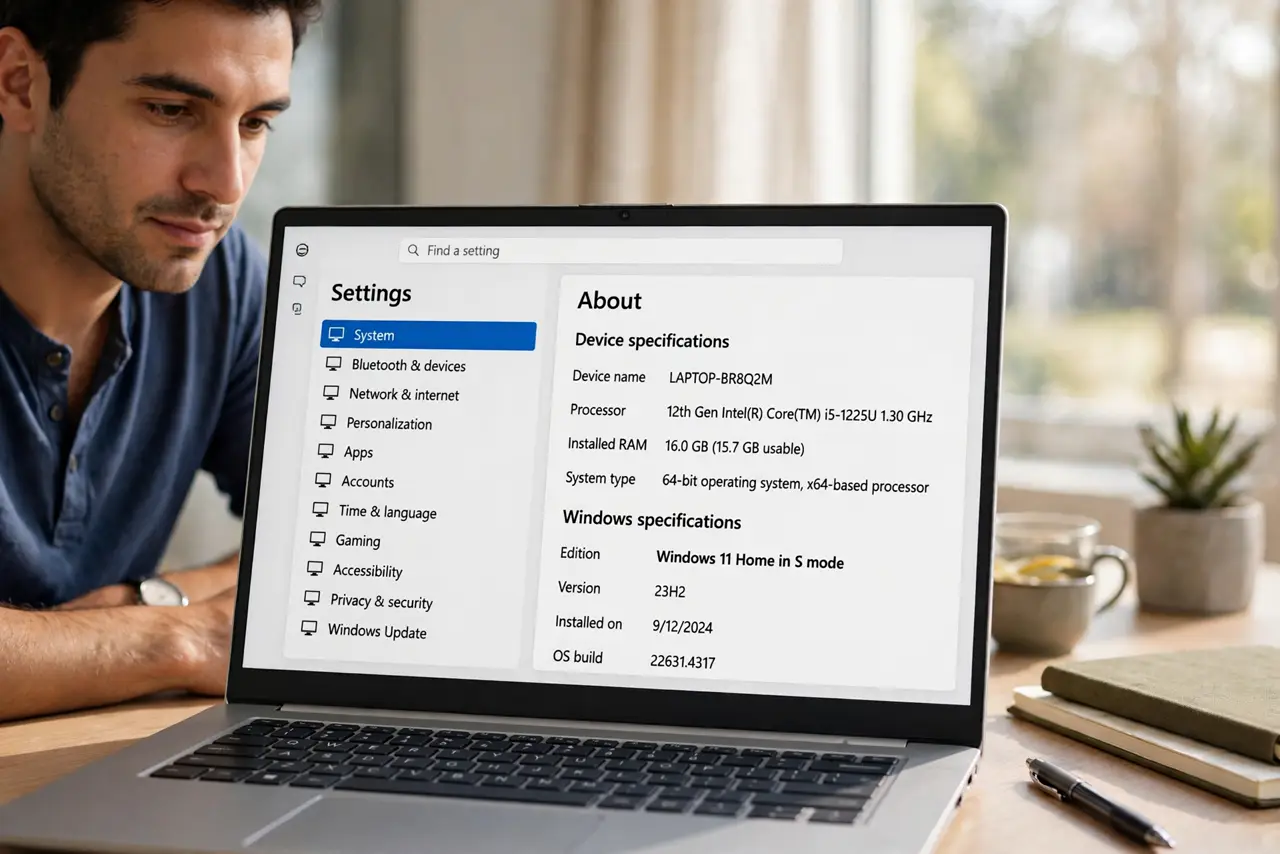
- Confirm you are actually in S mode. Go to Settings > System > About and check the Windows edition. If it says 'in S mode,' this guide is for you.
- Understand what S mode does. It only allows Microsoft Store apps and Edge as the browser engine. That restriction is also its security superpower — see what S mode is for the full picture.
- Open the Microsoft Store. Search for 'switch out of S mode.' Microsoft provides an official page for the switch — use it, not a third-party tool.
- Click Get on the switch-out page. The switch is free. Confirm, wait a moment, and Windows converts to the full Home or Pro edition.
- Verify the switch worked. Check Settings > System > About again — the 'in S mode' label should be gone.
- Harden the now-open system. Full Windows can install anything, including malware. Keep SmartScreen and antivirus on — freedom needs its seatbelt.
What NOT to do
- Do not switch out just because. If Store apps cover your needs, S mode's security is a genuine asset.
- Do not use unofficial switch tools. The Store method is free and safe; anything else is unnecessary risk.
- Do not expect to go back. The switch is permanent — there is no return to S mode.
- Do not disable protections after switching. The point of leaving S mode is choice, not recklessness.
Frequently asked questions
Is switching out of S mode free?
Yes — completely free, done through the Microsoft Store in about a minute.
Will I lose my files?
No. The switch only lifts the app restriction; files, settings, and apps stay put.
Should kids' laptops stay in S mode?
Usually yes — the restriction blocks most accidental malware installs, which is exactly what kids' laptops need.