S Mode? The Plain Truth
S Mode is Windows with training wheels — it only runs apps from the Microsoft Store and locks you to Edge, in exchange for better security and battery life. It ships on many budget laptops, and plenty of owners do not know it is there until something will not install. Here is what it is and whether to keep it or switch out.
TL;DR / Quick Fix
Quick fix: Windows S Mode only allows Microsoft Store apps and Edge — safer and lighter, but restrictive. If you need Chrome, Zoom's full app, or any outside software, switch out of S Mode free in Settings. Switching out is one-way, so be sure before you do it.
Follow these steps
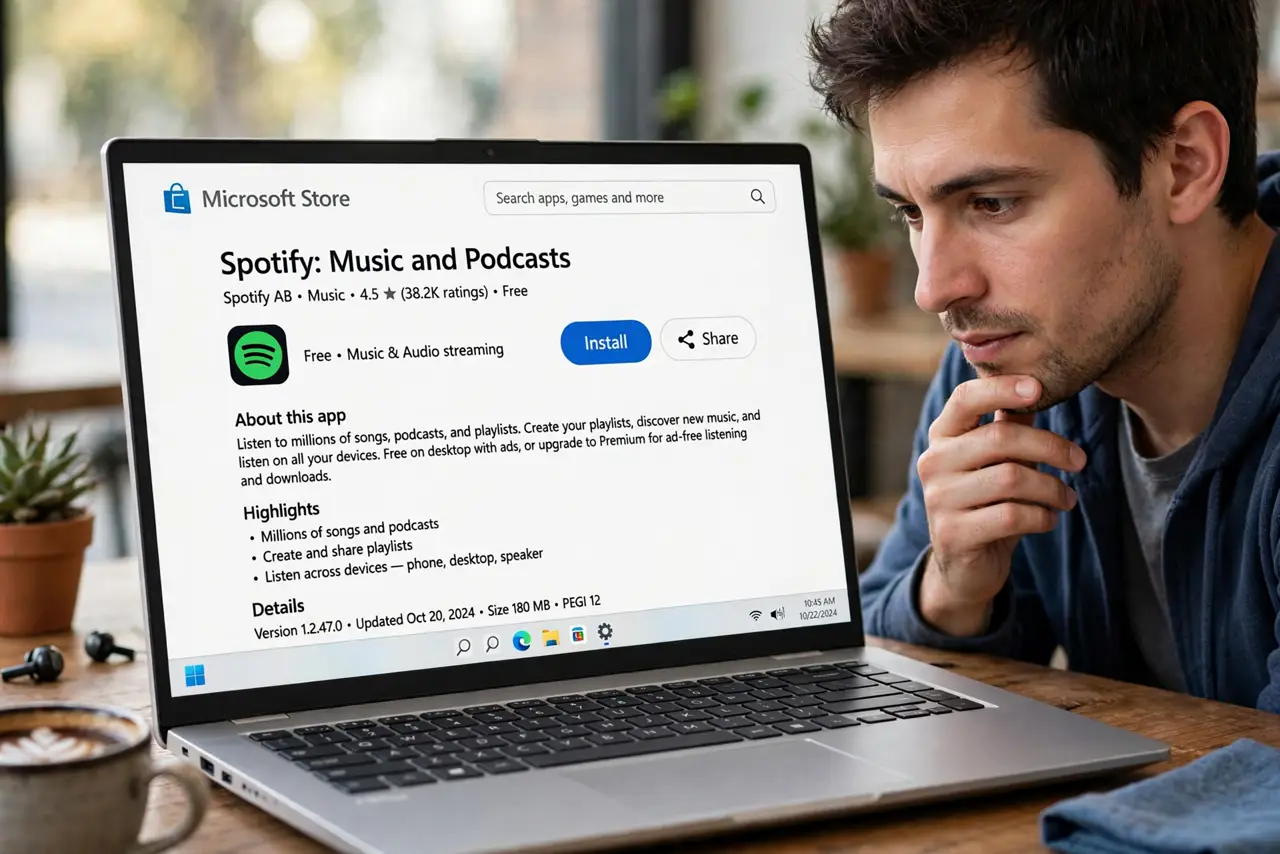
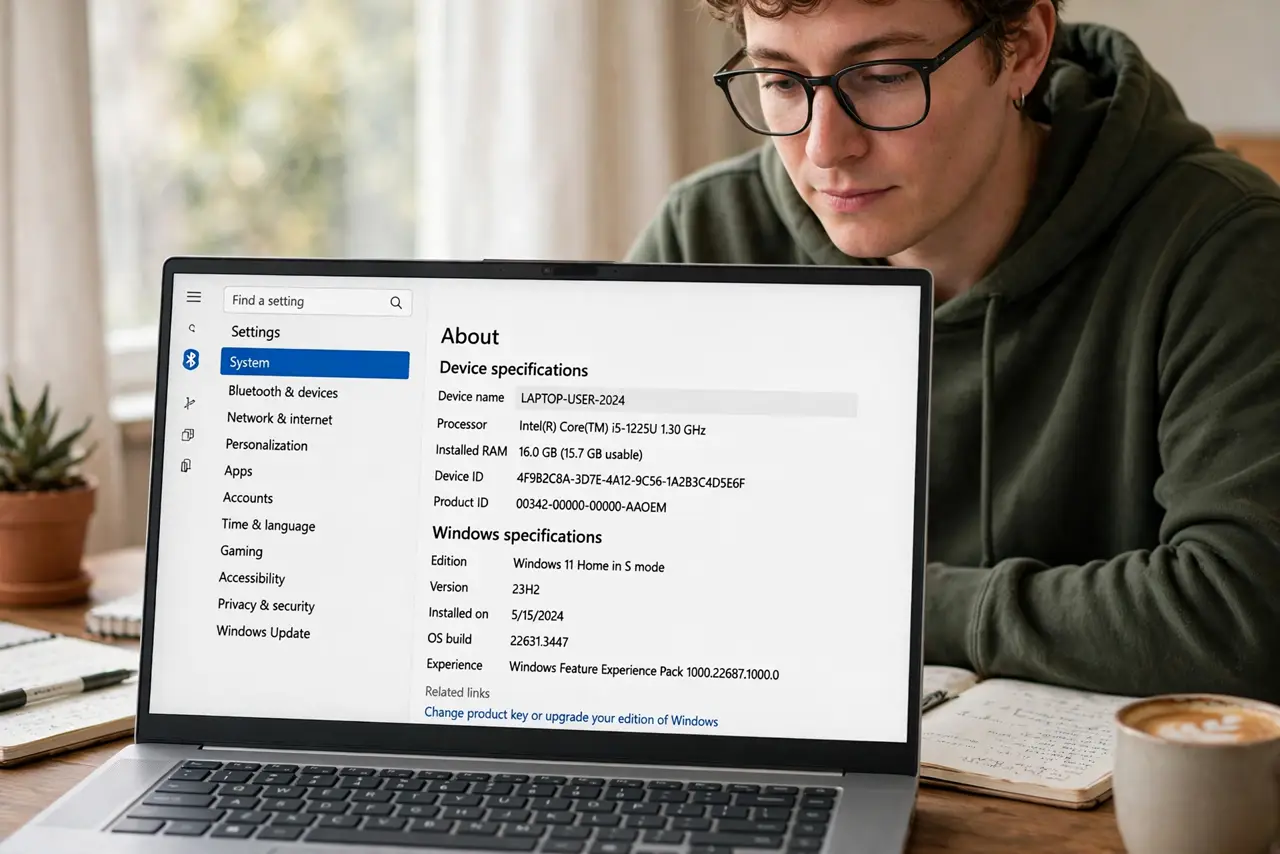
- Recognize you are in S Mode. Check Settings > System > About — it says 'Windows 11/10 in S mode' if so. The giveaway in daily life: installers from the web refuse to run with a Store-only message.
- Understand the tradeoff. S Mode blocks most malware by design — only vetted Store apps run. The cost is freedom: no Chrome, no full desktop apps from outside, Edge as the default you cannot fully escape.
- Decide if it fits you. Browsing, schoolwork, and streaming: S Mode is genuinely fine and pleasantly secure. Anything specialized — development tools, games, niche software — needs the switch. Compare with the Windows 11 decision if the whole OS is new to you.
- Switch out free when ready. Settings > System > Activation > Switch to Windows 11/10 Home/Pro > Go to the Store > Get. It is free, takes minutes, and needs no reinstall.
- Know it is one-way. There is no supported path back to S Mode after switching out. Microsoft treats it as a permanent exit — decide with that in mind.
- Watch for Store-app alternatives. Before switching, check whether your must-have apps have Store versions — many do now, and staying in S Mode keeps the security benefits.
What NOT to do
- Do not switch out on impulse. Once you leave S Mode there is no going back — confirm you actually need outside apps.
- Do not assume S Mode means a weak PC. It is a software restriction, not a hardware limit — the machine is fully capable.
- Do not confuse S Mode with a virus or error. The 'can't install' message is the feature working, not something broken.
- Do not pay anyone to remove S Mode. The switch is free and built into Settings — anyone charging for it is scamming you.
Frequently asked questions
Is S Mode safer than regular Windows?
Yes, meaningfully — blocking non-Store apps stops most malware delivery methods. It is the closest Windows gets to Chromebook-level safety.
Why won't my printer software install in S Mode?
Printer makers' full driver packages are outside the Store. Either use the Store printer app or switch out of S Mode.
Does switching out of S Mode cost money?
No — switching from S Mode to full Home is free. Only the Home-to-Pro upgrade costs extra.