Safe Mode? The Plain Basics
Something is wrong and every normal fix fails — a crashing driver, a program that hijacks startup, malware that blocks your tools. Safe Mode starts Windows with the bare minimum: basic drivers, no startup programs. If the problem vanishes in Safe Mode, you have learned something huge: the cause loads with normal startup.

TL;DR / Quick Fix
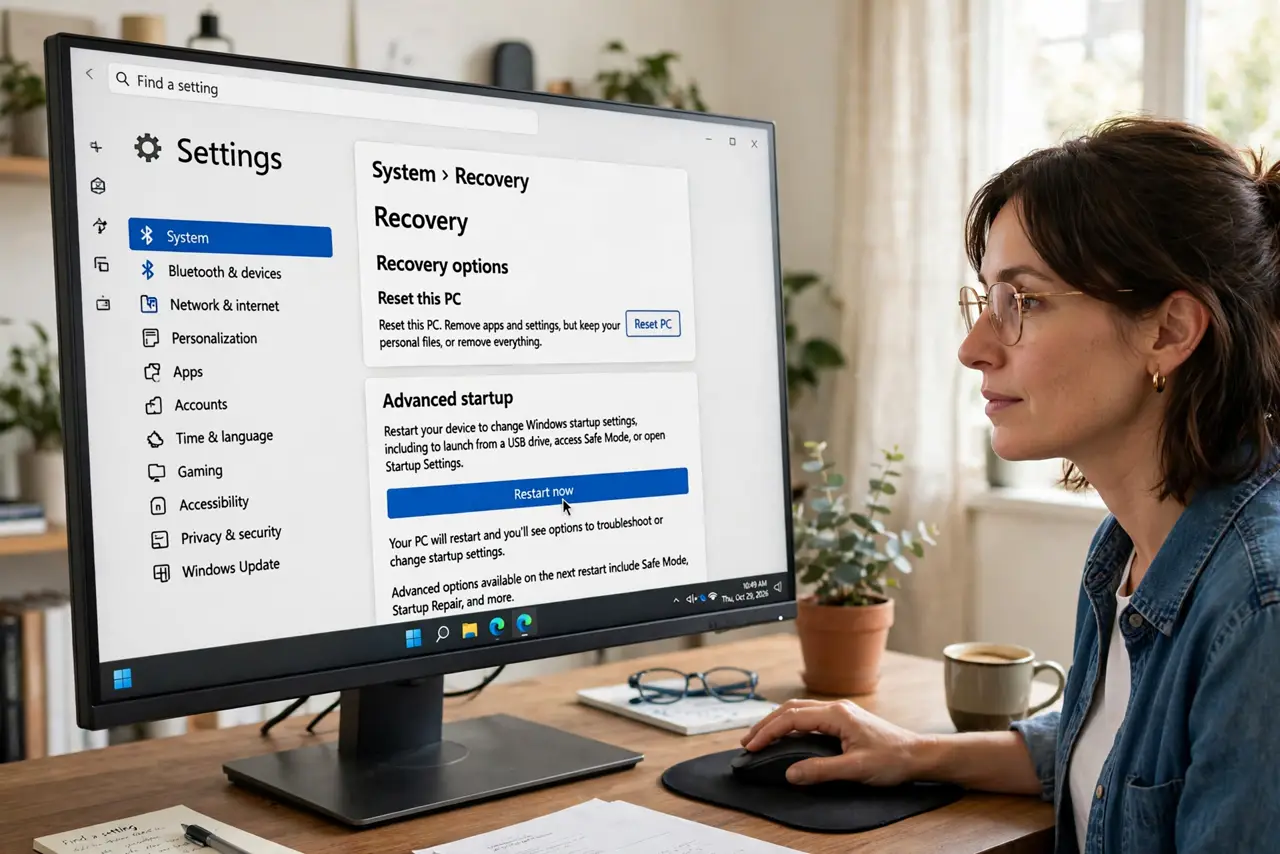
Quick fix: Safe Mode starts Windows with minimal drivers and no startup programs — ideal for diagnosing crashes, bad drivers, and stubborn malware. Get there via Settings, System, Recovery, then Advanced startup. A normal restart exits it. If the problem vanishes in Safe Mode, the culprit loads during normal startup.
Follow these steps
- Enter from Settings. Go to Settings > System > Recovery > Advanced startup and click Restart now. Then choose Troubleshoot > Startup Settings > Restart, and press 4 for Safe Mode.
- Enter from the sign-in screen. Hold Shift, click the Power icon, and choose Restart. The PC boots straight to the recovery menu — handy when you cannot sign in.
- Pick plain Safe Mode first. Option 4 is the classic minimal mode. Choose Safe Mode with Networking only if you need to download a tool or a driver while diagnosing.
- Do your diagnosing. Uninstall the suspect program, roll back the shady driver, run your antivirus scan. The minimal environment stops the culprit from fighting back.
- Restart to leave. A normal restart exits Safe Mode automatically. There is no toggle to flip — just restart like always.
- If it will not leave Safe Mode. Open the Run box, type msconfig, go to the Boot tab, and uncheck Safe boot. That setting is the rare case where Safe Mode sticks.
What NOT to do
- Do not live in Safe Mode. It is a diagnostic garage, not a home — no sound, low resolution, half the features missing by design.
- Do not install big software there. Installers expect full Windows services; Safe Mode is for removing and repairing, not for setting up.
- Do not mistake 'works in Safe Mode' for 'fixed.' It is a clue pointing at startup programs or drivers — follow it, do not stop there.
- Do not change random services while you are in there. Disabling services you do not understand creates new problems on top of the old one.
Frequently asked questions
The screen says Safe Mode in the corners — is that normal?
Yes. The corner labels and black desktop are how you know you are in Safe Mode. It is supposed to look stark.
I need the internet in Safe Mode — what do I pick?
Safe Mode with Networking, option 5. It loads network drivers so you can download tools and drivers while diagnosing.
My PIN does not work in Safe Mode.
Safe Mode sometimes rejects PIN sign-in. Use your full Microsoft account or local password instead.