Startup Repair? What It Does
Windows will not boot, and after a couple of failed starts a blue screen offers Startup Repair. It sounds like a magic fix button — and sometimes it is. Startup Repair is an automatic tool that checks boot files and core settings, fixing the common ways a PC stops starting. Here is what it can and cannot do.
TL;DR / Quick Fix
Quick fix: Startup Repair automatically fixes PCs that will not boot — it repairs damaged boot files and core settings. Find it in Advanced startup under Troubleshoot. It never touches personal files. If it cannot fix things, it says so — then try System Restore or a reset instead.
Follow these steps
- Let it run when offered. After failed boots Windows often launches Startup Repair on its own. Let it finish — interrupting a repair in progress helps nothing.
- Start it manually from Advanced startup. Open Advanced startup, choose Troubleshoot > Advanced options > Startup Repair, and pick your Windows installation.
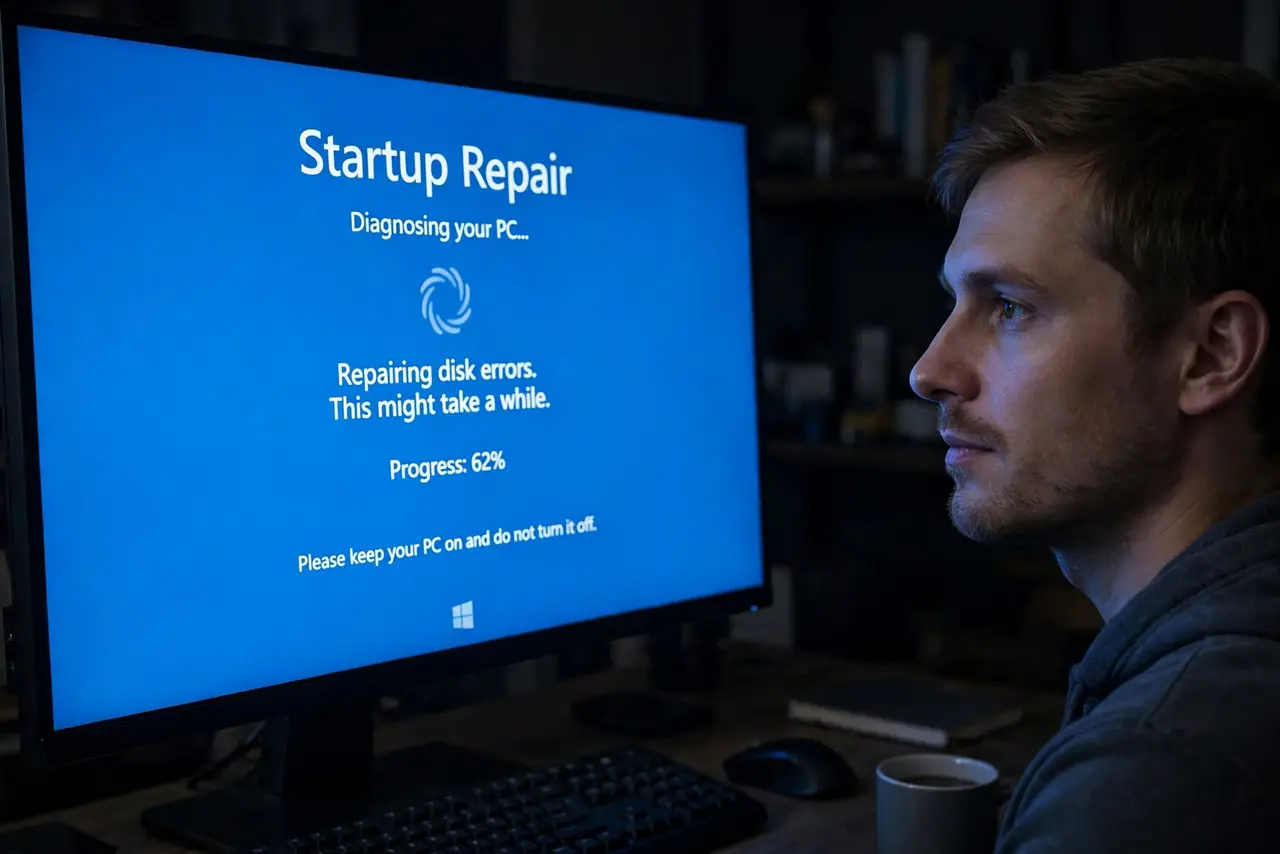
- Give it time. The scan can take several minutes on a slow drive. A still screen is not a frozen screen — wait it out.
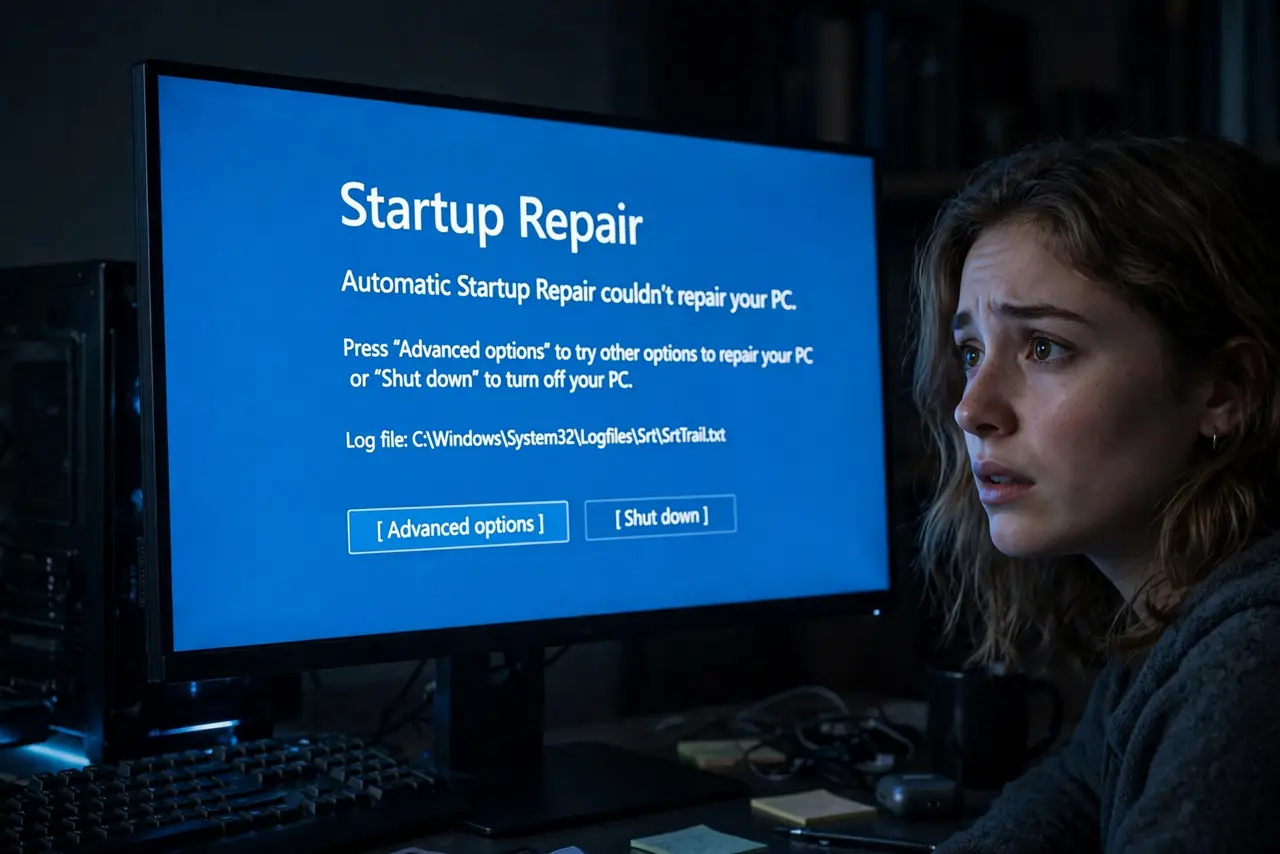
- Read its result honestly. It will report success or that it could not repair the PC. Believe the second message — it is directing you to the next tool, not giving up.
- If it fails, try System Restore. From the same Advanced options menu, roll back to a restore point. Many boot failures are just bad recent changes.
- If that fails too, consider a reset. When repair and restore both fail, a reset keeping your files is the next rung — still safer than a blind reinstall.
What NOT to do
- Do not run it ten times hoping for a different answer. One honest failure means move to the next tool, not repetition.
- Do not expect it to fix hardware failure. A dying drive or bad RAM is beyond any software repair — listen for clicks, check the drive health.
- Do not expect it to recover deleted personal files. It repairs booting, not data — different problem, different tools.
- Do not mistake it for a virus scan. Startup Repair fixes boot damage; it does not hunt malware.
Frequently asked questions
How long should Startup Repair take?
Usually a few minutes. If it runs past half an hour with no change, something deeper is wrong — move on to System Restore.
Will I lose files?
No. Startup Repair touches boot files and system settings only. Your documents are never part of its job.
Why does it keep looping?
That is the Automatic Repair loop — the tool failing and retrying. Break out to Advanced options and choose a different tool.