Customize Windows Sandbox
Windows Sandbox is the perfect disposable PC — except it amnesia-wipes itself every launch: your test files, your settings, your tools, all gone. Reinstalling everything per session gets old fast. The fix is a .wsb configuration file: a small XML file that tells Sandbox to map your folders inside, run a startup script, and adjust networking — so every launch arrives pre-loaded instead of blank.
TL;DR / Quick Fix
Quick fix: Sandbox resets every launch by design, but a .wsb config file can map folders and run a logon script automatically. Write the XML once, double-click it to launch your custom sandbox. Mapped folders are the big win — test files appear inside without manual copying.
Follow these steps
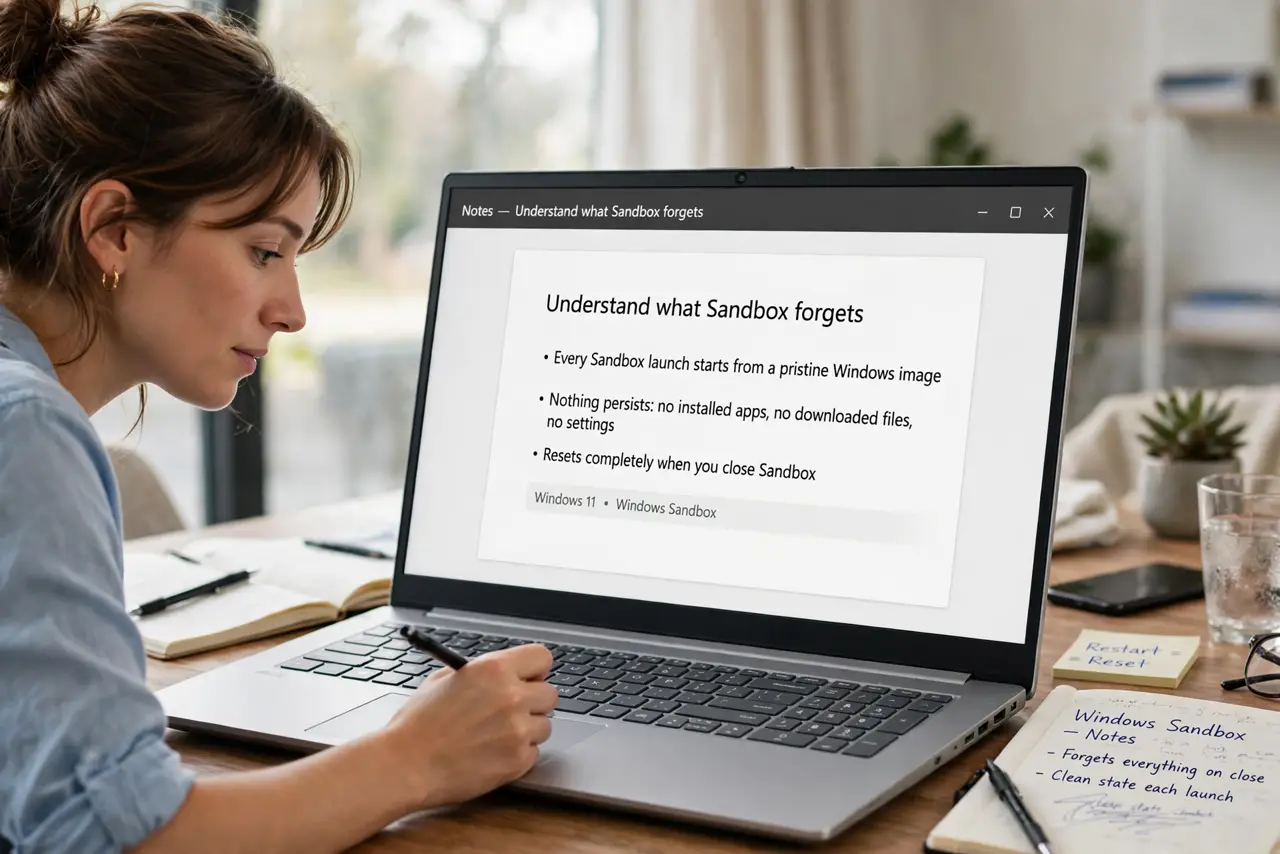
- Understand what Sandbox forgets. Every Sandbox launch starts from a pristine Windows image — nothing persists: no installed apps, no downloaded files, no settings. That is the security model, not a bug. The .wsb file does not add persistence; it automates re-setup.
- Write your first .wsb file. Create a text file with a .wsb extension containing a Configuration block: MappedFolders entries pointing at your host folders, and optionally a LogonCommand. Microsoft documents the schema — a ten-line file covers most needs.
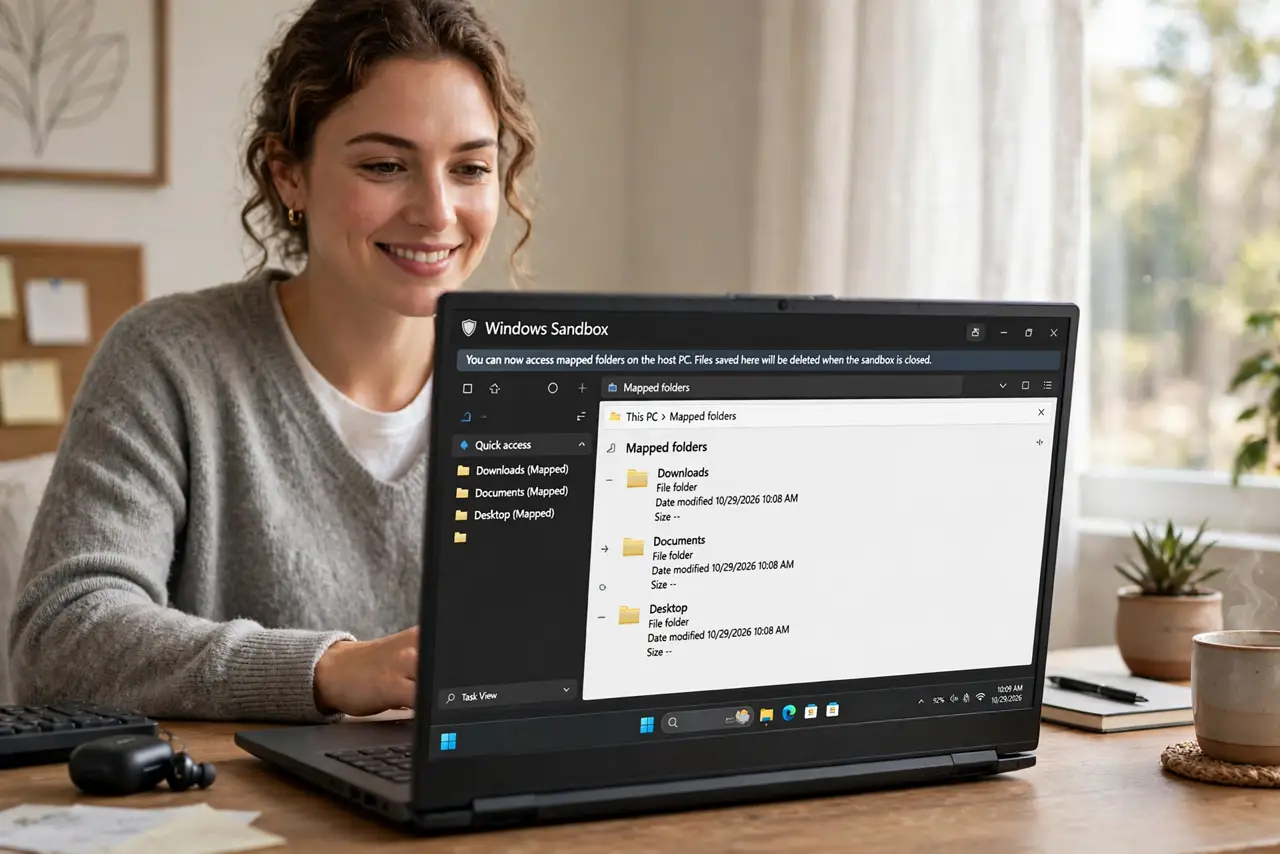
- Map your working folders. Point MappedFolders at the folders with your test files and installers — they appear inside the Sandbox as network shares, read-write if you allow it. This single feature eliminates 90 percent of the per-launch setup pain.
- Add a logon script for installs. The LogonCommand runs at each Sandbox start — use it to silently install your test tools or copy configs into place. Combined with mapped folders, the Sandbox boots essentially ready to work.
- Launch from the .wsb file. Double-click the .wsb file instead of opening Sandbox from Start — it launches with your configuration applied. Keep different .wsb files for different test scenarios: one for installers, one for web testing.
- Decide Sandbox versus Hyper-V. For quick disposable tests, configured Sandbox wins. For persistent virtual machines, snapshots, and heavier workloads, read Hyper-V vs Sandbox — and if Sandbox feels too limited, enable the full Windows Sandbox feature set first.
What NOT to do
- Do not expect files to persist between launches. The .wsb automates setup; it does not make Sandbox remember — save results back to a mapped folder before closing.
- Do not map your entire C: drive read-write. Map only what the test needs; a compromised test environment with broad host access defeats the isolation.
- Do not run untrusted installers with host folder write access. Mapped folders are a bridge — malware in the Sandbox could reach them. Map read-only when testing the truly suspicious.
- Do not skip the logon script once it works. If you find yourself repeating setup steps manually, those steps belong in the script — automate the repetition away.
Frequently asked questions
Where do I put the .wsb file?
Anywhere convenient — Documents, Desktop, a scripts folder. Double-clicking it launches Sandbox with that configuration; the file itself is just XML.
Can I have multiple configurations?
Yes — as many .wsb files as you like, each a different setup. Name them by purpose: testing-installers.wsb, web-check.wsb.
Does the logon script run as admin?
It runs in the Sandbox's default context. For installs needing elevation, include the elevation in the script's commands — test it once and watch for prompts.