Display Scaling? Basics
Everything is microscopic on your new laptop — or comically huge on your monitor. Display scaling tells Windows how big to draw text and interface elements, compensating for high-resolution screens. Set right, a 4K screen looks crisp and readable; set wrong, you get blur or eye strain. Here is how it works and how to fix it.
TL;DR / Quick Fix
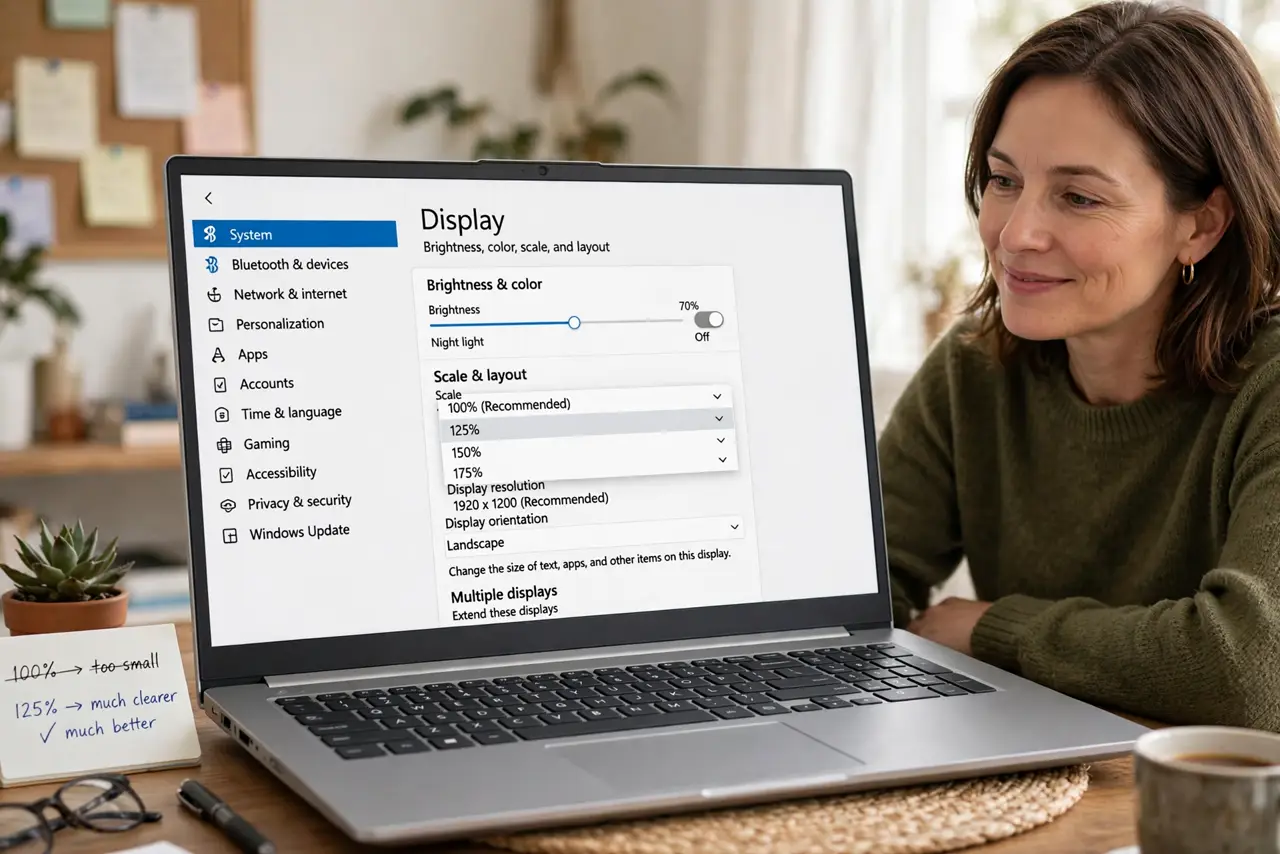
Quick fix: display scaling (Settings > System > Display > Scale) enlarges text and interface on high-resolution screens — try 125% or 150% if everything looks tiny. Sign out and back in if apps look blurry afterward. Never fix tiny text by lowering resolution; scaling is the right tool.
Follow these steps
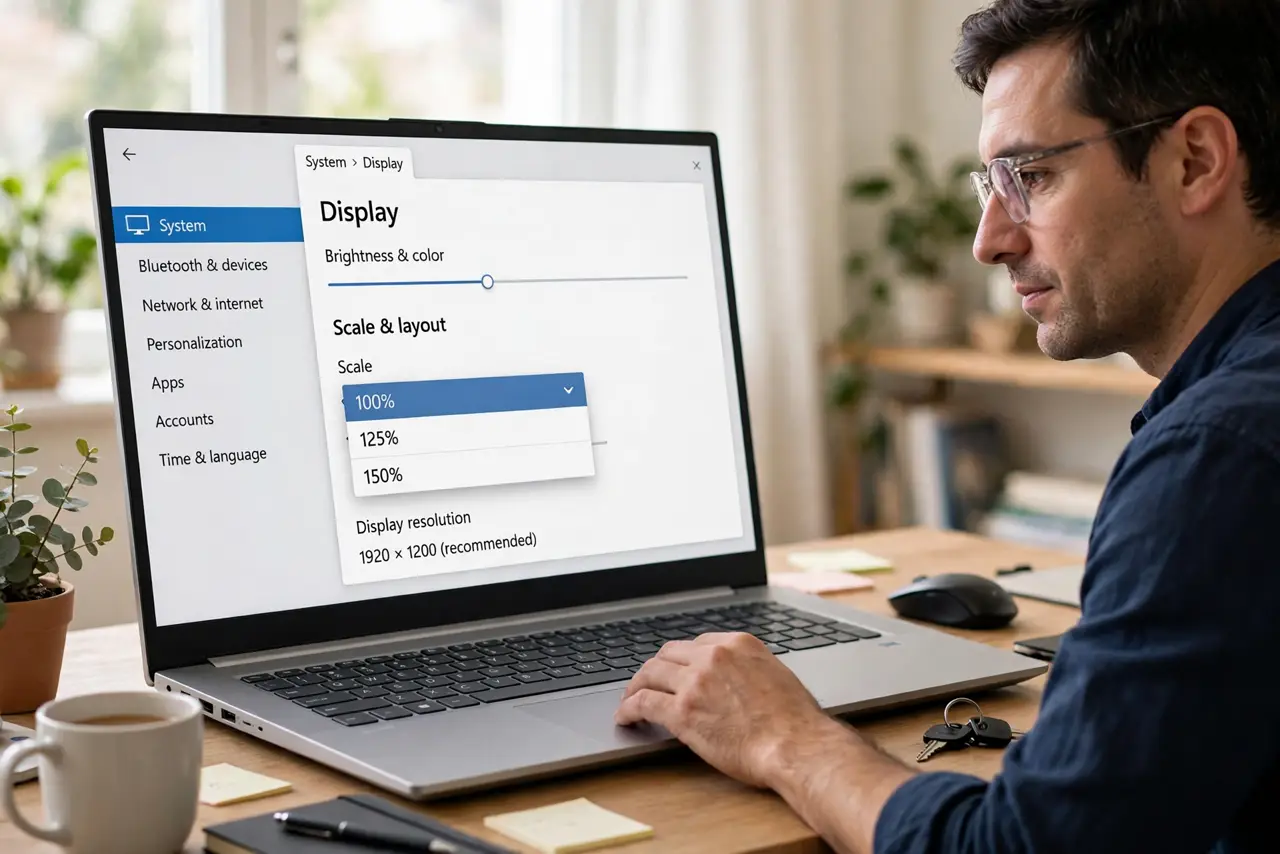
- Find the Scale setting. Go to Settings > System > Display and look for Scale — a percentage dropdown, usually 100%, 125%, or 150%. This is the correct control for 'everything is too small,' full stop.
- Pick the right percentage. Try 125% first on laptops, 150% on dense 4K screens. Text should be comfortably readable at arm's length. There is no universal right answer — your eyes decide.
- Fix blurry apps after scaling. Some older apps blur at non-100% scaling. Sign out and back in (or restart the app) — Windows re-renders on login. For stubborn apps, the compatibility tab offers per-app scaling overrides. See the blurry-app fix for the full routine.
- Do not lower the resolution instead. Dropping a 4K screen to 1080p to enlarge text makes everything fuzzy — you bought those pixels, use them. Scaling enlarges the interface while keeping full sharpness.
- Set per-monitor scaling. With multiple monitors, select each display at the top of the Display page and set its scale independently. A 4K laptop screen and a 1080p monitor genuinely need different values — see external monitor scaling.
- Know when to sign out. Changing scale sometimes needs a sign-out to apply cleanly to all apps. Windows will tell you — when it does, believe it rather than living with half-scaled weirdness.
What NOT to do
- Do not lower resolution to fix tiny text. Scaling keeps sharpness; resolution-dropping destroys it.
- Do not set 175%+ unless you need it. Oversized interfaces waste screen space and break some app layouts.
- Do not ignore the sign-out prompt. Half-applied scaling causes the exact blurriness people blame on Windows.
- Do not use the same scale on mismatched monitors. A 4K panel and a 1080p panel need different values — set each.
Frequently asked questions
Why are some apps blurry at 125%?
They were built before high-DPI screens and do not declare themselves scaling-aware. Restart them, or use the per-app compatibility override.
What scale should a 4K 27-inch monitor use?
Usually 150%. Start there and adjust — 125% if you like dense, 175% if your eyes prefer large.
Does scaling hurt gaming performance?
No — games render at the resolution you set in-game, independent of desktop scaling. Desktop scale affects the interface, not the game's pixels.