Scan Multiple Pages
You need to scan a ten-page contract and end up with ten separate files named Scan001 through Scan010 — useless for emailing or archiving. The Windows Scan app can feed all pages into one PDF if you know where the setting hides, and most scanners have a document feeder that does the mechanical part. This guide produces one tidy multi-page PDF from any stack of paper. For the digital side of paperless, learn to print anything to PDF.
TL;DR / Quick Fix
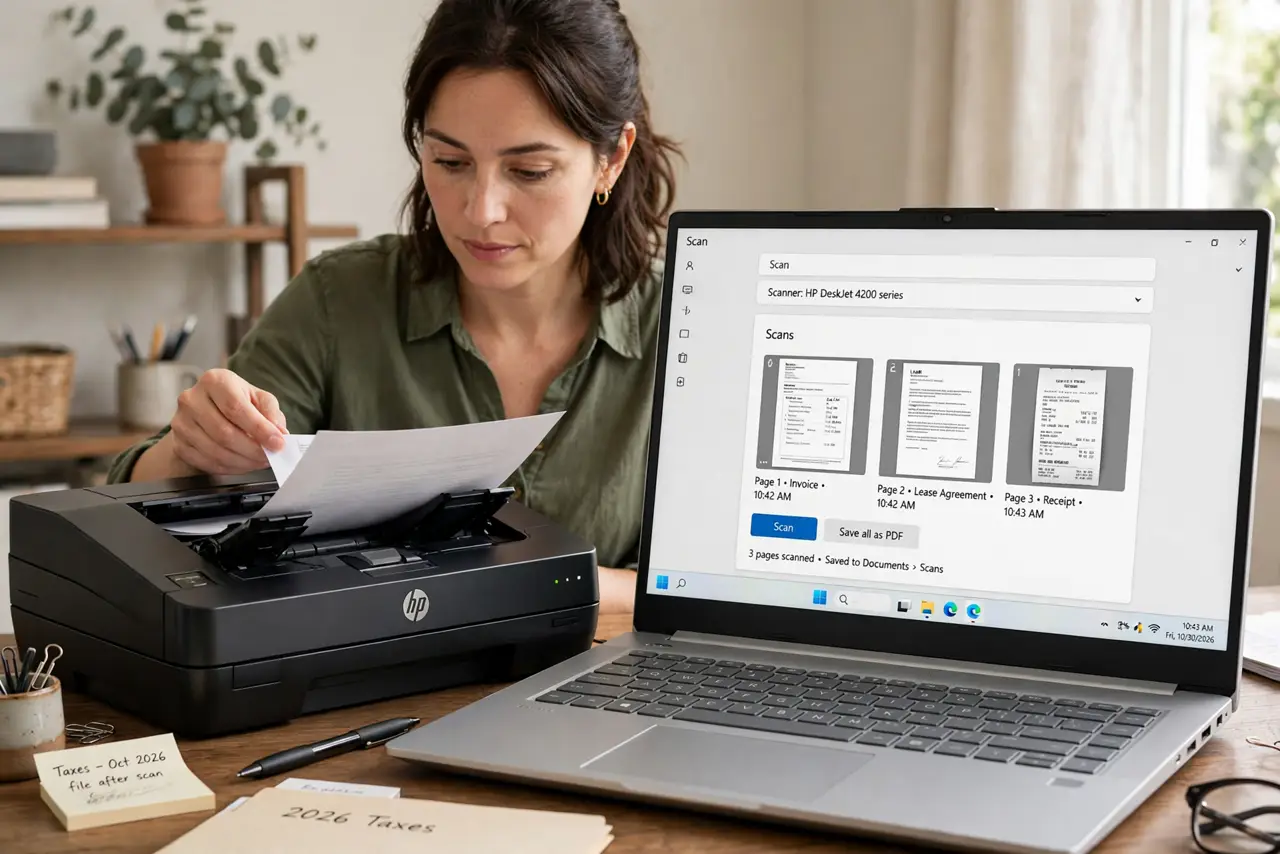
Quick fix: open the Windows Scan app, set the file type to PDF, and use your scanner's document feeder — or scan pages one by one with the flatbed, adding each to the same file. Check the page order in the preview before saving one combined PDF.
Follow these steps
- Open the Windows Scan app. Search for Scan in the Start menu. The built-in app handles most scanners without the maker's bloated software — try it first.
- Select your scanner. Choose the scanner in the app's sidebar. If it does not appear, the maker's driver from their official site is the fix — Windows Update sometimes misses scanner drivers.
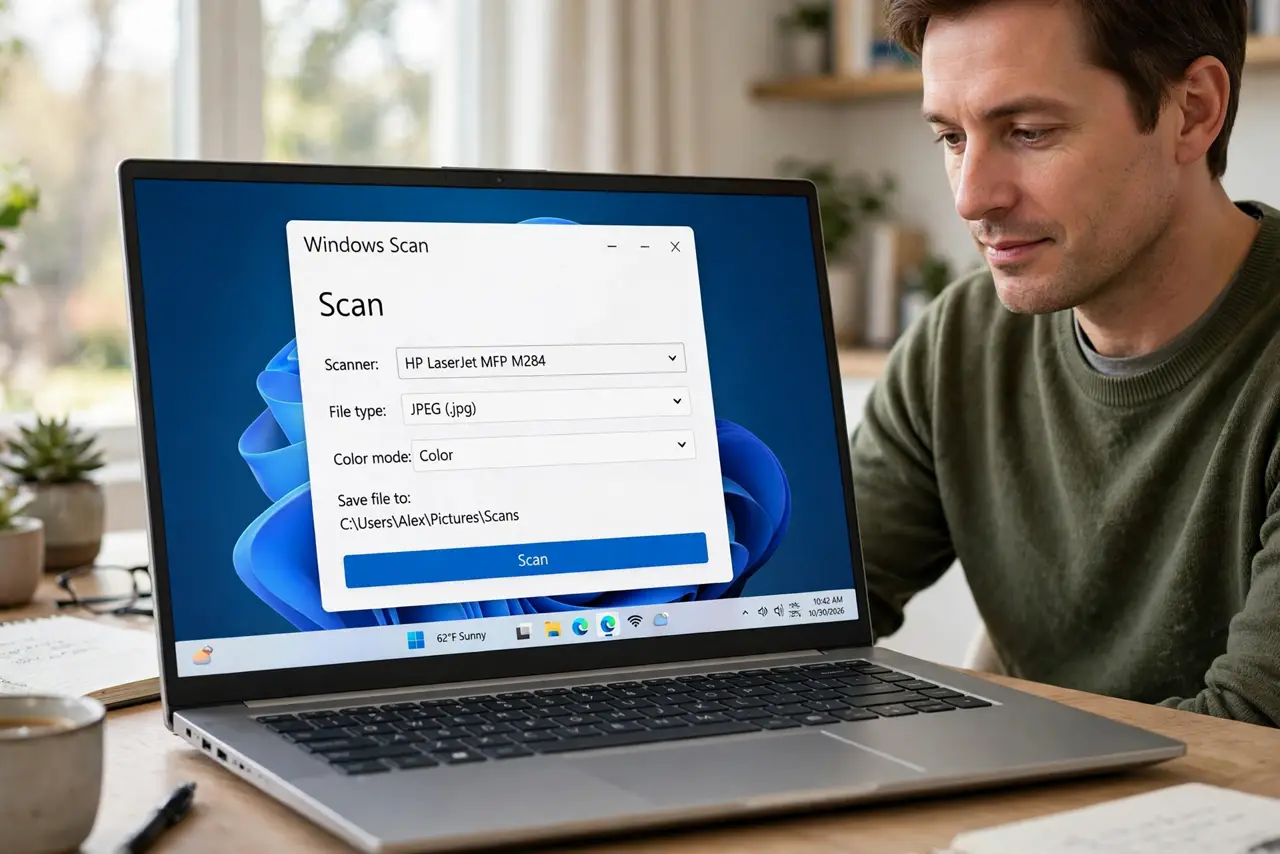
- Set file type to PDF. In the scan settings, change the file type from JPEG to PDF. JPEG gives one file per page; PDF is what combines pages into a single document.
- Use the document feeder if you have one. Load the stack in the feeder, choose the feeder as the source, and scan — the app pulls every page into one PDF automatically. This is the fast path.
- Add flatbed pages one by one. No feeder? Scan page one on the flatbed, then use the app's add-page option for each subsequent page. Slower, but the result is the same single PDF.
- Check order before saving. Review the thumbnail strip — upside-down or out-of-order pages are easy to fix here and maddening later. Then save with a real filename.
What NOT to do
- Do not scan ten pages as JPEGs and email them separately. One PDF is the professional result — the setting is one dropdown away.
- Do not scan at maximum resolution for documents. 300 DPI is plenty for text; higher just bloats the file and slows everything.
- Do not forget to check both sides. If the contract is double-sided, enable duplex or flip the stack — missing backs are the classic rescan.
- Do not leave the default filename. Scan.pdf in Documents joins a hundred others — name it for what it is, dated.
Frequently asked questions
Why is my PDF huge?
Color scans at high resolution balloon fast. For text documents, grayscale at 300 DPI gives a small, crisp file.
Can I scan directly to an editable document?
The Scan app makes image PDFs. For editable text you need OCR software — many scanner makers bundle a basic version.
The feeder jams — now what?
Fan the pages, align the stack, and do not overfill. For small stacks, the flatbed is slower but jam-proof.