Scanner Driver Vanishes After an Update? Fix It
When a scanner stops working after an update, the scanner itself is rarely broken. The update may have replaced or removed its driver, or the scanning app may be looking in the wrong place. Checking the device, then reinstalling the maker driver, usually brings scanning back.
TL;DR / Quick Fix
Quick fix: open Device Manager and check whether the scanner appears and whether it shows a warning. If it is missing or flagged, download the scanner driver from the scanner maker official support page for your exact model, install it, restart, and test one scan.
Follow these steps
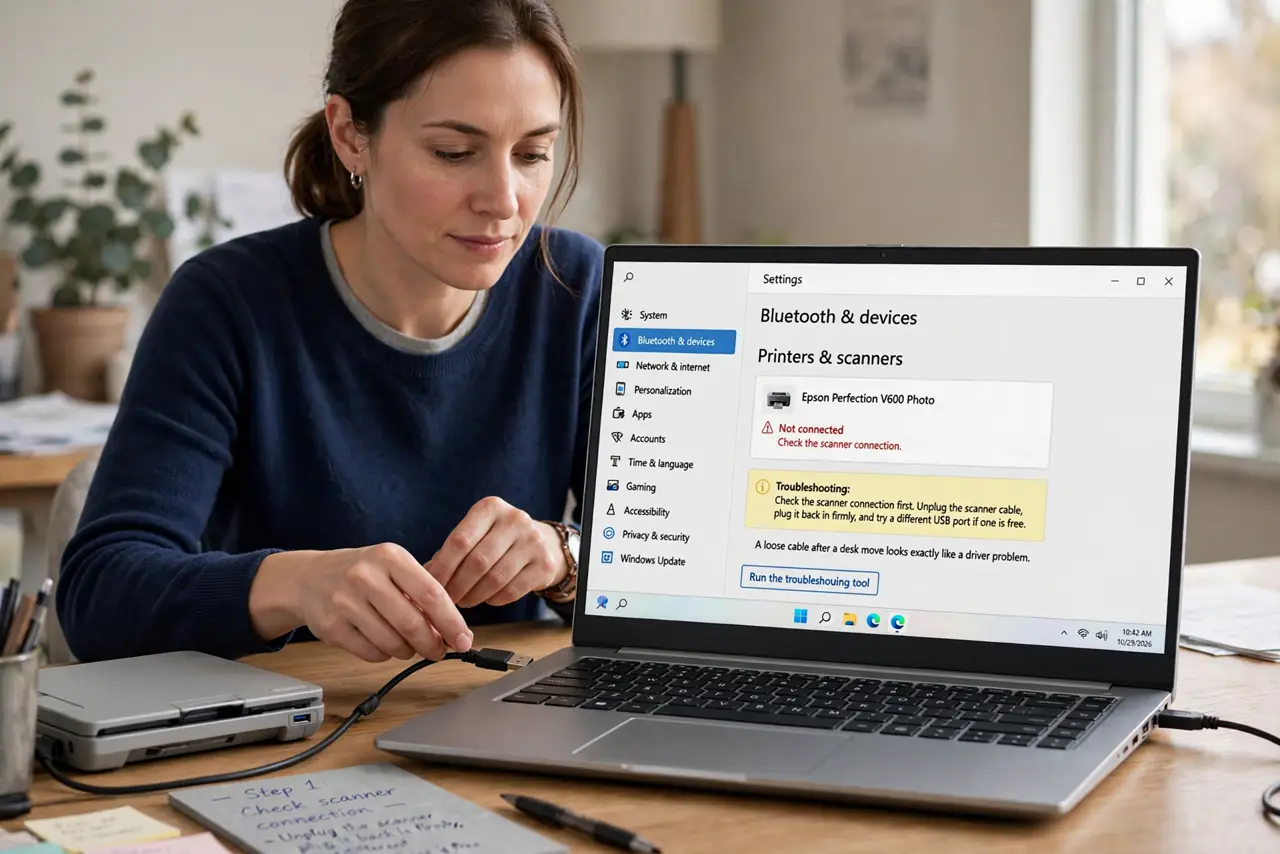
- Check the scanner connection first. Unplug the scanner cable, plug it back in firmly, and try a different USB port if one is free. A loose cable after a desk move looks exactly like a driver problem.
- Look for the scanner in Device Manager. Open Device Manager and look under imaging devices and USB devices. Note whether the scanner is listed, missing, or marked with a warning.
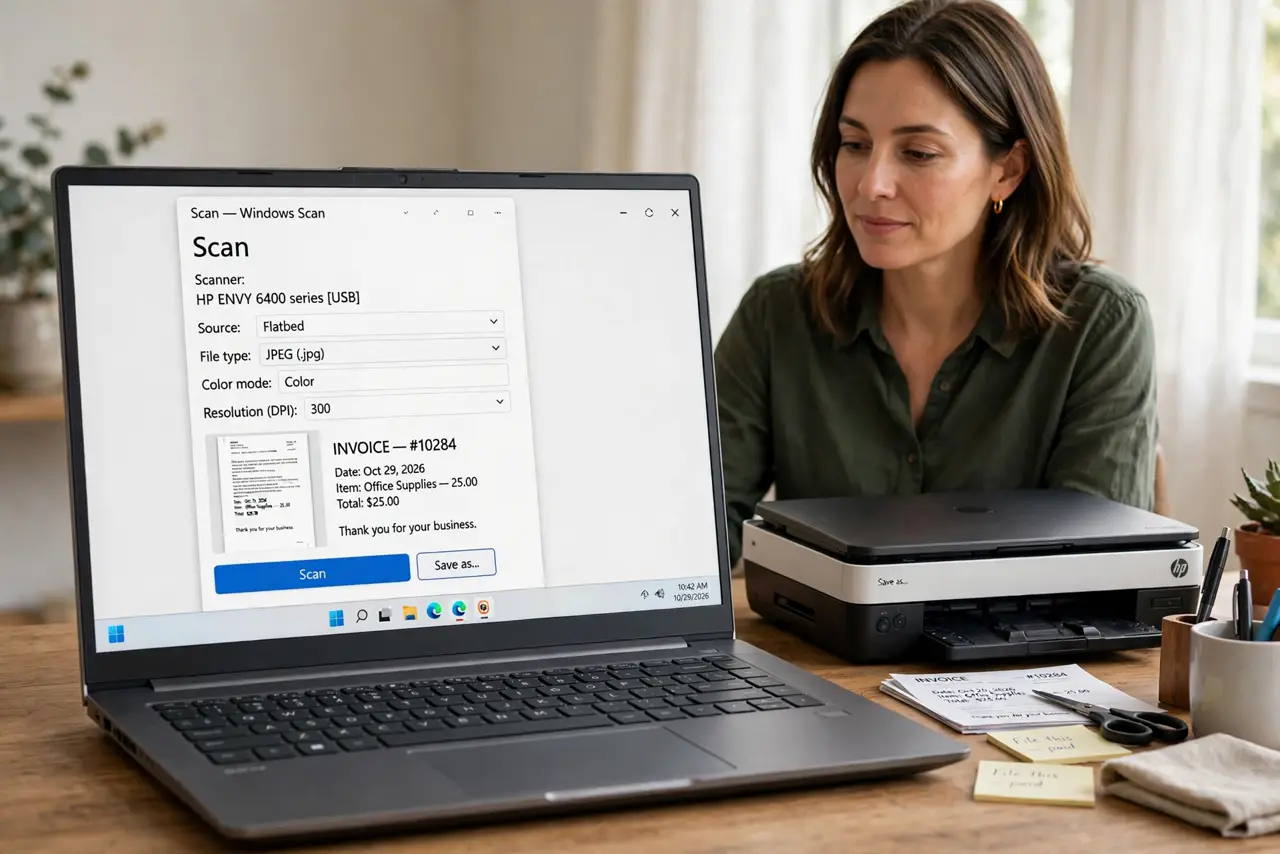
- Try Windows Scan or Fax and Scan. Open Windows Scan and see whether the scanner appears there. If it appears, the driver works, and the problem is in the other scanning app, not the scanner.
- Download the maker driver. Visit the scanner maker official support page for your exact model, and download only the driver listed for Windows and your model. Avoid driver download sites.
- Install, restart, and test one scan. Install the driver, restart the computer, and scan a single page. A single-page test proves the fix before you scan a large batch.
- Check the scanning app settings. If the scanner works in one app but not another, open the failing app settings and confirm it points to the right scanner, not an old or network entry.
What NOT to do
- Do not buy a new scanner because one update broke the driver. A missing driver is a software fix, and a new scanner would need the same driver anyway.
- Do not install a driver updater tool from an ad. These tools often install the wrong driver and add unwanted software on top.
- Do not delete every imaging device in Device Manager. Remove only the scanner entry if you must, and restart right after so Windows can detect it again.
- Do not scan a large batch before a single-page test. If the driver is still broken, a large batch wastes time and can jam the scanner feeder.
Frequently asked questions
Why do updates break scanner drivers?
An update can replace a maker driver with a generic one, or remove an older driver it no longer supports. Reinstalling the maker driver restores the full features.
My printer still works but the scanner does not. Why?
Many combined devices use separate drivers for printing and scanning. The print driver can survive an update while the scan driver does not.
What if the maker offers no new driver?
Check the maker page for your exact model and Windows version. If none is listed, Windows Scan may still work with a generic driver, so test that before replacing the device.