Set Screen Timeouts
Your laptop screen blazes all night on the desk, or it goes black mid-paragraph while you are reading. Both are screen timeout settings — how long Windows waits before turning the display off — and they are separate for battery and plugged-in. Here is where they live and what values make sense.
TL;DR / Quick Fix
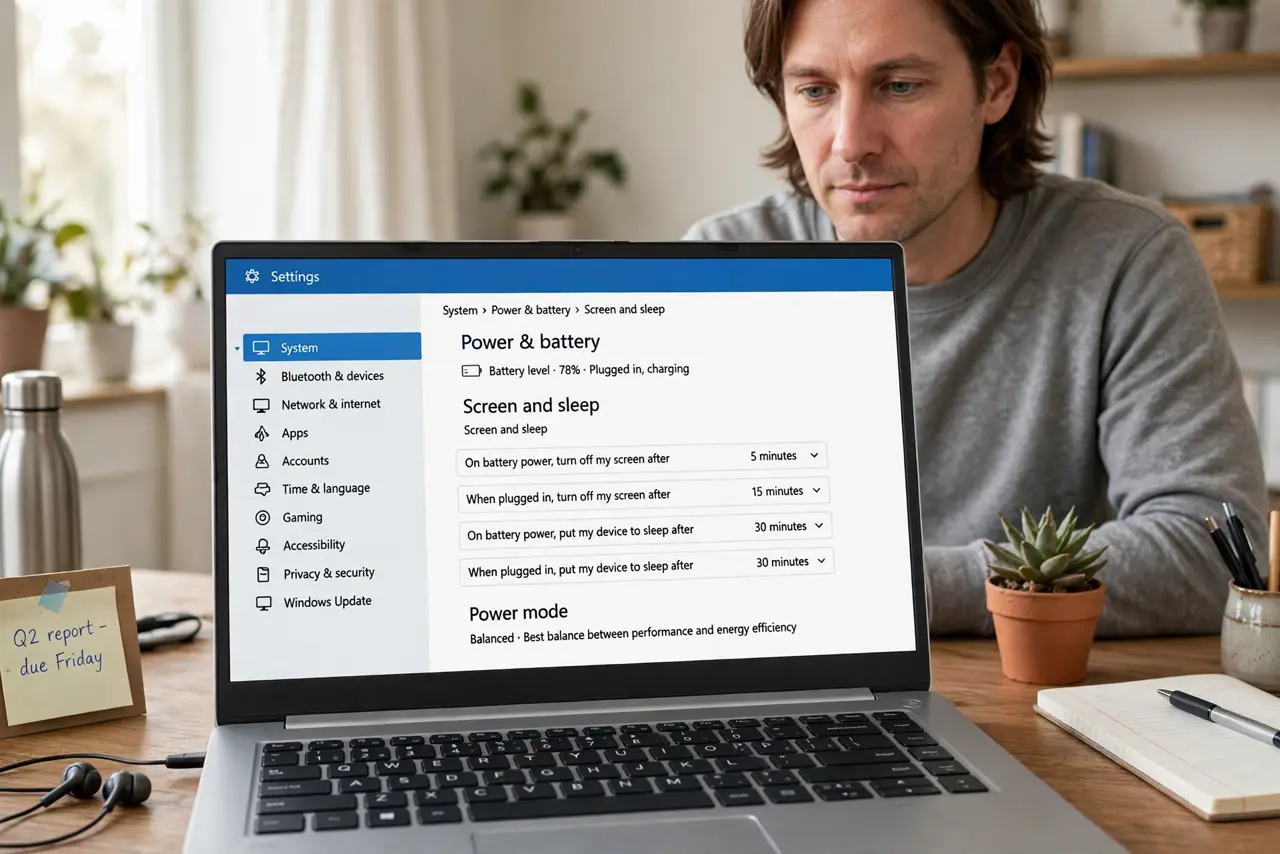
Quick fix: open Settings, System, Power and battery, then set the screen to turn off after a few idle minutes on battery and plugged in. Shorter timeouts save battery and add privacy; longer ones avoid mid-read blackouts. Pair it with auto-lock so the PC also secures itself.
Follow these steps
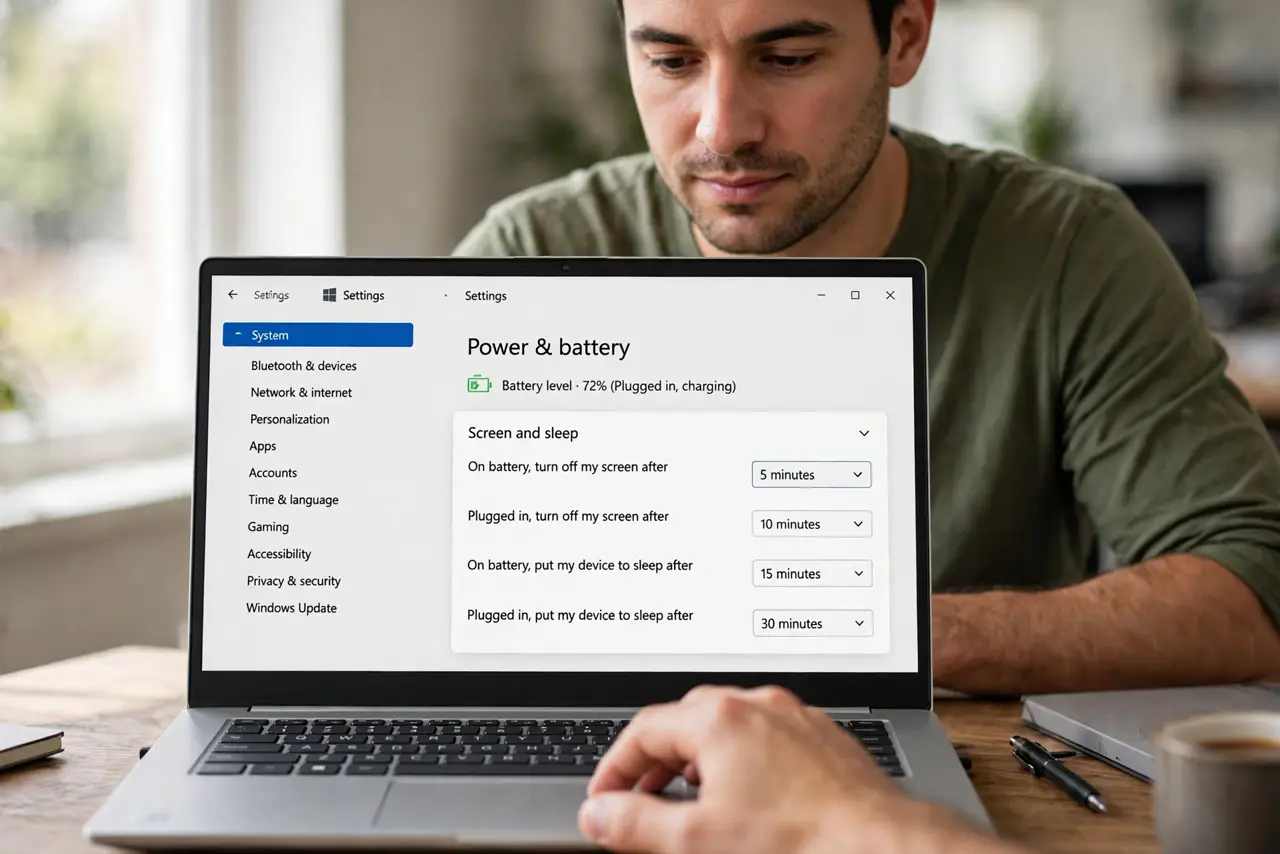
- Open Power and battery. Go to Settings, System, Power and battery, then expand Screen and sleep. You will see separate timeouts for On battery and Plugged in — set both.
- Set the battery timeout short. Five minutes or less on battery is the sensible default. The screen is the biggest battery drain — this one setting meaningfully extends unplugged time.
- Set the plugged-in timeout longer. Ten to fifteen minutes plugged in avoids annoyance while keeping some privacy. Your desk, your call — there is no battery cost.
- Understand sleep vs screen off. Screen off just darkens the display; sleep powers down more. They are separate timers on the same page — screen off first, sleep later is the normal arrangement.
- Pair it with auto-lock. A dark screen is not a locked PC. Set auto-lock timing so the machine also secures itself — and check the lock screen timeout details for the full picture.
- Check what blocks it. If the screen never turns off, a video player, presentation, or game is suppressing idle. Close suspects one by one to find the culprit.
What NOT to do
- Do not set screen timeout to Never on a laptop. It wastes battery and broadcasts your screen to everyone nearby.
- Do not confuse screen-off with sleep. Screen-off saves the display; sleep saves everything — set both deliberately.
- Do not max out timeouts to avoid mid-movie blackouts. Media players suppress the timer themselves — long timeouts just waste power the other 23 hours.
- Do not ignore the plugged-in setting. Many people set battery carefully and leave plugged-in at an hour — set both.
Frequently asked questions
What is a good screen timeout?
Five minutes on battery, ten to fifteen plugged in. Adjust to taste from there.
Why does my screen turn off during movies?
The player should prevent that — if it does not, the app is misbehaving. Most players suppress the timer correctly.
Does screen timeout affect lock?
Indirectly — the lock timer runs on its own setting. Set both so the screen darkens and the PC locks.