Scroll Direction Is Wrong in Just One App
Scroll direction that feels natural everywhere except one app is almost always that app own setting, or a mouse tool profile for that app, rather than a Windows fault. This guide finds the one place that differs. If your pointer speed also resets, see mouse pointer speed resetting after reboot.
TL;DR / Quick Fix
Quick fix: Confirm the direction in a second app. Check Windows scroll direction first. Then work through the remaining steps in order, checking one change at a time, and stop for a technician if you see damage, swelling, or a burning smell.
Follow these steps
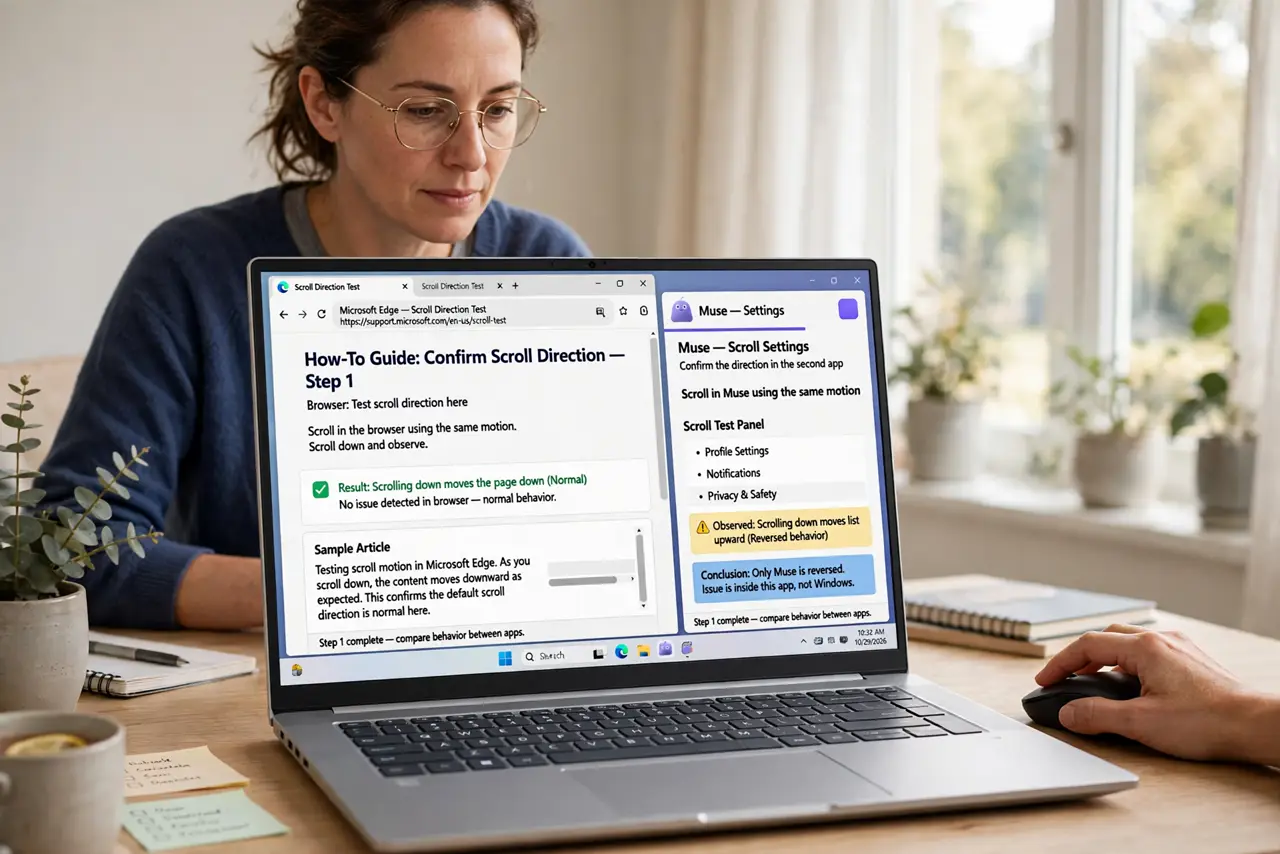
- Confirm the direction in a second app. Scroll in a browser, then in the odd app, using the same mouse and the same motion. If only one app reverses, the cause is inside that app, not Windows.
- Check Windows scroll direction first. Open Settings, then Bluetooth and devices, then Mouse, and confirm Scrolling direction for the wheel. Note the setting, so you can tell whether the odd app matches it or reverses it.
- Check the app own scroll setting. Inside the odd app, open its settings or preferences and look for scroll direction, natural scrolling, or reverse scrolling. Change it to match Windows, then test again in the same document.
- Check mouse software app profiles. If your mouse has maker software, look for a profile tied to the odd app. A per-app profile can reverse scrolling for one program while leaving the rest normal.
- Test with a different mouse. Plug in a basic mouse and scroll in the odd app. If direction turns normal, the first mouse software was reversing it, and if it stays reversed, the app setting is confirmed.
- Restart the app after changing. Close the odd app fully and reopen it after changing its scroll setting. Some apps read scroll direction only at launch, so a change made while running can look like it failed.
What NOT to do
- Do not flip the Windows direction to suit one app. That reverses every other app, trading one problem for many.
- Do not install a scroll reverser tool before checking the app setting. The app own toggle is the clean fix when it exists.
- Do not assume the mouse wheel is broken. A wheel that scrolls consistently, even in the wrong direction, is working, and direction is a setting.
- Do not change two settings at once. Change the app setting, test, then the mouse profile, so you know which one fixed it.
Frequently asked questions
What is natural scrolling?
It is the direction where content follows your finger, like a touchscreen. Traditional scrolling moves the scrollbar instead, which feels opposite.
Why do some apps ignore Windows scroll direction?
Some apps, especially creative tools, use their own scroll handling and offer their own direction toggle.
Does this affect touchpads too?
Yes, touchpads have their own direction setting, separate from the mouse wheel, so check the touchpad page if the issue is touchpad-only.