Windows Search Finds Nothing? Fix It
Windows search should find apps, files, and settings as you type. When it returns nothing, the cause is often a stuck search process or a broken index, and both can be fixed without deleting your files.

TL;DR / Quick Fix
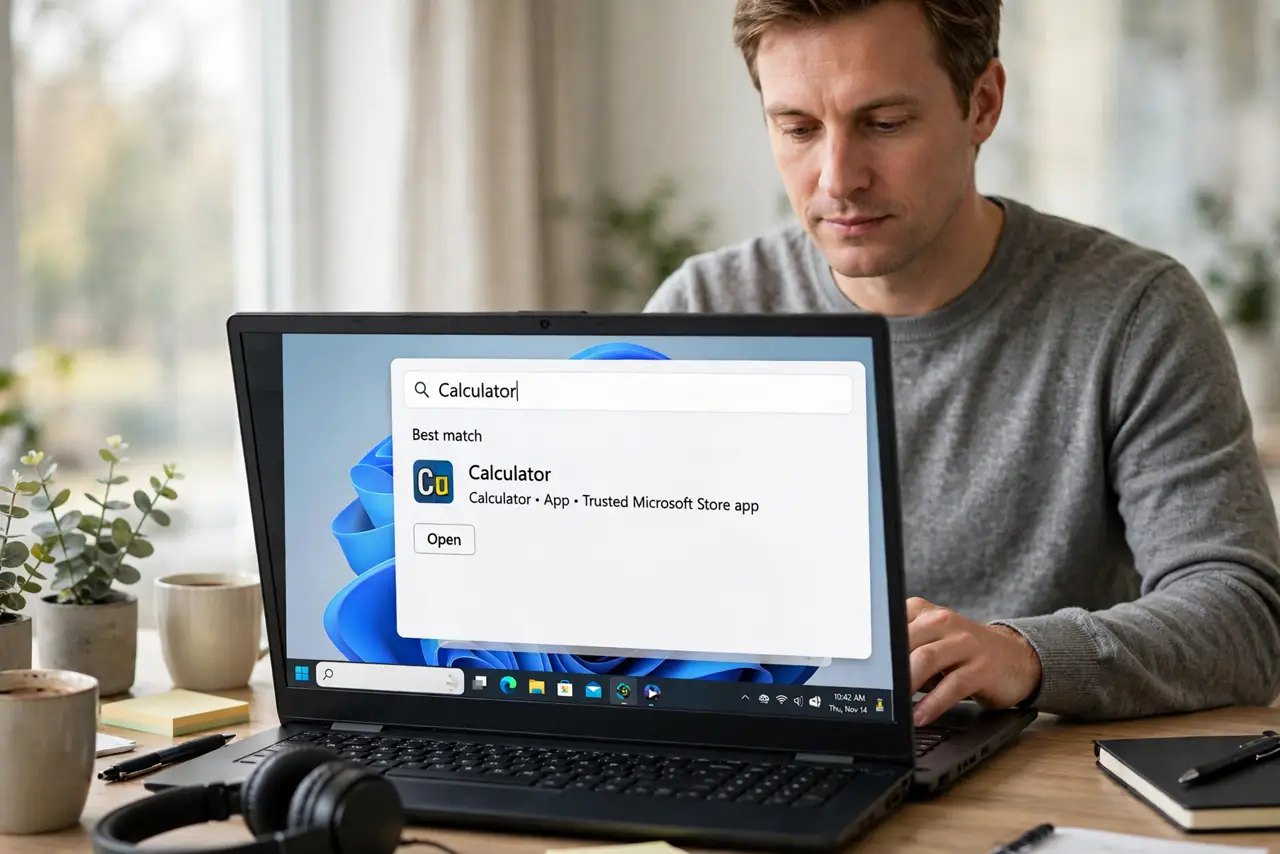
Quick fix: type a simple app name like Calculator in the search box and wait a few seconds. If nothing appears, restart the computer once. If search still finds nothing, open Settings and run the Search troubleshooter before rebuilding the index.
Follow these steps
- Test with a simple app name. Click the search box and type Calculator. A simple built-in app name is the cleanest test, because it should always appear if search is working.
- Restart once. Save your work and restart the computer. A restart clears a stuck search process, and it is the fastest check before you change any setting.
- Run the Search troubleshooter. Open Settings, then System, then Troubleshoot, then Other troubleshooters, and run Search and Indexing. Follow its prompts and note what it reports.
- Check that search is not paused or filtered. In search settings, check that you are searching apps and files, not a narrow filter. Remove any odd filter and try the same test name again.
- Rebuild the index only if the troubleshooter says so. In Indexing Options, choose Advanced, then Rebuild. Rebuilding takes time and uses the computer heavily, so start it when you do not need the computer for a while.
- Test files and settings separately. After rebuilding, search for a file name and then for a setting name. If apps appear but files do not, the file locations in the index may need checking, not the whole system.
What NOT to do
- Do not delete the search index files by hand from system folders. You can break search further and lose settings that are hard to restore.
- Do not install a third-party search replacement from a pop-up. It may add ads or change other settings, and it does not fix the built-in index.
- Do not run random commands copied from a forum. Some commands reset more than search, and a wrong one can change settings you did not mean to touch.
- Do not reinstall Windows for a search problem. Search can almost always be fixed with a restart, the troubleshooter, or an index rebuild.
Frequently asked questions
Why does search find apps but not files?
The index may be missing the folder where your files live, or the index is still rebuilding. Check Indexing Options for the folders included.
How long does rebuilding the index take?
It depends on how many files you have. Let it run while you are away from the computer, and do not restart in the middle of it.
Will rebuilding delete my files?
No. Rebuilding only remakes the search list. Your files stay where they are, and search improves as the list fills again.