Tame Search Highlights
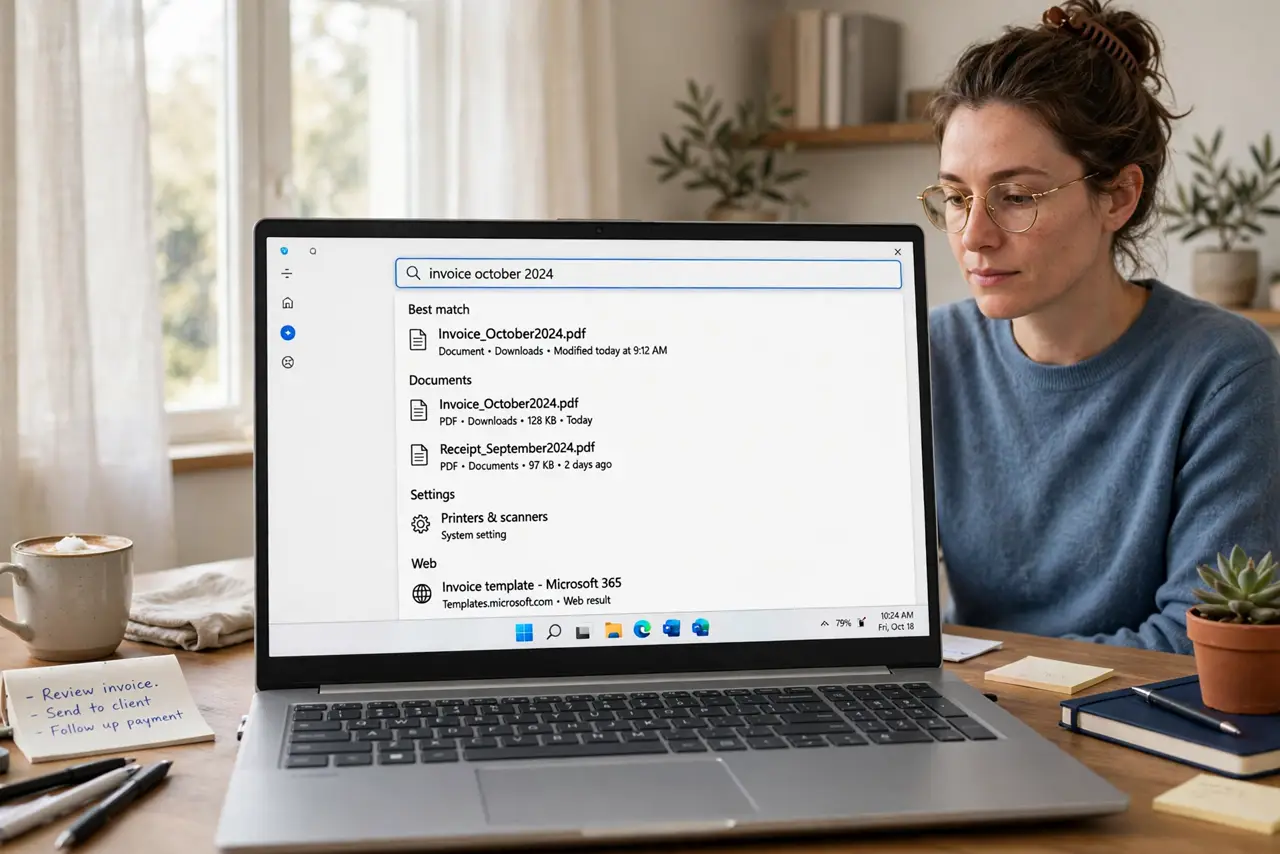
Open Windows Search and instead of a clean box you get rotating art, doodles, and moment-of-the-day illustrations. Search Highlights dress up the search panel — and distract every time you just want to find an app. One toggle returns search to a quiet, fast tool.
TL;DR / Quick Fix
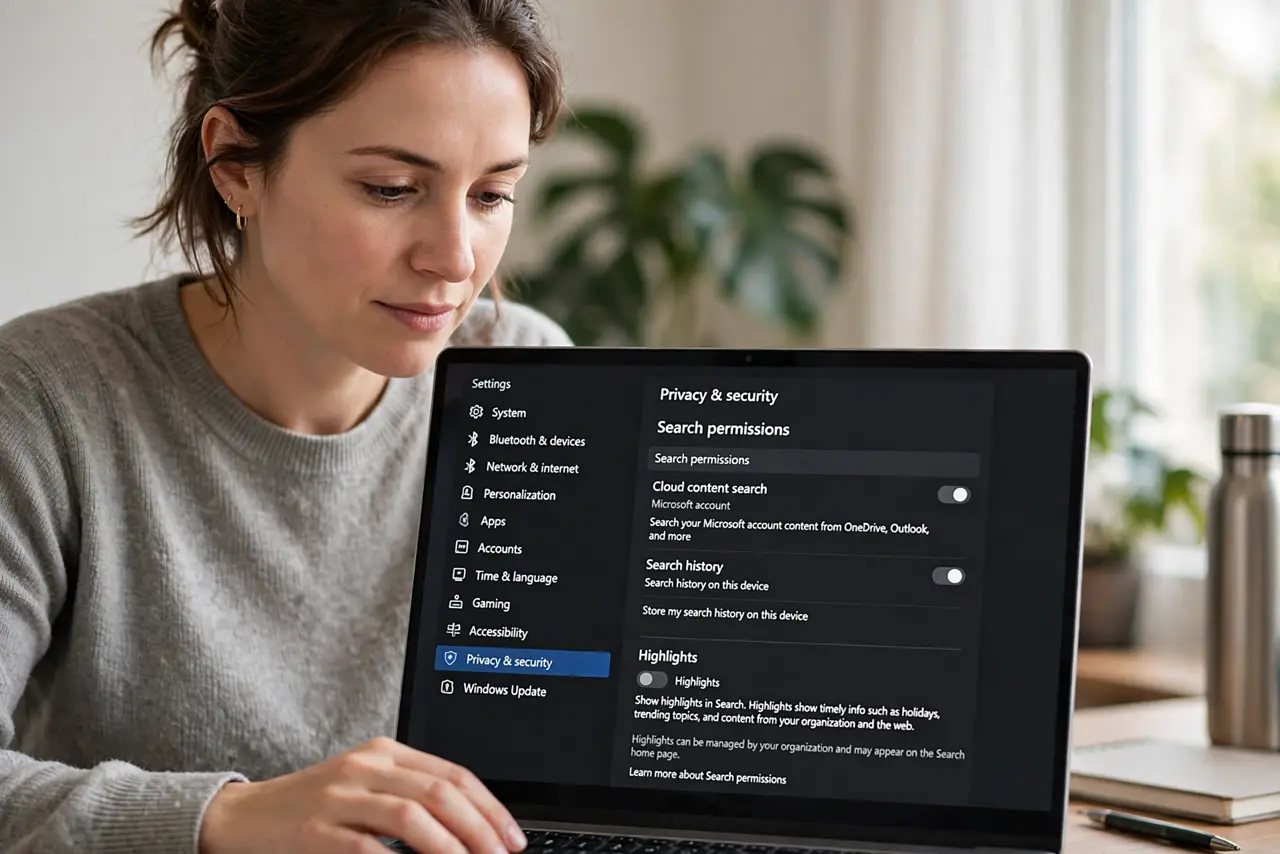
Quick fix: open Settings, Privacy and security, then Search permissions, and turn off Show search highlights. The search panel goes back to a plain, fast results list. Nothing else changes — your files, apps, and web results all work exactly as before, minus the decoration.
Follow these steps
- Open the search settings. Go to Settings, then Privacy and security, then Search permissions. The highlights toggle lives at the bottom of this page — Microsoft buries it deliberately.
- Turn off Show search highlights. Flip the toggle off. The search panel immediately drops the art and illustrations — no restart needed.
- Confirm the clean panel. Press the Windows key and type. The panel should show only your apps, files, and results — quiet and fast, as search should be.
- Leave web results as you like. This toggle only removes the decorative highlights. Web search integration is a separate setting — tame or keep it independently.
- Check after major updates. Big Windows updates occasionally re-enable highlights. If the art returns, the same toggle turns it off again in seconds.
- Consider the taskbar search box. While here, decide whether the taskbar search box earns its space — hiding it pairs well with a calmer search experience.
What NOT to do
- Do not disable Windows Search entirely over this. The highlights are one toggle; killing search costs you fast app launching.
- Do not edit the registry for this. The Settings toggle does the job — registry hacks risk more than they fix.
- Do not confuse highlights with ads. They are decorative content, not advertising — annoying, but not malicious.
- Do not forget it is per-user. Other accounts on the PC keep their own setting — set it where you look.
Frequently asked questions
What are Search Highlights?
Rotating illustrations and moments in the Windows Search panel — decoration Microsoft adds to make search feel lively.
Will turning it off speed up search?
Slightly — less content to load means a snappier panel, especially on slower machines.
Can I get them back?
Yes — the same toggle re-enables them anytime. It is a preference, not a removal.