Change Default Browser
Every link opens in the browser you do not want — Windows keeps resetting or ignoring your choice. The default browser setting controls which app opens every link from email, chat, and documents. Setting it properly takes a minute, and it stays put once done right.
TL;DR / Quick Fix
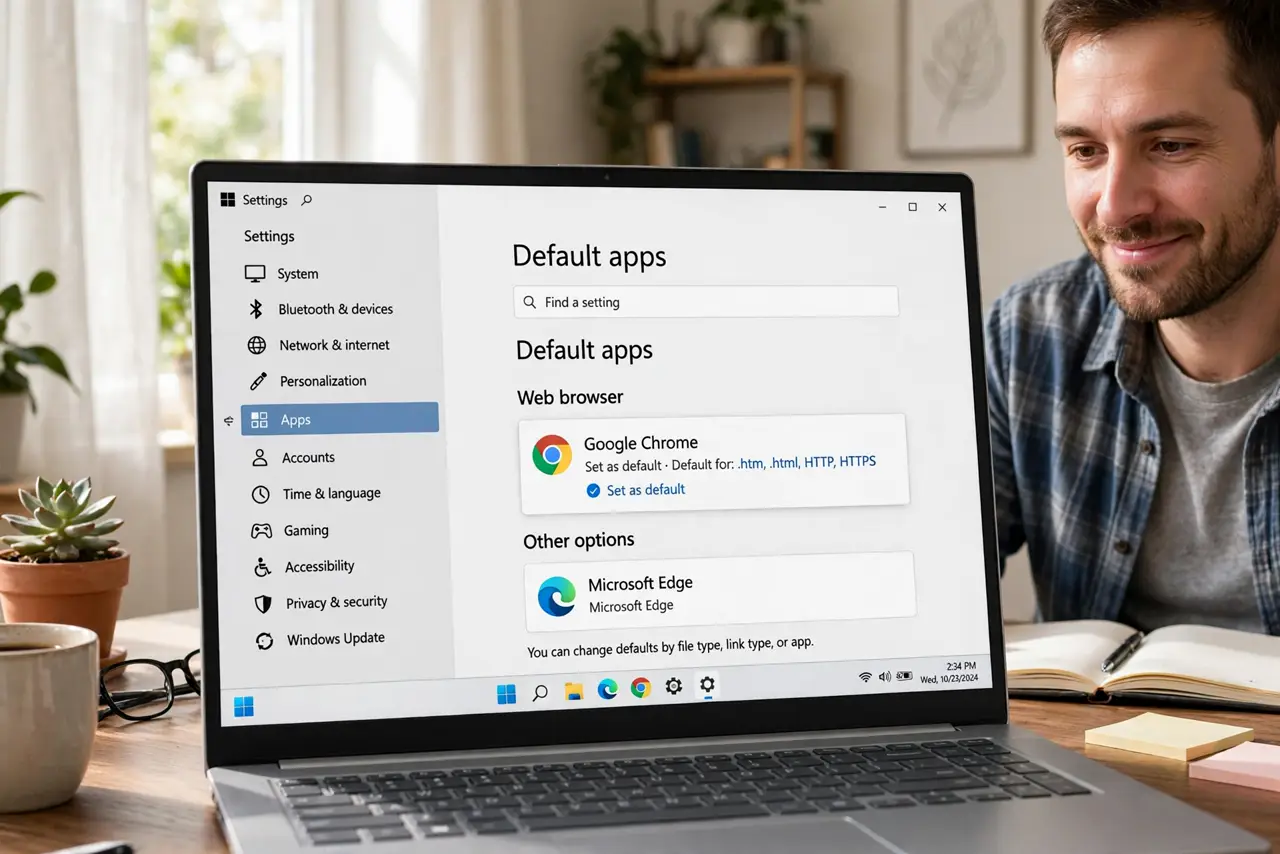
Quick fix: open Settings, Apps, then Default apps, search for your preferred browser, and set it as default for all link types. If Windows keeps reverting it, check the resets issue — updates sometimes undo the choice. Confirm by clicking a link from email.
Follow these steps
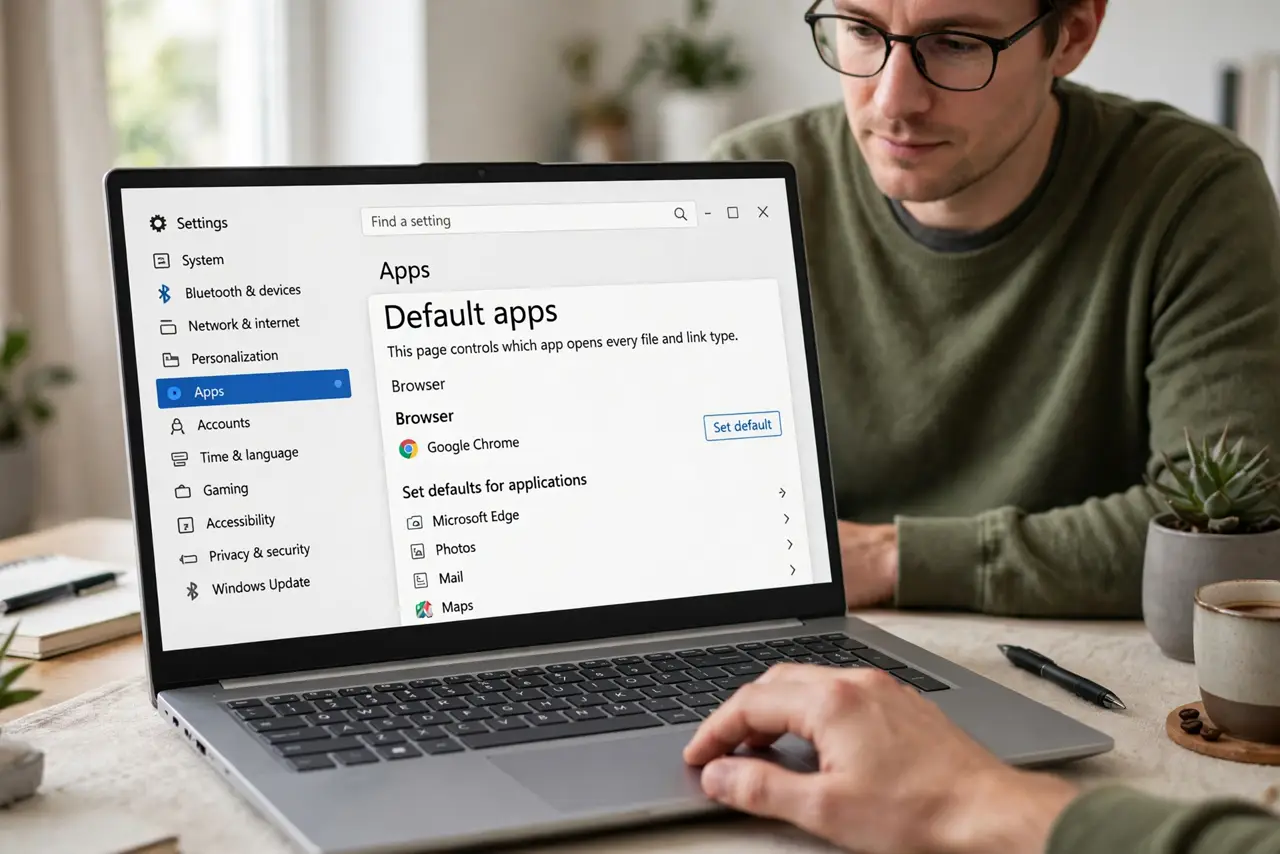
- Open Default apps. Go to Settings, Apps, then Default apps. This page controls which app opens every file and link type — the browser section is near the top.
- Pick your browser. Search for your browsers name in the list and open its entry. Set it as the default for HTTP, HTTPS, and HTML — those three cover virtually every link.
- Set all the link types. Windows lists each protocol separately. Tap through HTTP, HTTPS, .htm, and .html and assign your browser to each — missing one leaves stray links opening elsewhere.
- Confirm with a real link. Click a link from your email app. If it opens in the right browser, you are done — this test beats staring at settings.
- Fix it after updates. Major Windows updates occasionally reset the default. If links suddenly open elsewhere, the reset behavior explains the quick re-fix — thirty seconds, not a crisis.
- Match it on your phone. The same frustration exists on mobile — the iPhone path and Mac path keep every device consistent.
What NOT to do
- Do not set it in the browser alone. The browser asks, but Windows Settings is the authority — do it there.
- Do not ignore the per-protocol list. Setting only HTTP leaves HTTPS links opening in the old browser.
- Do not panic when an update resets it. Re-set it in Settings; it takes seconds and is a known Windows quirk.
- Do not install a new browser just to fix links. The setting, not the software, is what was wrong.
Frequently asked questions
Why does Windows keep changing my browser?
Major updates sometimes reset defaults. Re-setting it in Default apps fixes it until the next big update.
Will this delete my bookmarks?
No — changing the default only changes which app opens links. Bookmarks live in each browser untouched.
What about email links specifically?
They follow the same default. If mail links misbehave, the per-protocol settings are the place to look.