Turn Off Search Highlights
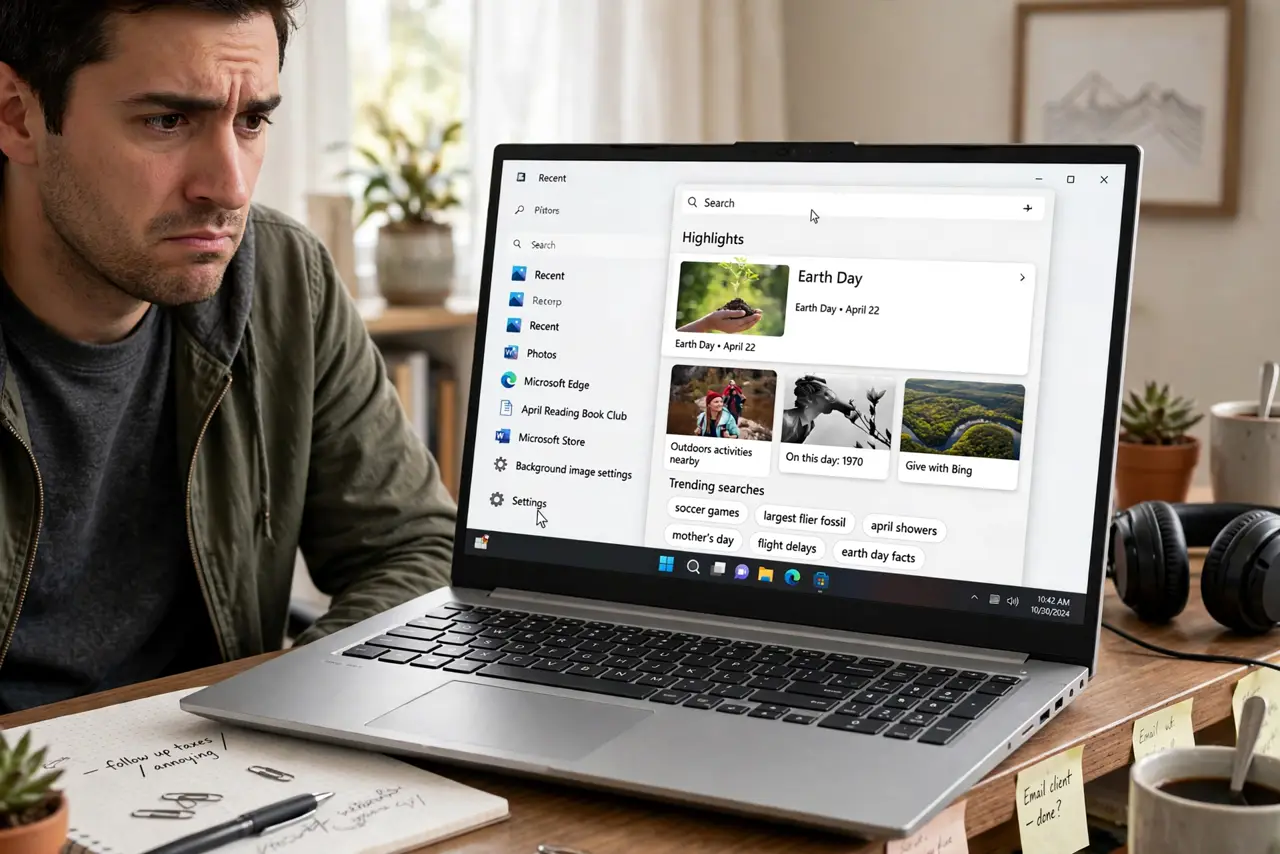
Open Windows search and instead of a clean box you get rotating artwork, fun facts, and suggestions you never asked for — Search Highlights. Some people enjoy the daily art; others find it visual noise in a tool they use fifty times a day. Turning it off takes thirty seconds and leaves search clean and fast.
TL;DR / Quick Fix
Quick fix: open the search box, click the three dots or settings icon, and toggle off Search Highlights. The rotating art and suggestions vanish, leaving a clean search box. If the toggle is missing, your Windows version manages it through a different settings path — check for updates.
Follow these steps
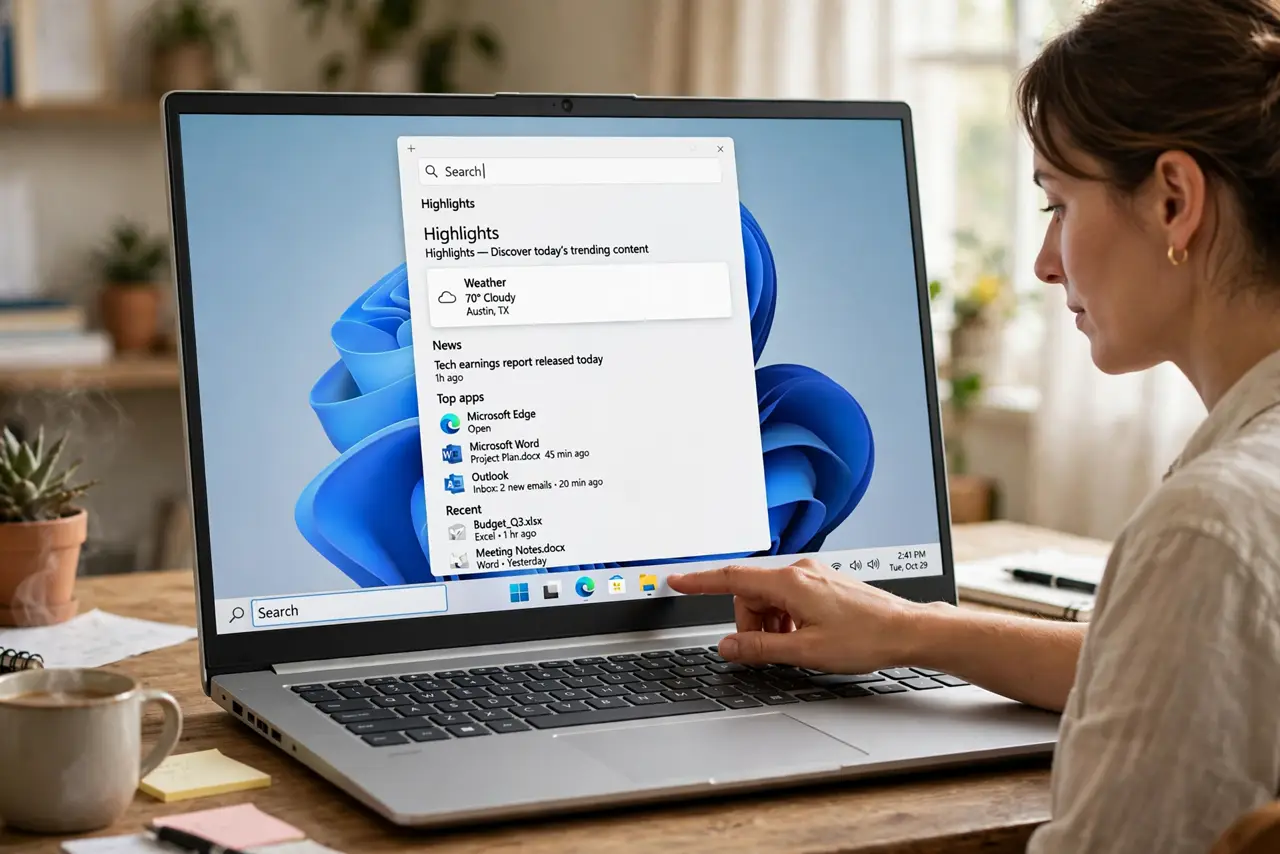
- Open the search box. Click the search box on the taskbar or press the Windows key. The highlights panel — the artwork area — is what you are about to banish.
- Find the settings control. Click the three dots in the highlights area, or the settings gear. The Search Highlights toggle lives here on most Windows versions.
- Toggle Search Highlights off. Switch it off. The artwork, fun facts, and suggestions vanish immediately — search becomes a plain, fast box again.
- Check Settings if the toggle is missing. On some versions the control moved: go to Settings, then Privacy and security, then Search permissions, and look for the highlights toggle there.
- Update Windows if still missing. Very old or very new builds shuffle this setting. Running Windows Update often restores the expected location.
- Enjoy the clean box. Search is now just search. If you ever miss the daily artwork, the same toggle turns it back on — nothing is permanent here.
What NOT to do
- Do not edit the registry for this. The toggle exists in the interface — registry hacks for a cosmetic setting risk real damage.
- Do not confuse highlights with search itself. Turning off highlights does not disable search — the box works exactly as before, just cleaner.
- Do not assume it is malware. Search Highlights is a Microsoft feature, not an infection — it just annoys some people.
- Do not forget it is per-user. Other accounts on the same PC keep their own setting — toggle it where it bothers you.
Frequently asked questions
What are Search Highlights?
Microsoft's rotating artwork, facts, and suggestions inside the Windows search box — decorative content in a utility tool.
Will turning it off speed up search?
Marginally — the box loads less content. The real win is visual calm, not performance.
Can I bring highlights back?
Yes — the same toggle re-enables them anytime. It is a preference, not a removal.