Fix Slow Windows Search
You type in Windows search and wait... and wait... while it churns through files you will never search for. Windows builds an index of your files to answer instantly, but a bloated index covering every folder on the disk makes search slower, not faster. Trimming what gets indexed is the fix.
TL;DR / Quick Fix
Quick fix: open Indexing Options, click Modify, and uncheck folders you never search — fewer locations means a faster index. Then click Advanced and rebuild the index overnight. If the indexer hogs CPU constantly, check for a corrupted index or a failing drive before blaming Windows.
Follow these steps
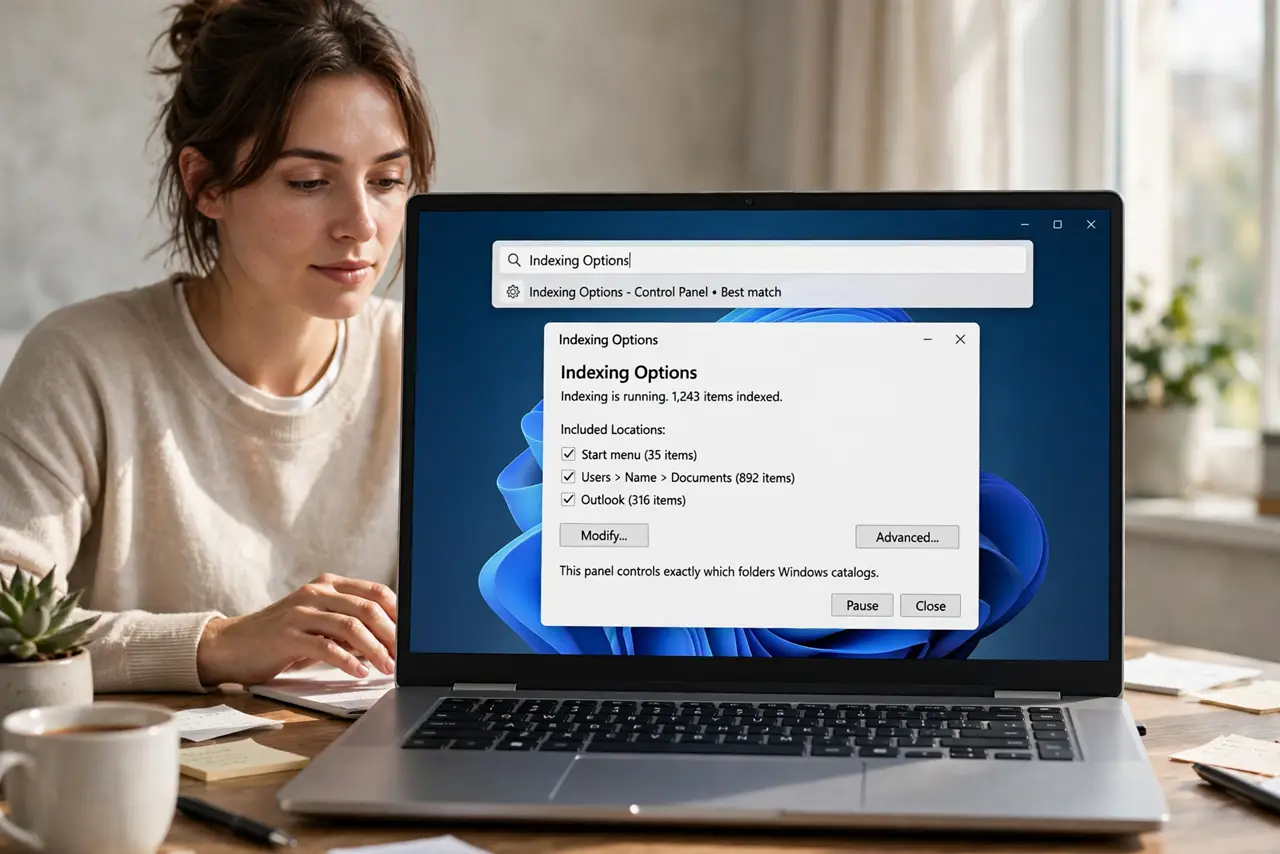
- Open Indexing Options. Type 'Indexing Options' in Windows search and open it. This panel controls exactly which folders Windows catalogs.
- Trim the indexed locations. Click Modify and uncheck folders you never search — old archives, game installs, giant media libraries. Every unchecked folder is indexing work Windows no longer does.
- Rebuild the index. Click Advanced, then Rebuild. The process takes hours on a full drive — start it before bed and let it run overnight.
- Check indexer CPU use. If SearchIndexer.exe constantly eats CPU even after a rebuild, the index may be corrupted or the drive struggling — see indexer high CPU for the deeper hunt.
- Exclude problem file types. In Advanced, File Types, uncheck exotic formats you never search inside. Indexing file contents of video or CAD files is pure overhead for most people.
- Verify search works after. Search for a file you know exists. If results are instant and correct, the job is done — if search finds nothing, the index may need another pass.
What NOT to do
- Do not disable Windows Search entirely as a first step. You lose Start-menu search and Outlook search — trimming the index fixes the slowness without the amputation.
- Do not rebuild the index during work hours. It hammers the disk for hours — schedule it overnight.
- Do not index network drives. Indexing remote folders is slow and unreliable — search them directly instead.
- Do not assume slow search means a slow PC. A bloated index makes even fast machines feel broken at the search box.
Frequently asked questions
How long does a rebuild take?
Anywhere from under an hour to overnight, depending on file count and drive speed. SSDs finish dramatically faster.
Will trimming the index break file search?
No — unindexed folders are still searchable, just slower. You trade instant results in folders you never search for speed everywhere else.
Why is SearchIndexer using 100% disk?
Usually a corrupted index or a failing drive working overtime. Rebuild first; if it persists, check drive health.