Search Indexer Uses Too Much CPU? Fix It
SearchIndexer.exe is chewing through your CPU and the fans are roaring, all so the Start menu search box can find files faster. The indexer is supposed to finish and go quiet — when it never does, something keeps feeding it new work. This guide shows how to find the loop and settle it down.
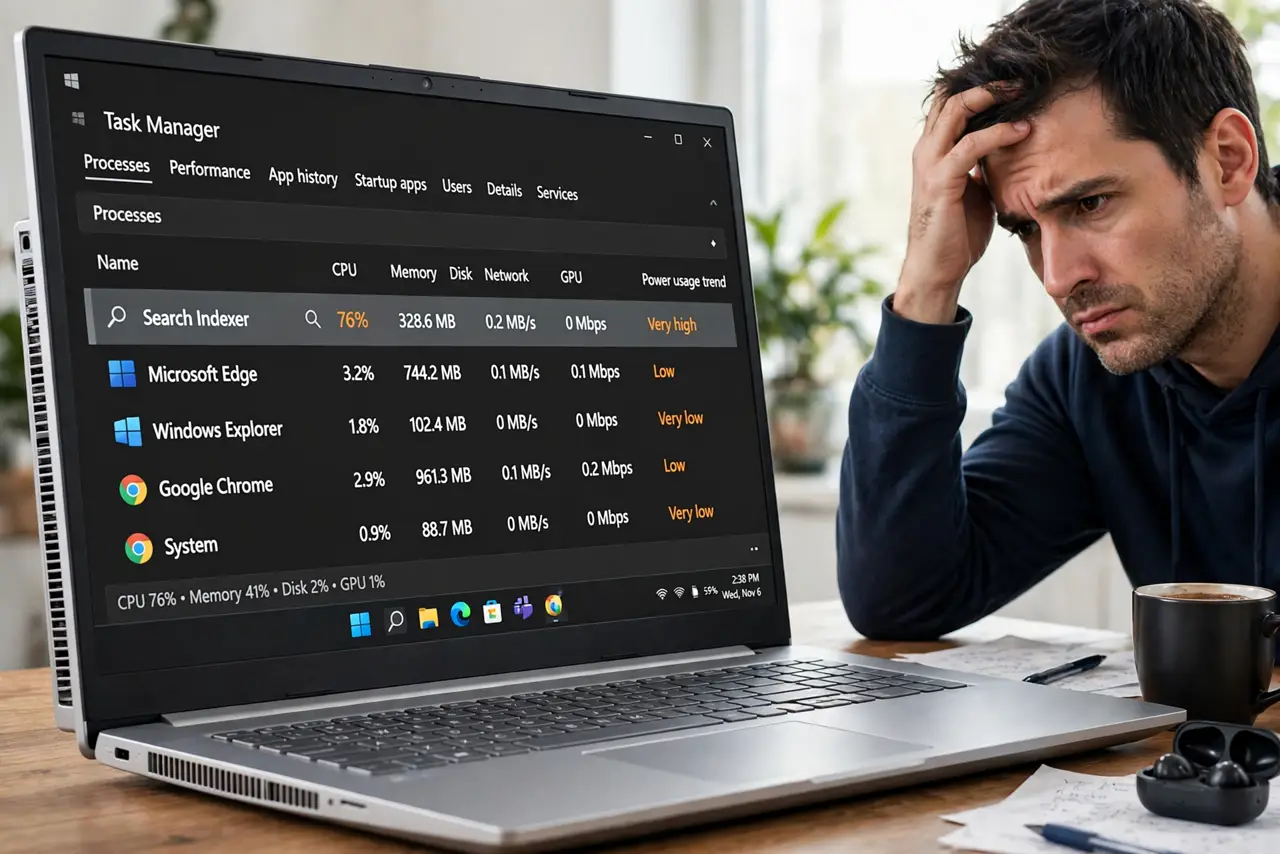
TL;DR / Quick Fix
Quick fix: let the first full index finish — it can take hours on a big drive. Then shrink the indexed locations to the folders you actually search, and pause indexing while on battery. Rebuild the index only if search results stay wrong.
Follow these steps
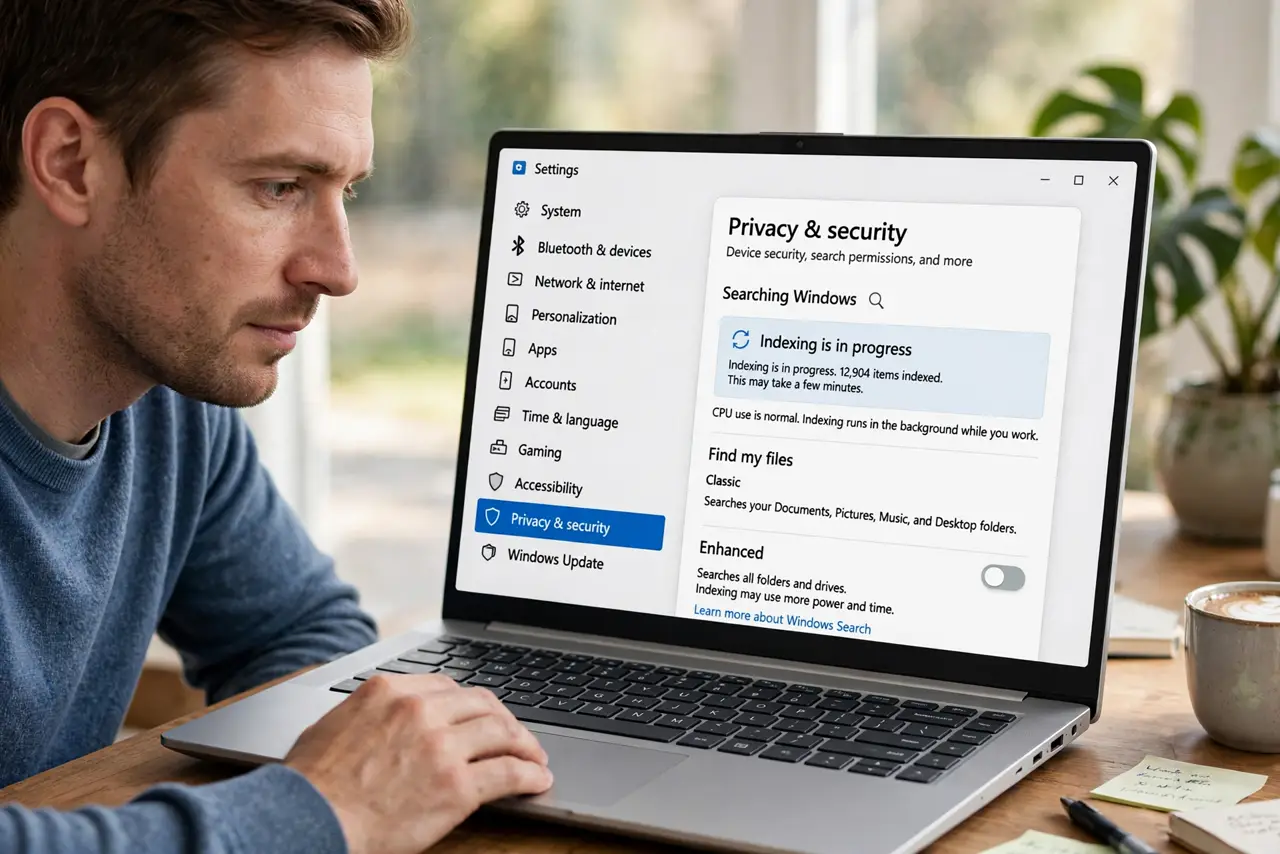
- Check whether indexing is still in progress. Go to Settings > Privacy & security > Searching Windows. If it says indexing is in progress, the CPU use is normal — the indexer is doing its one big first pass.
- Let the first pass finish. A new PC or a big file copy means hours of indexing. Leave the PC plugged in and idle for an evening; interrupting the pass just restarts the work.
- Shrink the indexed locations. In the same Searching Windows page, choose which folders get indexed. Limit it to Documents, Pictures, and the folders you actually search — every extra folder is extra CPU forever.
- Pause indexing on battery. Turn on the option to respect power settings so indexing pauses on battery. Your battery lasts longer and the fans stay quiet when unplugged.
- Look for a folder that never settles. A sync folder that changes constantly — cloud drives, developer folders with thousands of tiny files — keeps the indexer working forever. Exclude such folders from the index.
- Rebuild the index as a last resort. In Advanced indexing options, choose Rebuild. It takes hours, but it clears a corrupted index that loops on the same files endlessly.
What NOT to do
- Do not disable Windows Search entirely. Killing the service breaks Start menu search and Outlook search, which most people use daily.
- Do not rebuild the index first. Rebuilding restarts hours of work — shrink locations and let it finish before taking the nuclear option.
- Do not index your entire C: drive. System folders churn constantly and gain you nothing in search results.
- Do not mistake the indexer for malware. SearchIndexer.exe in the Windows system folder is legitimate; check its location before panicking.
Frequently asked questions
How long should the first index take?
Anywhere from under an hour to several hours depending on file count. Overnight on a new PC is completely normal.
Will search still work if I shrink indexed locations?
Yes, for the folders you keep. Unindexed folders still search, just slower, since Windows falls back to a live search.
Why does indexing restart every day?
A folder in the index changes constantly — often a cloud sync folder. Exclude it and the daily churn stops.