Check Secure Boot Status
Windows 11 requires Secure Boot, games with anti-cheat demand it, and a forum fix says just check if it is on. Secure Boot is a firmware feature that only lets trusted software start your PC — it blocks rootkits that load before Windows. Checking its status takes thirty seconds and changes nothing. Here is how, and what the results mean.
TL;DR / Quick Fix
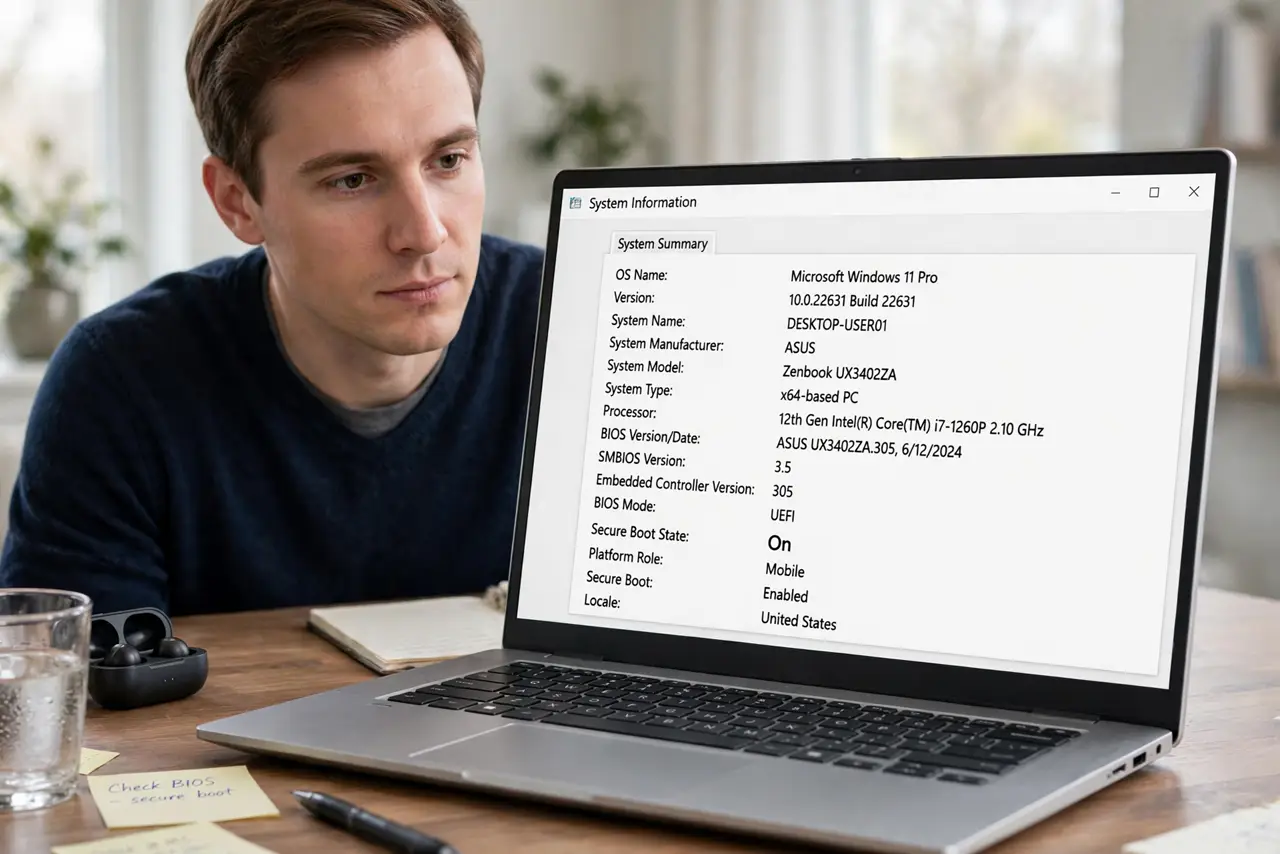
Quick fix: Secure Boot is a firmware feature that blocks untrusted software from loading before Windows, and Windows 11 requires it. Check it with System Information (msinfo32) — find the Secure Boot State line. On means protected; Off or Unsupported means the firmware needs attention. Checking changes nothing.
Follow these steps
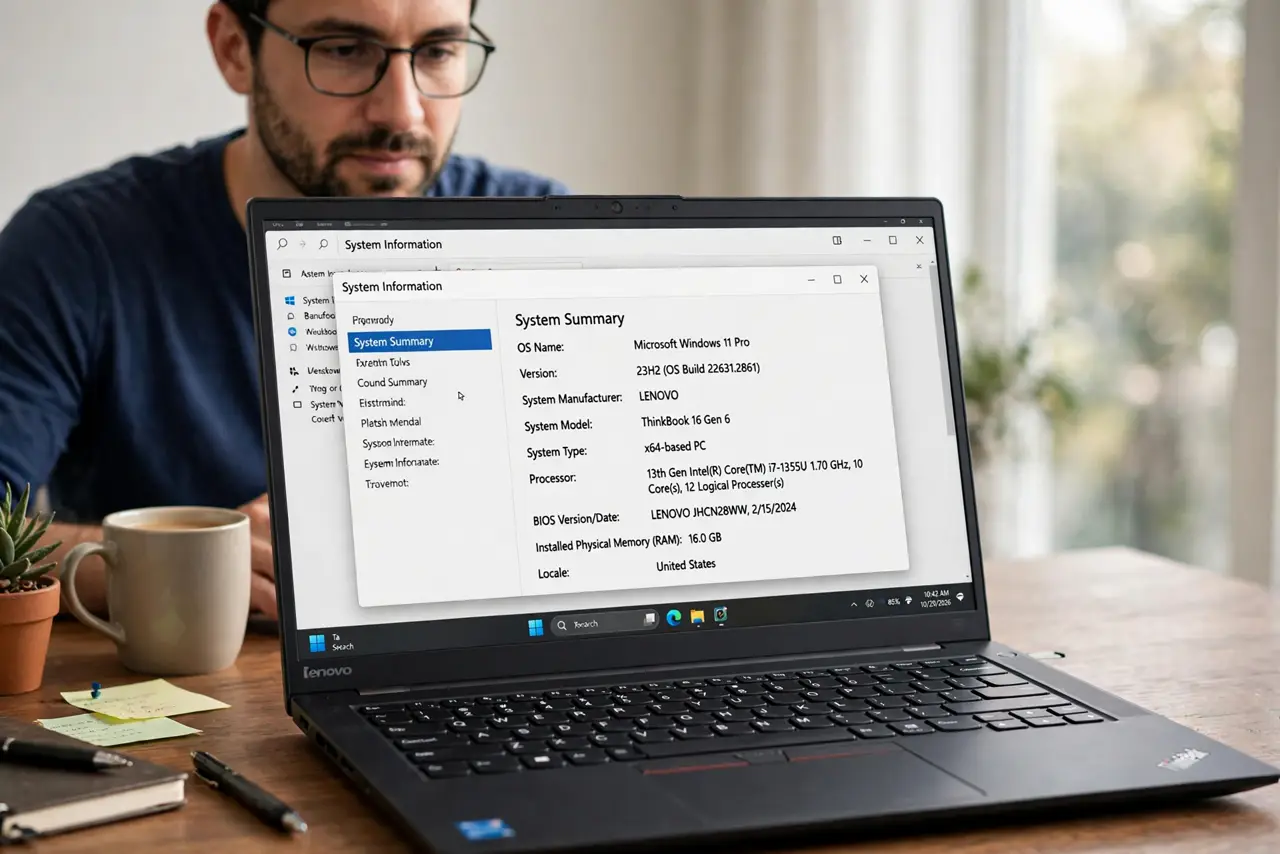
- Open System Information. Press Windows key + R, type msinfo32, and press Enter. No installation, no restart — it just opens a window. On Windows 11 you can also search for System Information in Start.
- Find the Secure Boot State line. In the System Summary, scroll to Secure Boot State. It reads On, Off, or Unsupported — that one line is the whole answer.
- Read the result correctly. On: you are protected and Windows 11-compliant. Off: the feature exists but is disabled in firmware. Unsupported: the PC predates the feature or runs in legacy BIOS mode — see the Secure Boot explainer for what that means.
- Check BIOS Mode on the same screen. The BIOS Mode line should say UEFI. Secure Boot only works in UEFI mode — a PC in Legacy mode will always show Unsupported, and switching modes is a bigger project.
- Enable it in firmware if it is Off. Restart into UEFI/BIOS settings (usually Del or F2 at boot), find the Secure Boot option under the Boot or Security tab, set it to Enabled, and save. One change, one reboot.
- Do not panic about Unsupported on old PCs. A 2015-era PC showing Unsupported is normal, not broken. It just means the hardware predates the feature — Windows Secure Boot options explain your real choices.
What NOT to do
- Do not disable Secure Boot to install something sketchy. Disabling a security feature to run untrusted software is exactly backwards.
- Do not change other BIOS settings while you are in there. Enable Secure Boot, save, exit — wandering through firmware menus is how boot problems start.
- Do not assume Off means you are infected. It means the protection is off, not that malware is present — enable it and move on.
- Do not switch from Legacy to UEFI casually. That conversion can make Windows unbootable if done wrong — it is a planned project, not a toggle.
Frequently asked questions
Why does my game require Secure Boot?
Anti-cheat systems use it to verify nothing tampered with the boot process before the game loads. It is the game's requirement, not a Windows whim.
Will enabling Secure Boot delete my files?
No — it is a firmware setting, not a disk operation. Your files and Windows installation are untouched; the PC just reboots with the check enabled.
Can Secure Boot block Linux dual-boot?
It can block unsigned Linux bootloaders, but most major distributions ship signed bootloaders that work fine. Disabling it is rarely necessary anymore.