Which Windows Services Are Safe to Disable
Some guide promised a faster PC by disabling twenty Windows services — and now something's broken. Most services should be left alone, but a handful are genuinely safe to set to Manual when you don't use their feature. The rules matter more than the list: Manual, not Disabled, and never touch what you don't recognize.
TL;DR / Quick Fix
Most Windows services should be left alone — a few are safe on Manual when you don't use the feature: Print Spooler with no printer, Fax, and Xbox services with no Xbox. Never disable anything unrecognized; prefer Manual over Disabled so Windows can start it. Make a restore point first.
Follow these steps
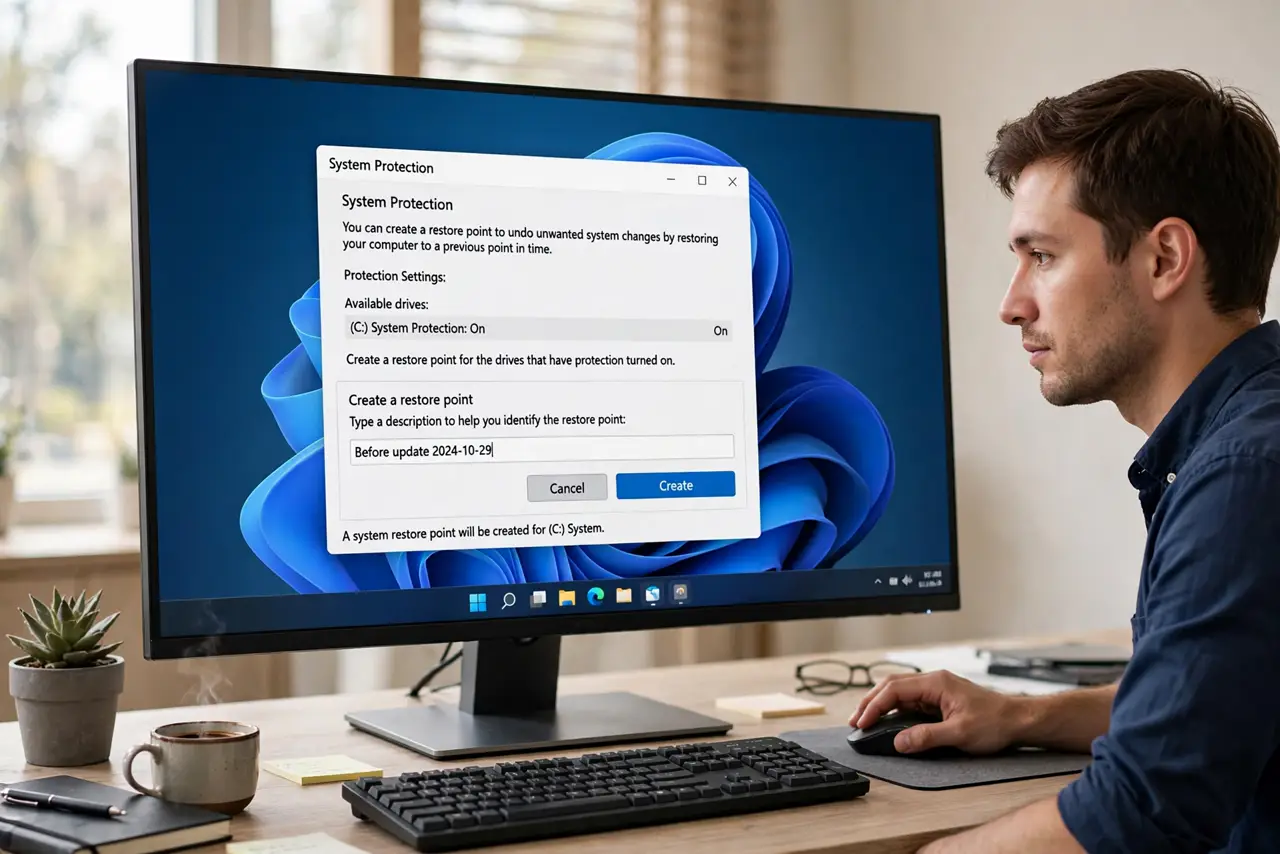
- Make a restore point first. Search 'Create a restore point', open it, and create one. If a change misbehaves, you roll back in minutes.
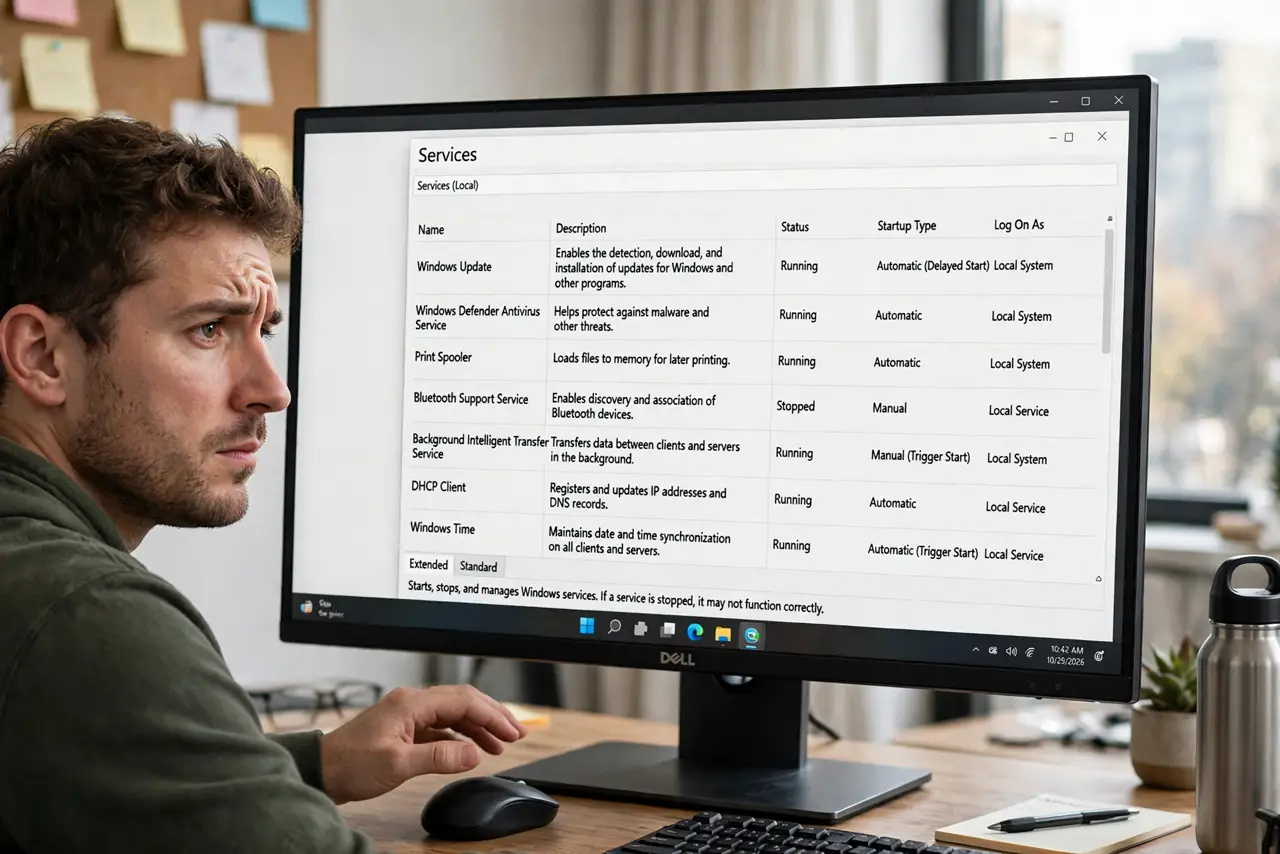
- Open Services properly. Press Win + R, type services.msc, and press Enter. Don't use random 'optimizer' tools for this.
- Set Print Spooler to Manual if you never print. No printer means no need for the spooler running at boot. Manual lets Windows start it if you ever do print.
- Set Fax to Manual — almost everyone can. The Fax service is a relic. Unless you fax from the PC, Manual is safe.
- Set Xbox services to Manual with no Xbox. Xbox Game Bar helpers and related services can go Manual if you never game. Gamers should skip this one.
- Prefer Manual over Disabled, always. Manual means Windows can start the service if something needs it; Disabled means it can't. When in doubt, leave the service alone entirely.
What NOT to do
- Do not follow 'disable 30 services' lists. They break printing, networking, and updates for a speed gain you can't measure.
- Do not set services to Disabled. Manual is the safe middle ground — Disabled can strand features with no clear error.
- Do not disable anything you don't recognize. Unknown service names are exactly the ones doing important quiet work.
- Do not expect a speed boost. Disabling a few idle services frees almost nothing on modern PCs — do it for tidiness, not speed.
Frequently asked questions
What's the difference between Manual and Disabled?
Manual lets Windows start the service on demand; Disabled blocks it entirely. Manual is reversible by the system, Disabled can break dependents silently.
Can disabling services speed up my PC?
Barely. Idle services cost almost nothing; the real startup wins come from trimming startup apps, not services.
I disabled something and now Wi-Fi is gone — help?
Use the restore point you made, or set the service back to Automatic in services.msc and reboot. Then leave it alone.