Tame the Settings Home Page
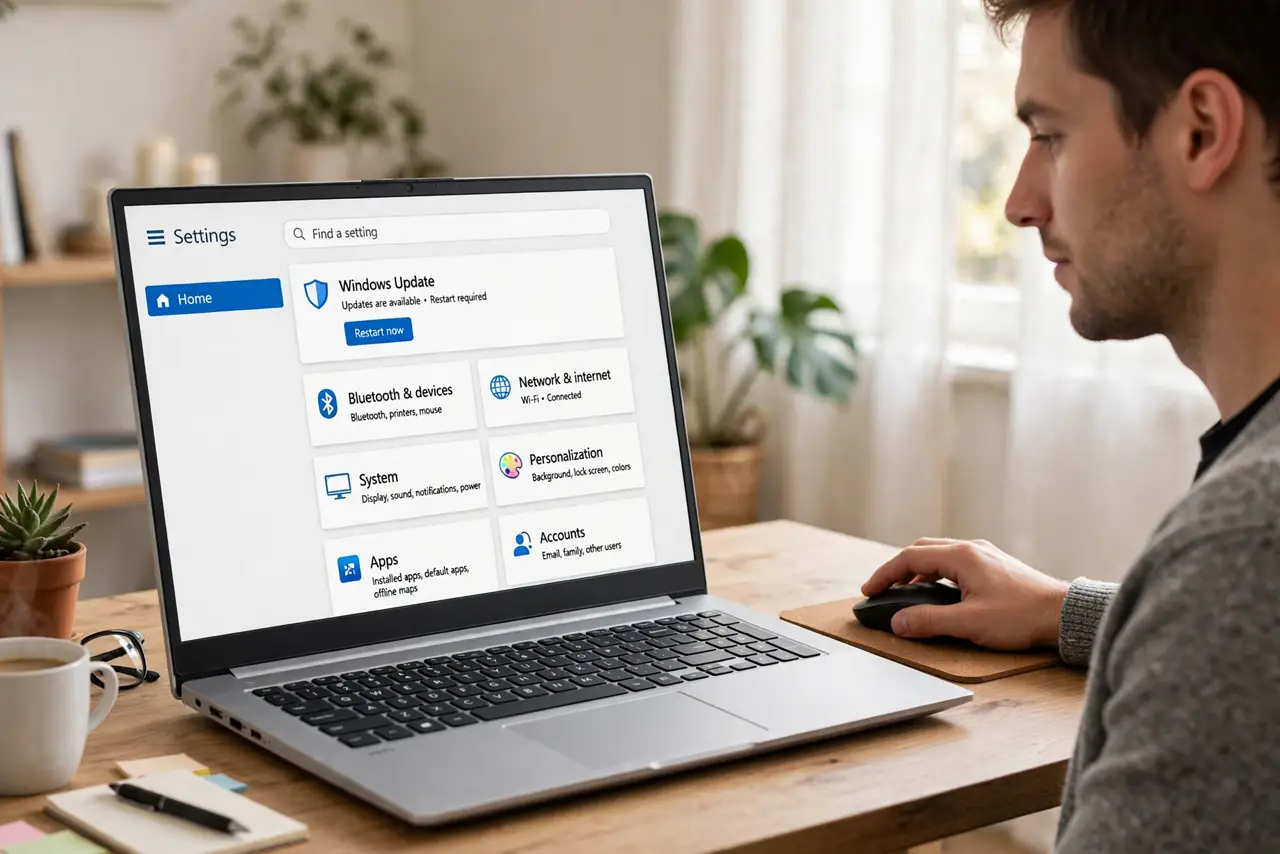
Open Settings on Windows 11 and the first thing you see is a Home page full of cards: Microsoft 365 trials, OneDrive storage nudges, and "suggested" settings you never asked for. It feels like advertising because much of it is. The good news is that most of these cards can be dismissed or quieted with ordinary toggles, and you can pin the pages you actually use for one-click access. This guide walks through the safe cleanup — nothing deleted, no protection turned off — so Settings behaves like a tool again. If your files are scattered too, see how to bring back libraries for a tidier File Explorer.
TL;DR / Quick Fix
Quick fix: the Settings Home page cards can be dismissed and most Microsoft 365 and OneDrive suggestions turned off in Settings and the Microsoft account page. Pin the pages you use to Start for one-click access. Nothing needs deleting, and no security protection gets turned off in the process.
Follow these steps
- Open Settings and take stock of the cards. Press Windows+I and look at the Home page. Each card has a small menu or dismiss control. Close the ones that are pure upsells first — you can always find those settings again through the search box at the top.
- Dismiss or hide the suggestion cards. Click the three-dot menu or X on cards for Microsoft 365, OneDrive, and similar promotions. Dismissing a card does not remove the feature; it just stops the Home page from pushing it at you every time.
- Turn off suggested content in Settings. Go to Privacy and security, then General, and switch off the options about suggested content in Settings. This quiets the built-in recommendation engine that feeds many of the Home page cards.
- Quiet the OneDrive and Microsoft 365 nudges. Many nags come from the account and backup prompts rather than Settings itself. Review your sync choices with the OneDrive sync guide so the backup prompts stop reappearing.
- Pin the pages you actually use to Start. Right-click any settings page in the left sidebar and choose Pin to Start. Build your own quick-access list — Windows Update, Bluetooth, Display — so you rarely need the Home page at all.
- Reset the view if cards keep coming back. If a dismissed card returns after an update, dismiss it again; major Windows updates occasionally restore promotions. If the whole Settings app misbehaves, the built-in repair via Apps settings is the safe next step.
What NOT to do
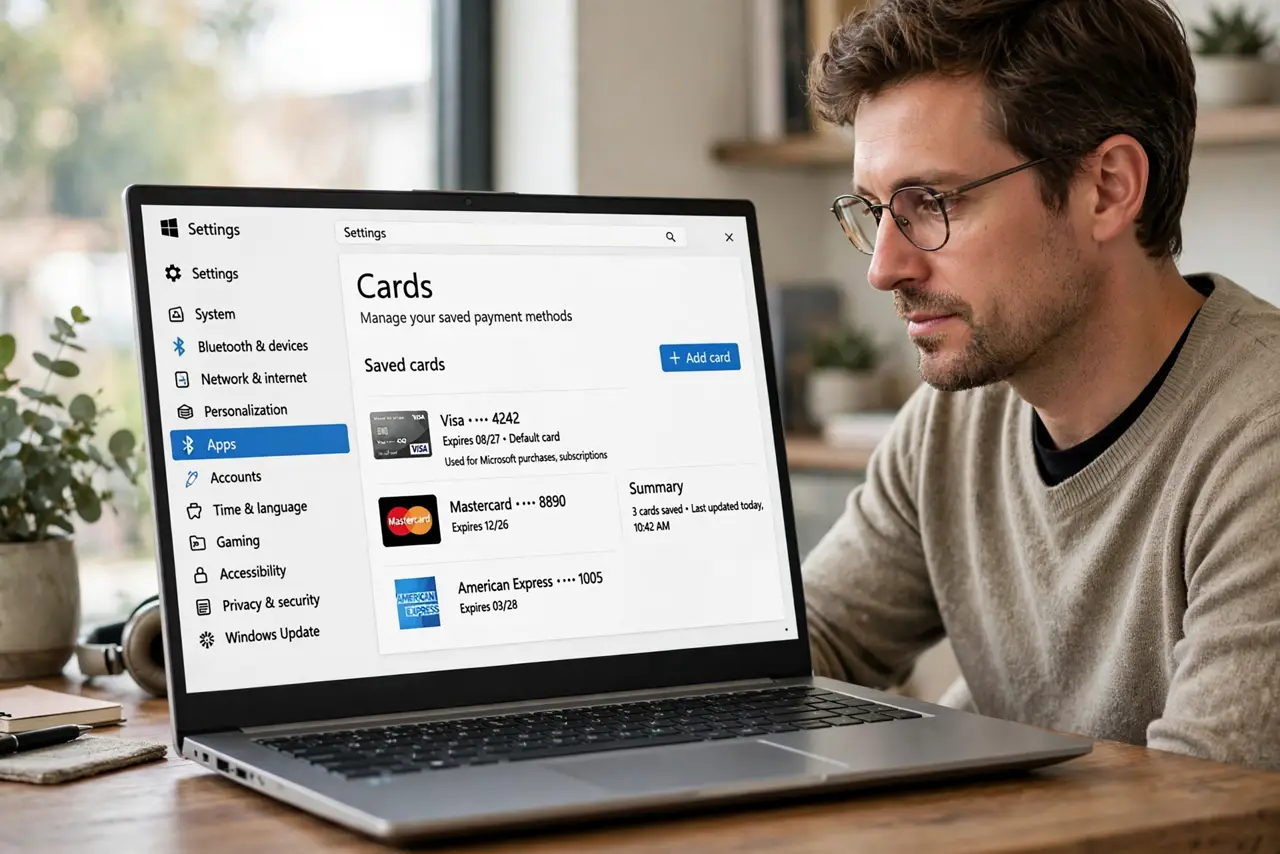
- Do not delete system apps or registry keys to kill the cards. The toggles in this guide do the job safely; registry edits can break Settings itself.
- Do not turn off Windows Security or SmartScreen to stop notifications. Those protections are unrelated to the ads and should stay on.
- Do not install third-party debloat scripts from random sites. Many bundle unwanted changes and malware; the built-in dismiss controls are enough.
- Do not sign out of your Microsoft account just to hide the nags. That breaks sync and store access — quiet the cards instead.
Frequently asked questions
Why does Settings show ads?
The Home page shows personalized cards for Microsoft services and suggested settings. Microsoft calls them recommendations; most users experience them as ads. They can be dismissed or disabled.
Will dismissing cards remove features?
No. Dismissing a card only hides the promotion from the Home page. The underlying feature stays installed and reachable through Settings search.
Do the cards come back after updates?
Sometimes. Major Windows updates can restore promotional cards. Dismissing them again takes seconds, and pinned Start shortcuts survive updates untouched.