Share a Printer on Your Network
The printer is plugged into one PC, but everyone in the house needs to print. Instead of emailing files to that computer, Windows can share the printer over your network — other PCs print to it as if it were their own. Setup takes ten minutes on the host PC plus two per client. Here is the whole process.
TL;DR / Quick Fix
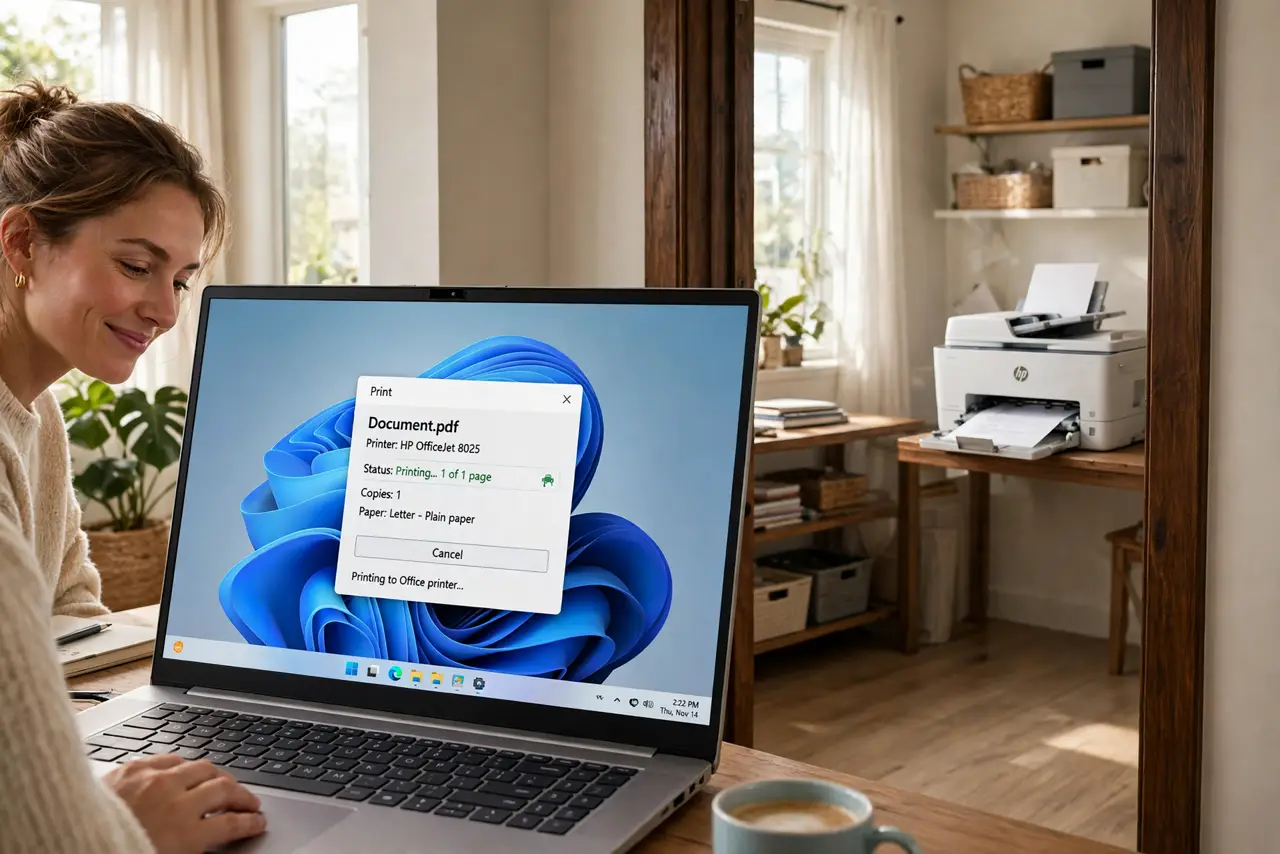
Quick fix: on the printer's host PC, enable Sharing in the printer's properties. On other PCs, add it via Settings → Printers → Add device. Everyone then prints as if it were local. Keep the host PC powered on when others print — or buy a network printer instead.
Follow these steps
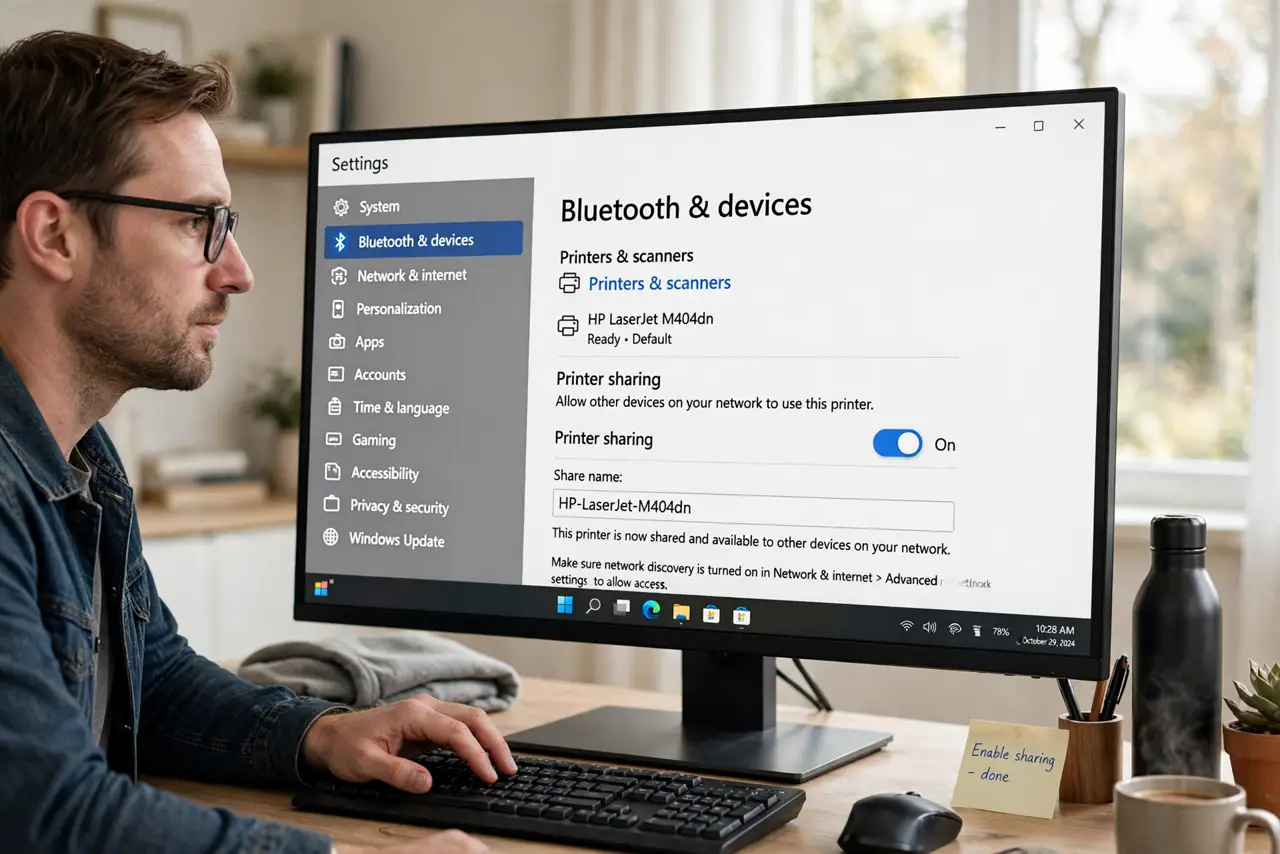
- Enable sharing on the host. On the PC physically connected to the printer: Settings → Bluetooth & devices → Printers & scanners → select printer → Printer properties → Sharing tab → check 'Share this printer.' Give it a simple share name.
- Turn on network discovery. Settings → Network & internet → Advanced network sharing settings → enable 'Network discovery' and 'File and printer sharing' on your private network. Without these, other PCs can't see the share. Keep them off on public networks.
- Add the printer on each client. On the other PC: Settings → Bluetooth & devices → Printers & scanners → Add device. The shared printer appears — select it and Windows installs the driver automatically. Print a test page to confirm.
- Handle the credentials prompt. If Windows asks for credentials, enter a user account from the host PC. For home simplicity, matching usernames/passwords on both PCs avoids prompts. This is the step that stalls most home setups.
- Know the host-must-be-on rule. The host PC must be powered on and awake for others to print — asleep means the queue waits. If that's annoying, a printer with built-in Wi-Fi or Ethernet (a true network printer) removes the dependency entirely.
- Secure it sensibly. Password-protect the host's user accounts and keep sharing on private networks only. A shared printer on an open network is an invitation for prank prints — and worse.
What NOT to do
- Do not share over a public network profile. File and printer sharing on 'Public' exposes you — verify the network is set to Private.
- Do not expect the host's sleep to cooperate. Configure the host to stay awake or accept that printing waits — pick one deliberately.
- Do not install random 'driver packs' on clients. Windows fetches the driver from the host or Windows Update — third-party driver sites are malware bait.
- Do not share without a share name you recognize. 'HP_LaserJet_412' beats 'Printer' when three printers appear on the network.
Frequently asked questions
Can a Mac print to a shared Windows printer?
Yes, with some setup — macOS can use Windows-shared printers via SMB, though driver hunting may be needed. A network printer with AirPrint is far smoother for mixed homes.
Why can't I see the shared printer?
The big three: network discovery off, host PC asleep, or different network profiles. Check in that order — it resolves nearly every case.
Is a network printer better?
For multi-PC homes, yes — no host dependency, direct Wi-Fi printing from phones too. USB printer sharing is the free fix; a network printer is the proper one.