Snap Layouts Don't Appear? Fix It
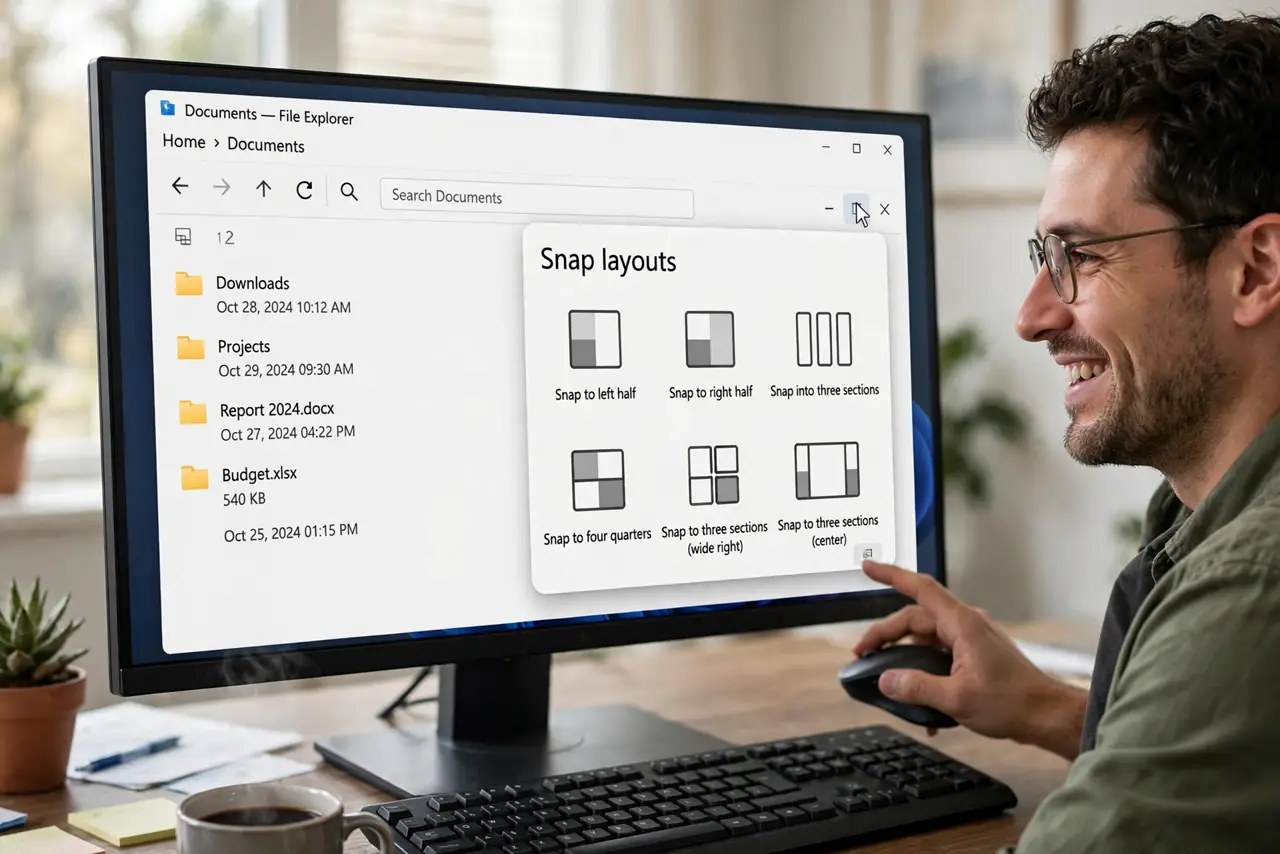
You hover over the maximize button expecting those neat layout grids — and get nothing. Snap layouts only appear when two switches are on and you hover (not click) the maximize button. Some apps and tiny windows also opt out silently, which looks identical to the feature being broken.
TL;DR / Quick Fix
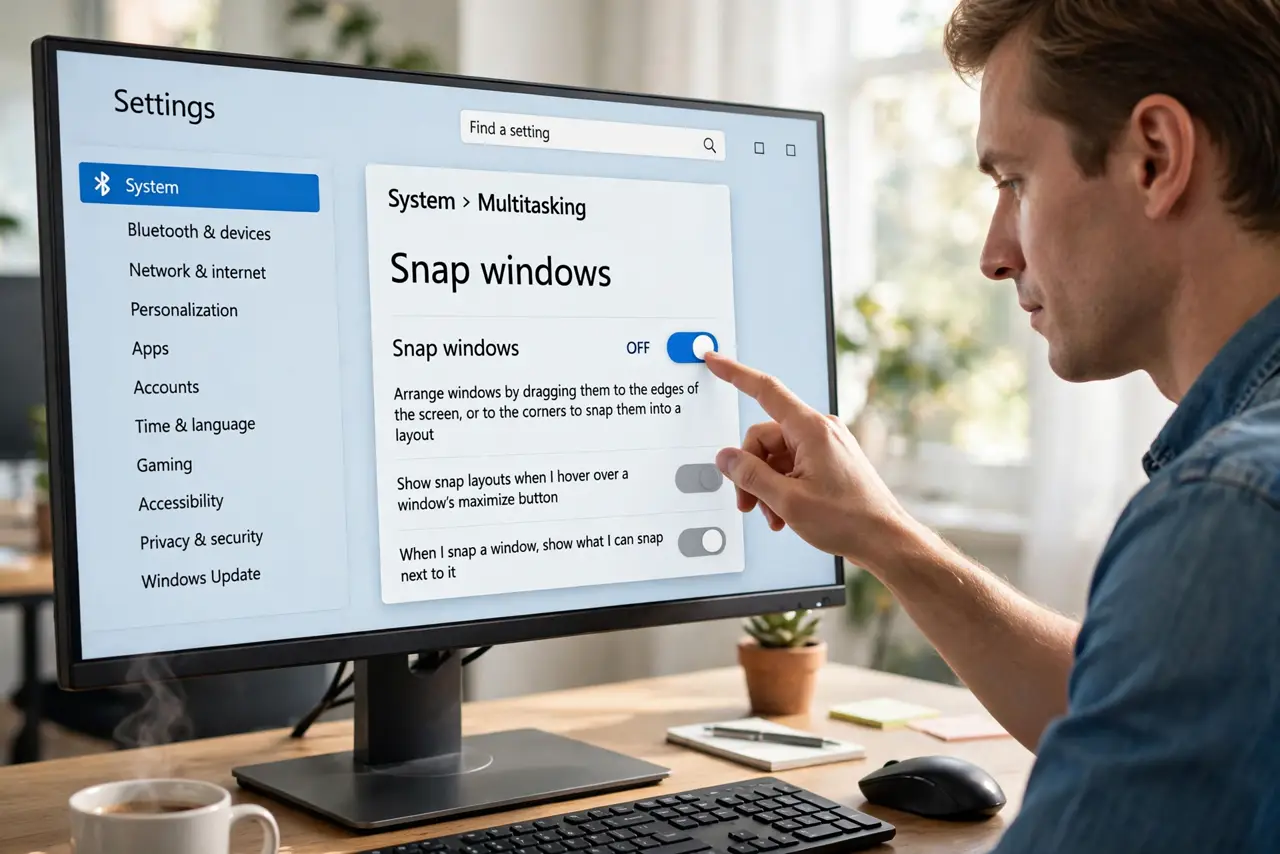
Open Settings > System > Multitasking, turn on Snap windows, and enable 'Show snap layouts on hover over the maximize button'. Layouts appear on hover, not click. If they still won't show, the window may be too small — snap needs a minimum size, and some older apps opt out.
Follow these steps
- Turn on Snap windows. Open Settings > System > Multitasking and make sure the Snap windows master switch is on. Every sub-option below it depends on this one.
- Enable the hover layouts option. Check 'Show snap layouts when I hover over a window's maximize button'. Without it, hovering does nothing at all.
- Hover — don't click — the maximize button. Rest the pointer on the maximize button for half a second. The layout grid pops up; clicking the button just maximizes normally.
- Use Win + Z as a backup. If hover feels fiddly, press Win + Z with the window active — the same layout picker opens at the top of the screen.
- Check the window is big enough. Snap needs a minimum window size. A tiny dialog or toolbar window will never offer layouts, no matter the settings.
- Accept that some apps opt out. Older desktop apps and some games disable snapping deliberately. If layouts work in Notepad but not in one app, that app is the reason.
What NOT to do
- Do not reinstall Windows over missing snap layouts. It is two checkboxes, not a broken installation.
- Do not click the maximize button harder or longer. Clicking maximizes; only hovering summons the layouts.
- Do not confuse snap layouts with Snap Assist. Layouts arrange windows; Assist suggests which window fills the other half — related but separate.
- Do not expect layouts on a very low resolution. Below roughly 720p of vertical space, Windows hides some layout options.
Frequently asked questions
Why do snap layouts only appear on hover?
By design — Microsoft kept the click behavior as plain maximize and put layouts on hover so the button does two jobs without a new control.
Do snap layouts work on Windows 10?
No. Snap layouts are Windows 11 only. Windows 10 has basic Win + arrow snapping without the hover grid.
Why does Win + Z work but hover doesn't?
The hover sub-option is off while the master Snap switch is on. Enable 'Show snap layouts when I hover' and both work.