Copy Text from Any Screenshot
An error message you need to Google, a caption in a video, text in a photo — and you are retyping it by hand like it is 1998. Windows 11's Snipping Tool has a built-in Text Action that extracts text from any screenshot with one click. (Scanning paper documents is a different job — see scan to one PDF.)
TL;DR / Quick Fix
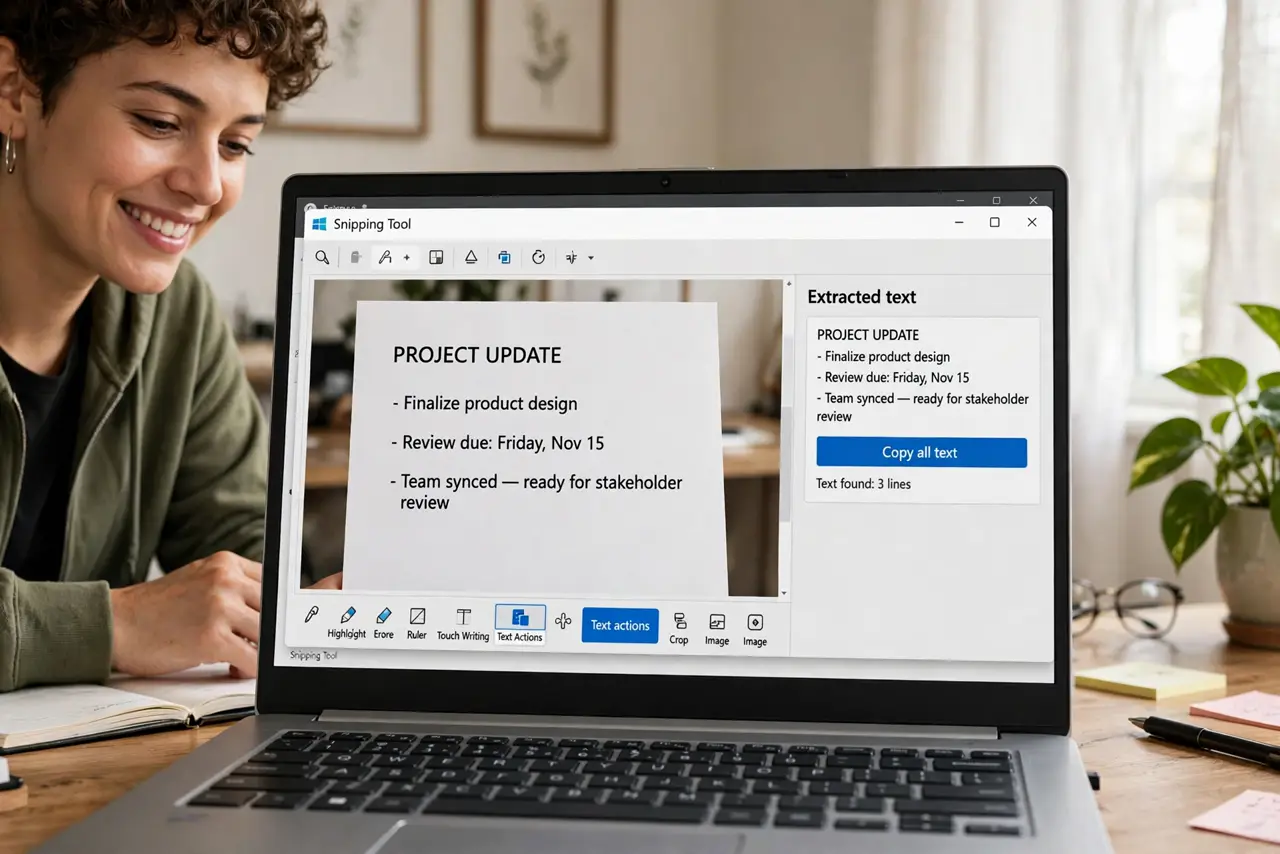
Quick fix: press Win + Shift + S to snip text on screen, open it in Snipping Tool, and click Text Action to extract the text for copying. Paste anywhere and proofread — OCR stumbles on stylized fonts. No more retyping error messages or captions by hand.
Follow these steps
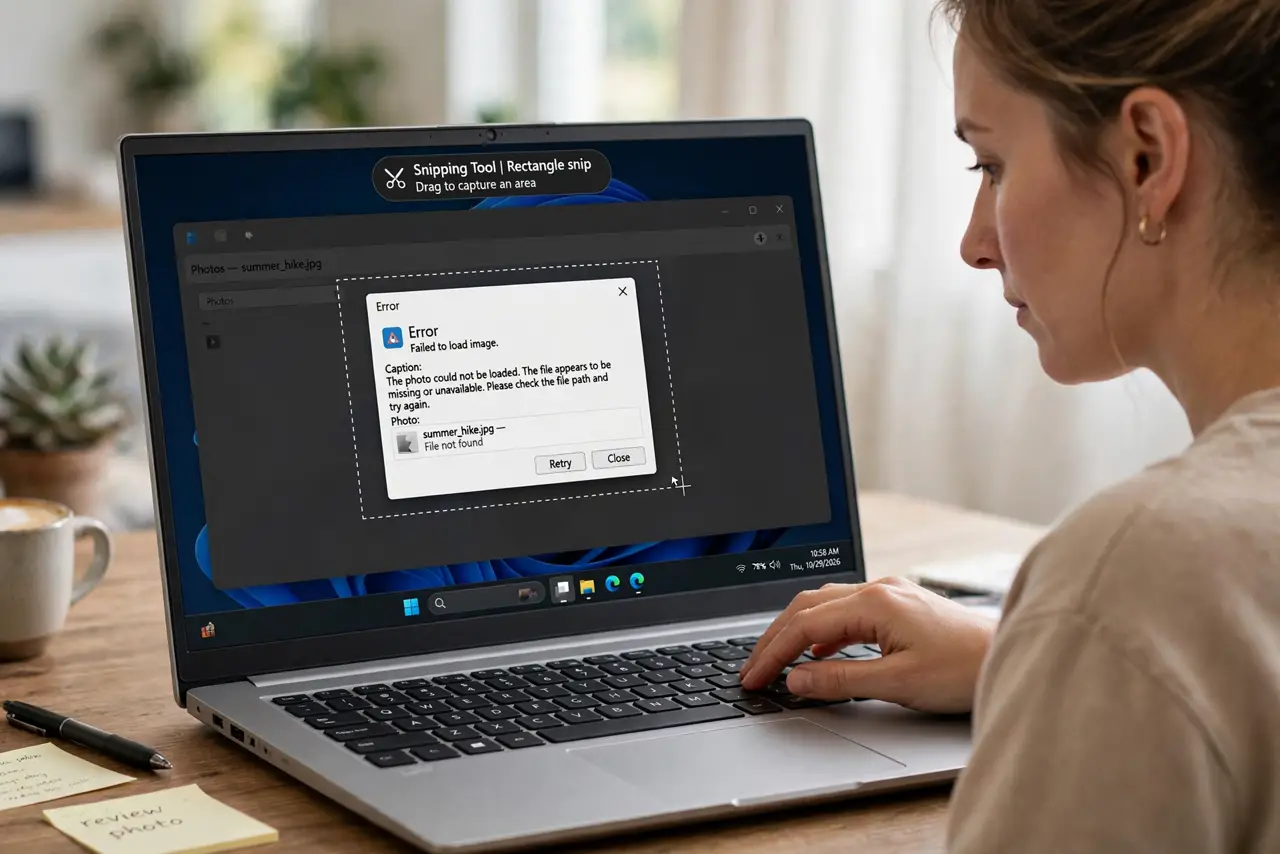
- Capture the text with a snip. Press Win + Shift + S and drag over the text — an error dialog, a caption, a photo. The snip opens in Snipping Tool automatically.
- Click Text Action. In the Snipping Tool toolbar, click the Text Action button. Windows scans the image and highlights every piece of text it recognizes.
- Select and copy. Click “Copy all text” or drag to select just the part you need, then copy. The text lands on your clipboard like any other.
- Paste where you need it. Drop it into search, a document, or a translator. An error code pasted exactly beats a retyped one with a typo every time.
- Proofread the result. OCR misreads stylized fonts, tiny text, and odd characters — l vs I, 0 vs O. A five-second scan catches the mistakes.
- Know its limits. Handwriting, heavily stylized graphics, and low-resolution images extract poorly. For those, a careful retype is still faster than fixing garbage.
What NOT to do
- Do not retype long error messages by hand. One mistyped character sends your search down the wrong path entirely.
- Do not trust OCR on tiny or stylized text without proofreading. Fancy fonts are OCR's kryptonite.
- Do not screenshot sensitive text and forget the file. Snips save to a folder — delete captures containing passwords or personal data.
- Do not expect handwriting recognition. Printed and on-screen text work; handwriting mostly does not.
Frequently asked questions
Does this work on Windows 10?
The Text Action button is a Windows 11 Snipping Tool feature. On Windows 10, use the Snip & Sketch app plus a free OCR tool instead.
Can it extract text from a photo file?
Yes — open the image in Snipping Tool (or snip the photo viewer) and run Text Action on it.
Is the extracted text private?
The OCR runs on your device, not in the cloud — nothing is uploaded by the extraction itself.