Record Video with Snipping Tool
The Snipping Tool you know for screenshots can also record video of your screen — but the video button is missing on older Windows versions, and the toggle is easy to overlook. If your Windows is current, the feature is already there waiting. Here is how to find it and record your first clip.
TL;DR / Quick Fix
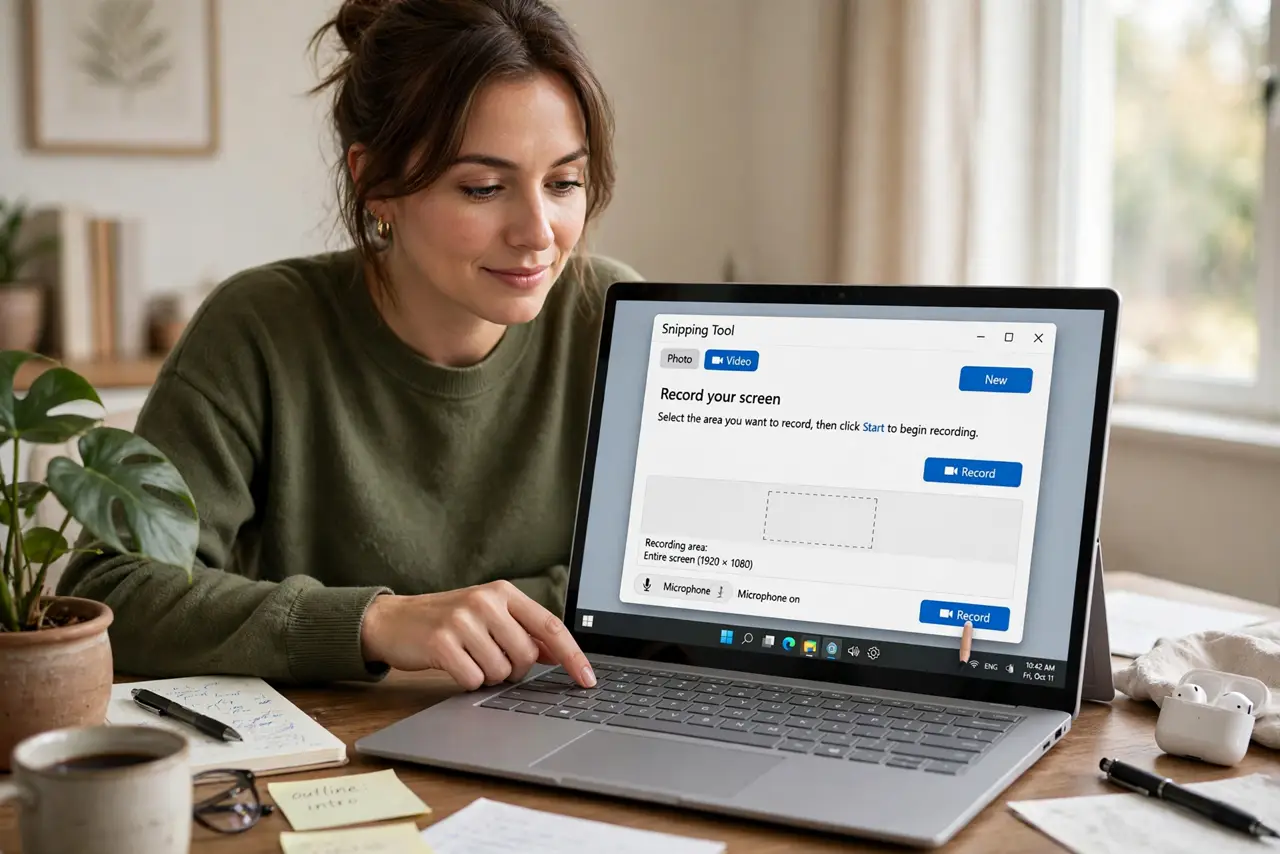
Quick fix: open Snipping Tool and switch from image to video mode at the top, then drag to select the area and hit record. Toggle the microphone if you need narration. If you don't see a video option, install Windows updates — screen recording arrived with newer Windows 11 builds.
Follow these steps
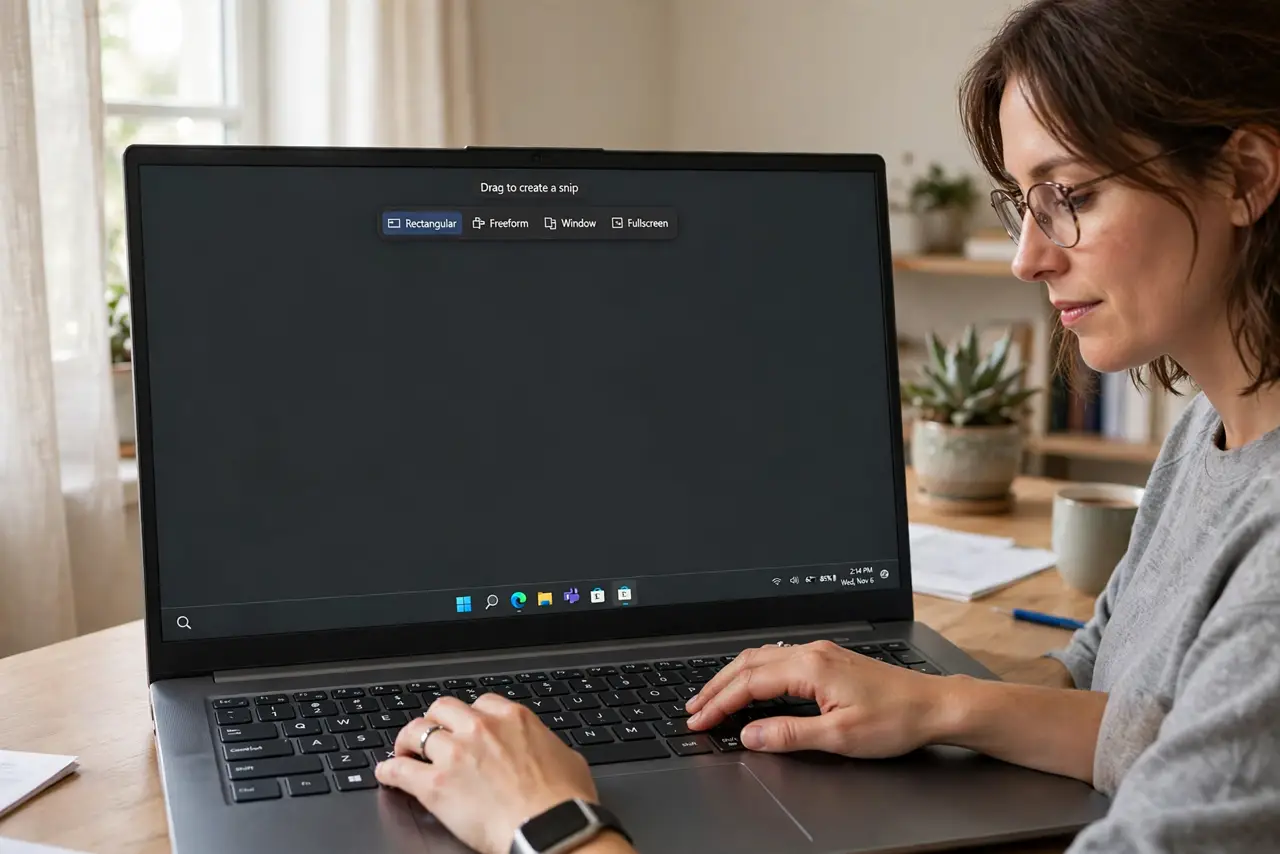
- Open the Snipping Tool. Press Windows+Shift+S or search for Snipping Tool in the Start menu. The toolbar that appears handles both screenshots and video.
- Switch from image mode to video mode. At the top of the toolbar, click the video camera icon instead of the still camera. If there is no video icon, your Windows needs updating — video recording came with newer Windows 11 builds.
- Drag to select the area to record. Click and drag a rectangle over exactly the region you want. Recording just the window you need keeps file sizes small and viewers focused.
- Toggle the microphone if you need narration. The mic button in the toolbar controls whether your voice is recorded. Check it before you start — re-recording because the mic was off is the classic mistake.
- Hit record, do your thing, then stop. Press the record button, perform the steps on screen, then stop. The clip opens in a preview where you can trim the ends before saving.
- Save where you will find it again. Pick a real folder when saving — the default save spot confuses everyone. See where Snipping Tool saves so your clip does not vanish into a mystery folder.
What NOT to do
- Do not install a third-party recorder before checking Snipping Tool. The built-in tool covers most quick recordings with zero new software.
- Do not expect to record DRM-protected video. Streaming services show black in recordings by design — that is copy protection, not a bug.
- Do not start recording before checking the mic toggle. Silent 'narrated' tutorials are the most common Snipping Tool regret.
- Do not stay on an old Windows build and wonder where video mode is. The feature needs a current Windows 11 — update first.
Frequently asked questions
Why is there no video button in my Snipping Tool?
Your Windows build is too old. Install Windows updates — video recording arrived with newer Windows 11 releases, not the original one.
How long can a Snipping Tool recording be?
There is no hard timer, but long recordings make large files. For anything over a few minutes, a dedicated recorder is more comfortable.
Can it record system audio too?
The Snipping Tool records microphone input. For system audio plus mic, use the Xbox Game Bar capture settings instead.