Snipping Tool Saves to the Wrong Folder
Your screenshots keep landing in the wrong folder — OneDrive, an old path, anywhere but where you look. The Snipping Tool follows the Screenshots folder's location setting, and OneDrive's backup feature can quietly redirect it. The fix is checking where the folder actually points, and the Print Screen opening Snipping Tool guide covers the key that triggers it.

TL;DR / Quick Fix
Quick fix: open the Screenshots folder's Properties and check the Location tab — that path is where captures actually go. If OneDrive moved it, decide whether you want screenshots in OneDrive or back in Pictures, set the location accordingly, and take a test snip to confirm the new home.
Follow these steps
- Find where screenshots actually land. Take a test screenshot, then search the PC for its file name. Knowing the real destination beats guessing from settings that may be overridden.
- Check the Screenshots folder location. Right-click the Screenshots folder, open Properties, and read the Location tab. This path is the Snipping Tool's true target, whatever you assumed.
- Check OneDrive's folder backup. If OneDrive backs up your Pictures folder, screenshots may live in OneDrive's Pictures instead. Decide which home you want and adjust the backup or the location to match.
- Move the location deliberately. Use the Location tab's Move button to point Screenshots where you want it. Moving through the tab updates the registry properly; dragging the folder by hand does not.
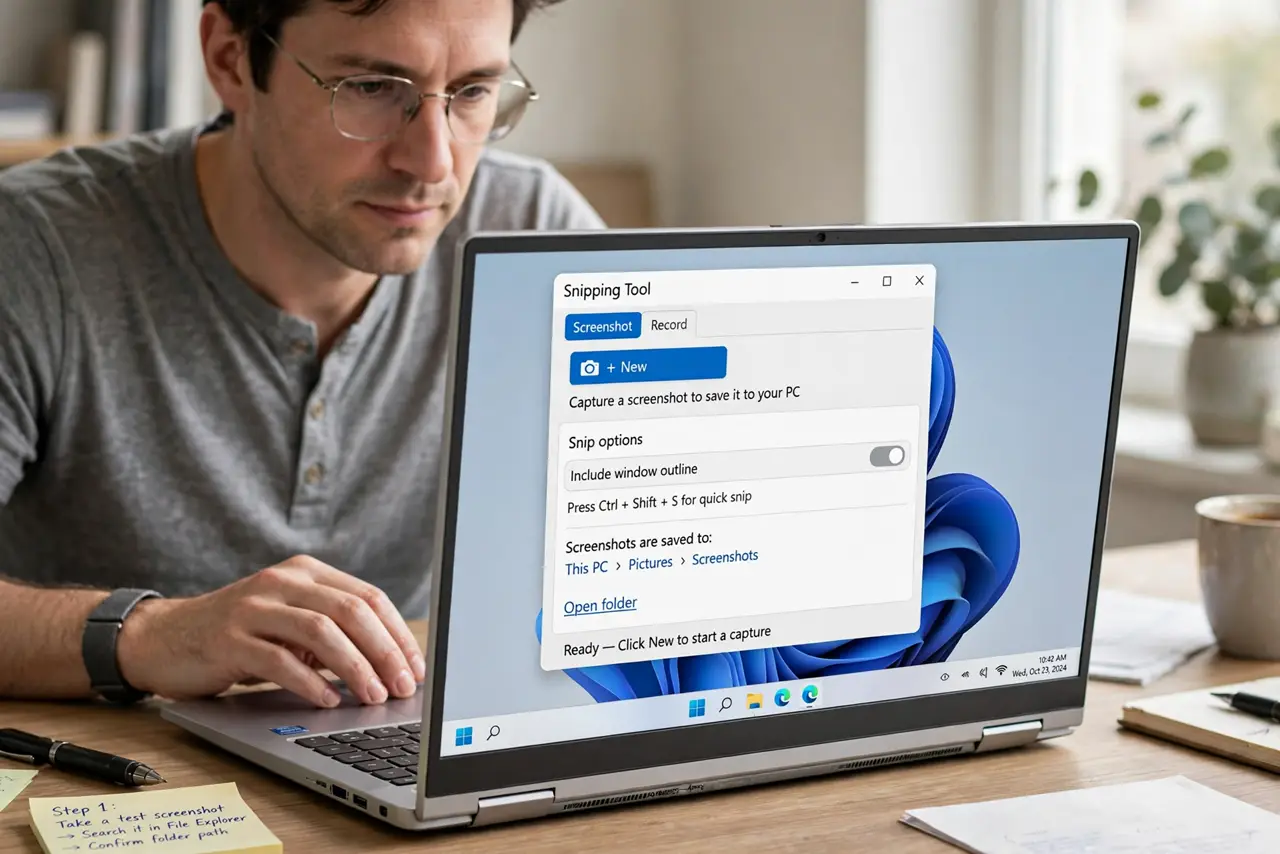
- Check the Snipping Tool's own save option. Open the Snipping Tool settings and confirm its save behavior. The app can prompt for a location each time or save automatically to the folder above.
- Take a test snip and verify. Capture one screenshot and confirm it appears exactly where you expect. One verified test ends the mystery for good.
What NOT to do
- Do not drag the Screenshots folder to move it. Dragging breaks the special-folder link; the Location tab's Move button is the correct method.
- Do not fight OneDrive without deciding. Either let screenshots live in OneDrive or turn off its Pictures backup — half-measures keep moving the target.
- Do not delete the duplicate Screenshots folders yet. Old locations may hold screenshots you want; consolidate first, delete second.
- Do not assume the app is broken. The Snipping Tool saves exactly where Windows tells it to; the surprise is always in the folder settings.
Frequently asked questions
Why are my screenshots in OneDrive?
Because OneDrive's backup of the Pictures folder redirects the Screenshots folder into the cloud copy. It is a feature, not a bug, once you know.
Can I make it ask where to save each time?
Yes. The Snipping Tool has a setting to prompt for a save location on every capture instead of using the folder.
Will moving the folder break old screenshots?
No. The Move function relocates existing files too, so your old captures travel with the folder.