Enable Spatial Sound
Games and movies on headphones can sound flat — everything happening inside your head instead of around you. Windows’ spatial sound formats add virtual directionality, placing sounds in space around you. It is free, built in, and one toggle to try — here is how to enable it and when to leave it off.
TL;DR / Quick Fix
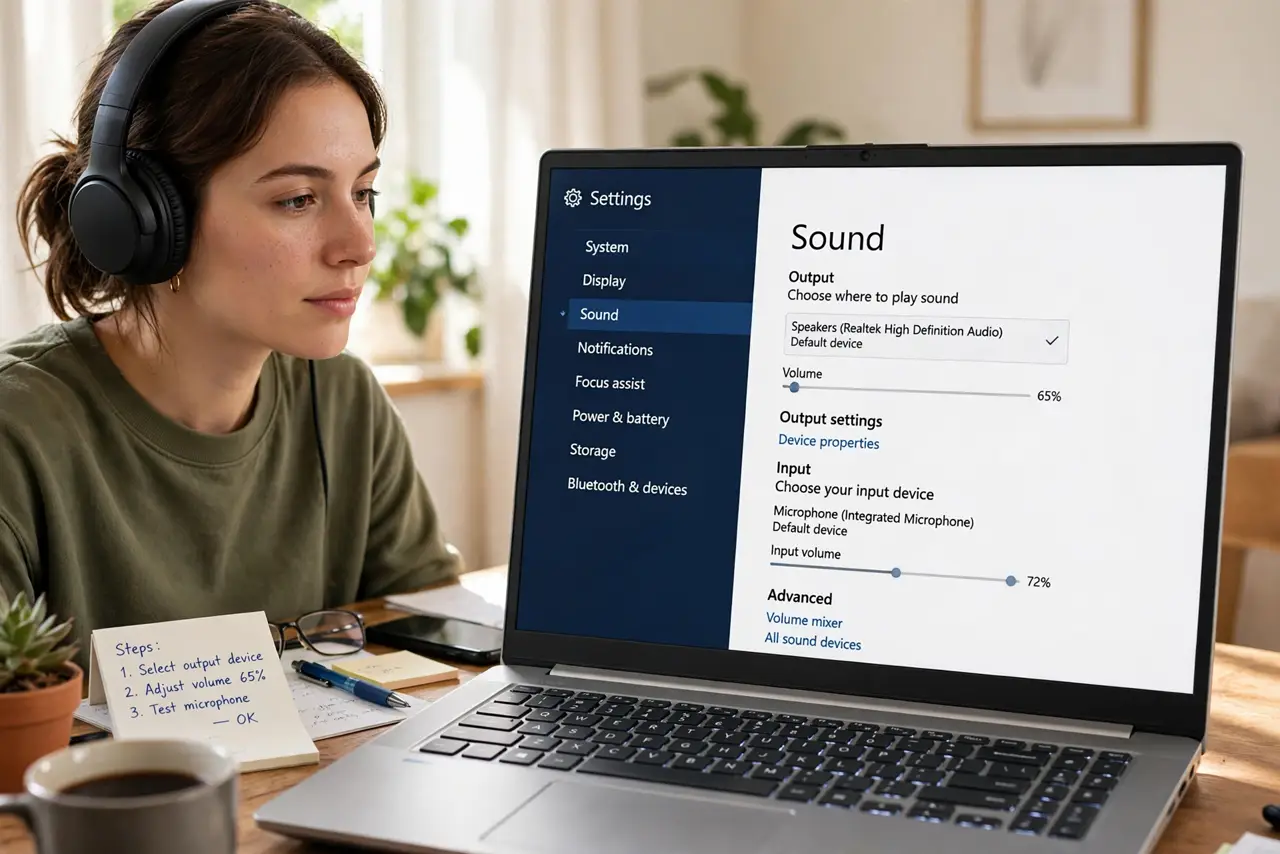
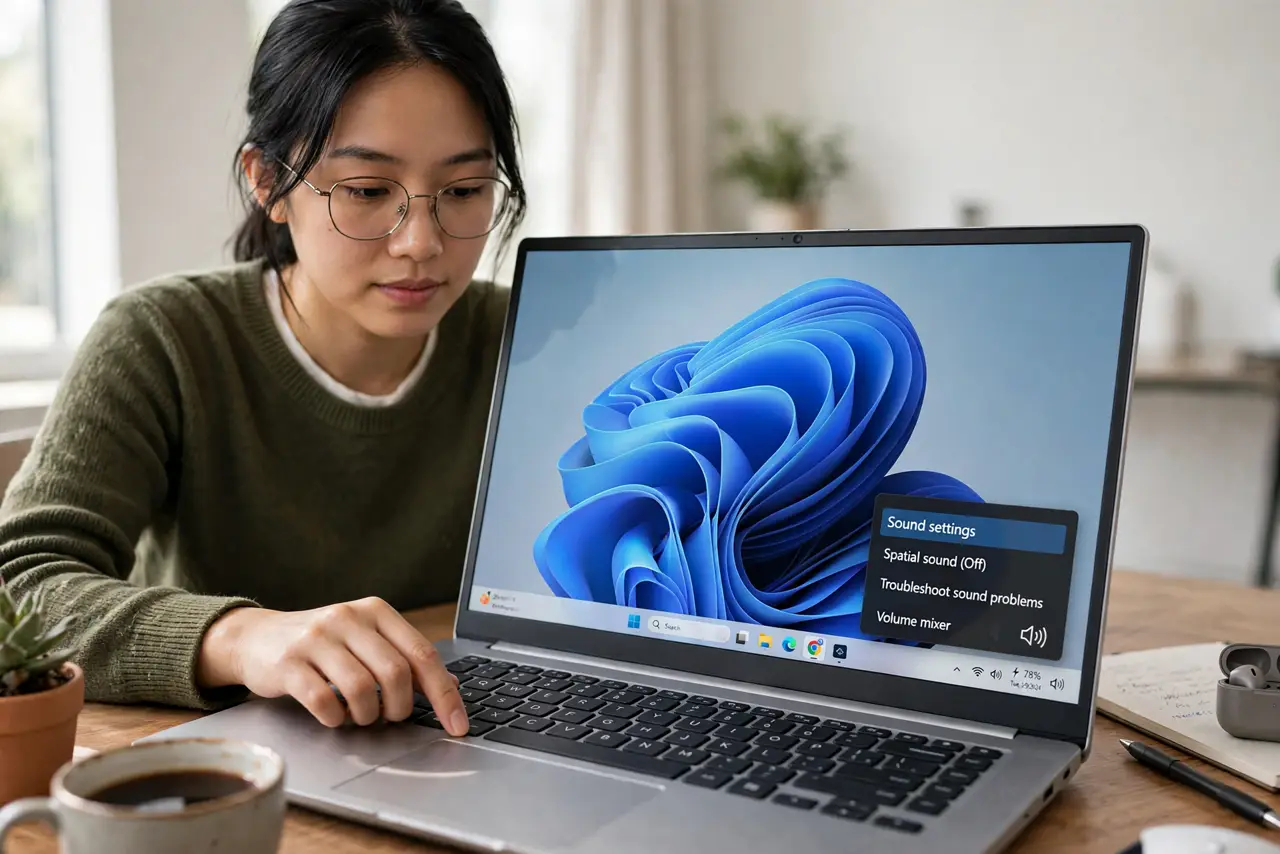
Quick fix: right-click the speaker icon, choose Sound settings, and enable Spatial sound (Windows Sonic) for your headphones — it adds directionality to games and movies. If voices sound distant or hollow, switch it back off; not every headset benefits. Test with actual content, not the preview tone.
Follow these steps
- Open Sound settings. Right-click the speaker icon in the taskbar and choose Sound settings (or Open Sound settings). This is the control room for everything audio on the PC.
- Select your headphones. In the output list, click your headphones — spatial sound applies per device. Setting it on the speakers by mistake is the classic ‘nothing changed’ moment.
- Enable Windows Sonic. Under Spatial sound, choose Windows Sonic for Headphones from the dropdown. It applies instantly — no restart, no download.
- Test with real content. Play a game or movie scene with movement — footsteps circling, dialogue panning. The difference should be obvious; if it is not, your content may be plain stereo, which gains little.
- Try Dolby Atmos if offered. Some headsets and apps offer Dolby Atmos for Headphones as an alternative — often a free trial, then paid. Compare honestly; pricier is not automatically better.
- Know when to turn it off. If voices sound distant or hollow — the known spatial-sound downside — switch back to Off. Music purists and competitive players often prefer plain stereo; there is no shame in it.
What NOT to do
- Do not enable it on speakers. Spatial sound is a headphone technology — on speakers it just sounds wrong.
- Do not judge it with the preview tone. Test tones tell you nothing; real games and movies tell you everything.
- Do not stack it with headset virtual surround. If your headset app already does surround processing, adding Windows’ on top doubles the effect into mush — pick one.
- Do not leave it on if voices suffer. Dialogue clarity beats positional audio for movies and calls — toggle per activity, not once forever.
Frequently asked questions
Windows Sonic vs Dolby Atmos?
Sonic is free and built in; Atmos is paid with arguably better tuning. Try Sonic first — many people never feel the need to upgrade.
Does it work with any headphones?
Yes — it is software processing, so any stereo headphones qualify. Fancy headsets add nothing required.
Why do voices sound weird with it on?
Virtual surround can smear center-channel dialogue. Some ears notice it more — if it bothers you, stereo is the right choice. See also audio enhancements for related processing.