Turn Off Audio Enhancements
Voice calls that echo, music that distorts, a microphone that sounds underwater — Windows’ audio ‘enhancements’ cause a surprising share of these. They are processing effects meant to help that often hurt, especially on headsets. Turning them off is safe, instant, and fixes more than you would expect.
TL;DR / Quick Fix
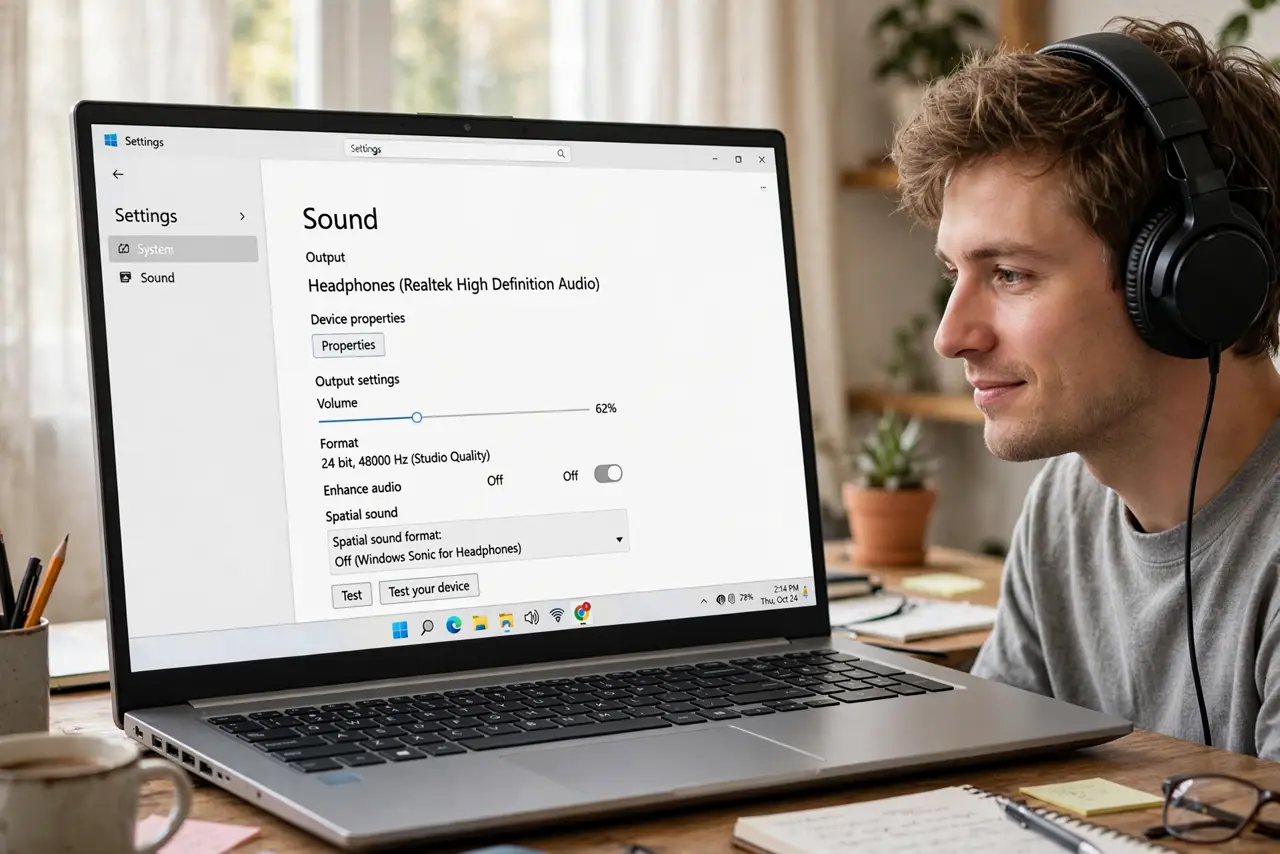
Quick fix: right-click the speaker icon, open Sound settings, select your device, and turn off all audio enhancements — they cause distortion, echo, and mic weirdness on many headsets. If sound improves instantly, leave them off for good. Re-enable one at a time only if you miss a specific effect.
Follow these steps
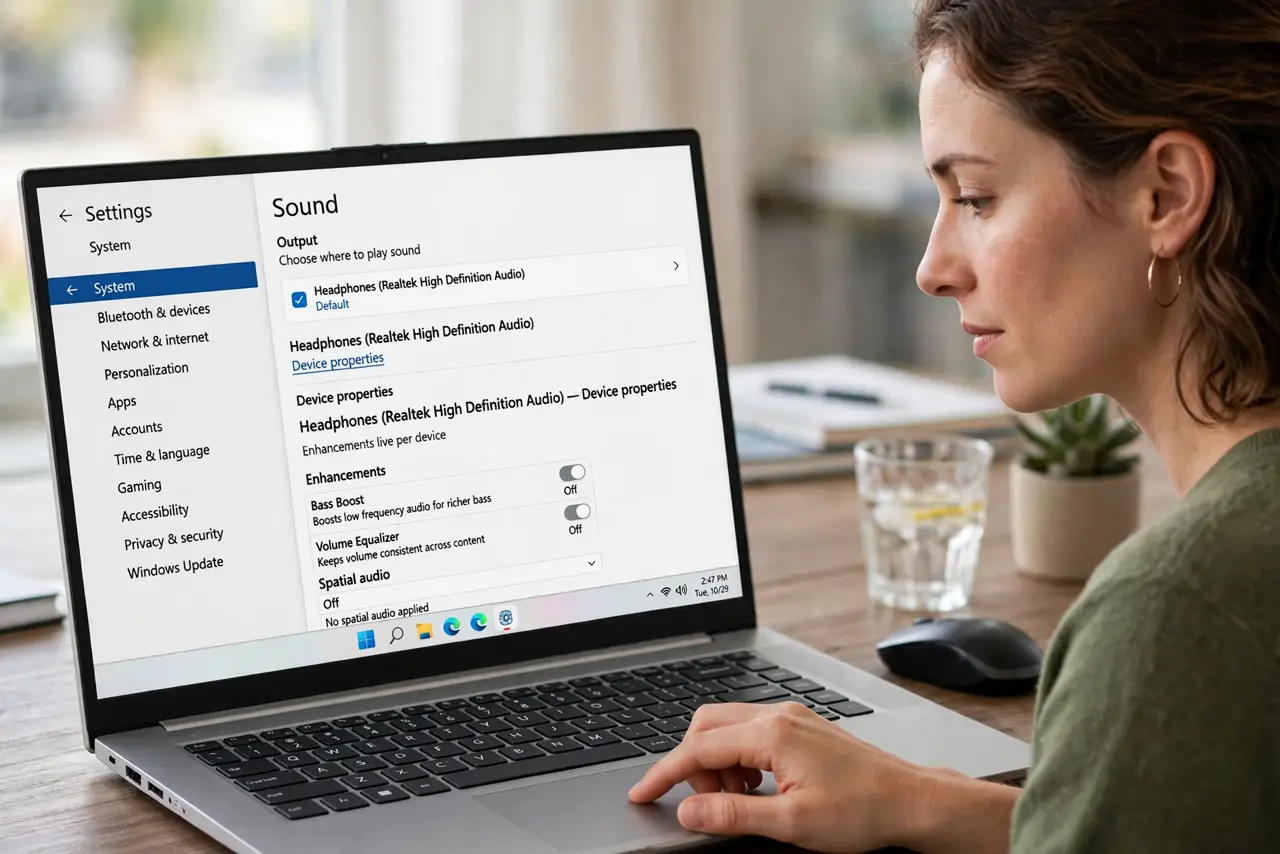
- Open Sound settings. Right-click the speaker icon in the taskbar and choose Sound settings. Then open the device properties for your headphones or speakers — enhancements live per device.
- Find the Enhancements tab. In device properties, look for the Enhancements tab (or ‘Audio enhancements’ toggle in newer Windows). This is where the processing hides — bass boost, virtual surround, loudness equalization.
- Disable all enhancements. Check ‘Disable all enhancements’ or toggle the whole feature off. One switch, instant effect — this is the test that tells you if processing was your problem.
- Test immediately. Play the content that was misbehaving — the call, the song, the game. If it is fixed, you are done; the enhancements were the culprit. See the distorted-voice guide for the classic symptom.
- Re-enable selectively if needed. If you miss one specific effect, turn enhancements back on and disable items one by one. Keep only what you can actually hear helping — everything else stays off.
- Check the headset app too. Many headsets add their own processing in a companion app — sidetone, EQ, surround. If Windows is clean and problems persist, the app is the next suspect; see sidetone explained.
What NOT to do
- Do not leave enhancements on ‘because they sound fancy.’ If you cannot hear the benefit, you are paying in glitches for nothing.
- Do not troubleshoot hardware first. Disable processing before buying a new headset — software is the cheaper suspect.
- Do not forget per-device settings. Enhancements are per output device — fixing headphones does not fix speakers. Check each device you actually use.
- Do not confuse this with spatial sound. Spatial sound is a separate feature with its own tradeoffs — see spatial sound to decide about that independently.
Frequently asked questions
Will turning them off hurt audio quality?
No — it returns audio to unprocessed, which is the reference. Most ‘enhancements’ color the sound; off is the honest baseline.
Why do enhancements exist if they cause problems?
They help cheap speakers and specific scenarios. On decent headsets they more often hurt — hence the toggle.
Do I need to restart after disabling?
No — the change is instant. If an app was mid-call, rejoining the call picks up the clean audio.