Use the Built-in SSH Client
Windows has shipped a real SSH client for years now — no extra downloads, no third-party tools. If you need to reach a server, a Raspberry Pi, or a remote machine, the `ssh` command is already waiting in Windows Terminal. Here is the plain-English way to use it without a networking degree.
TL;DR / Quick Fix
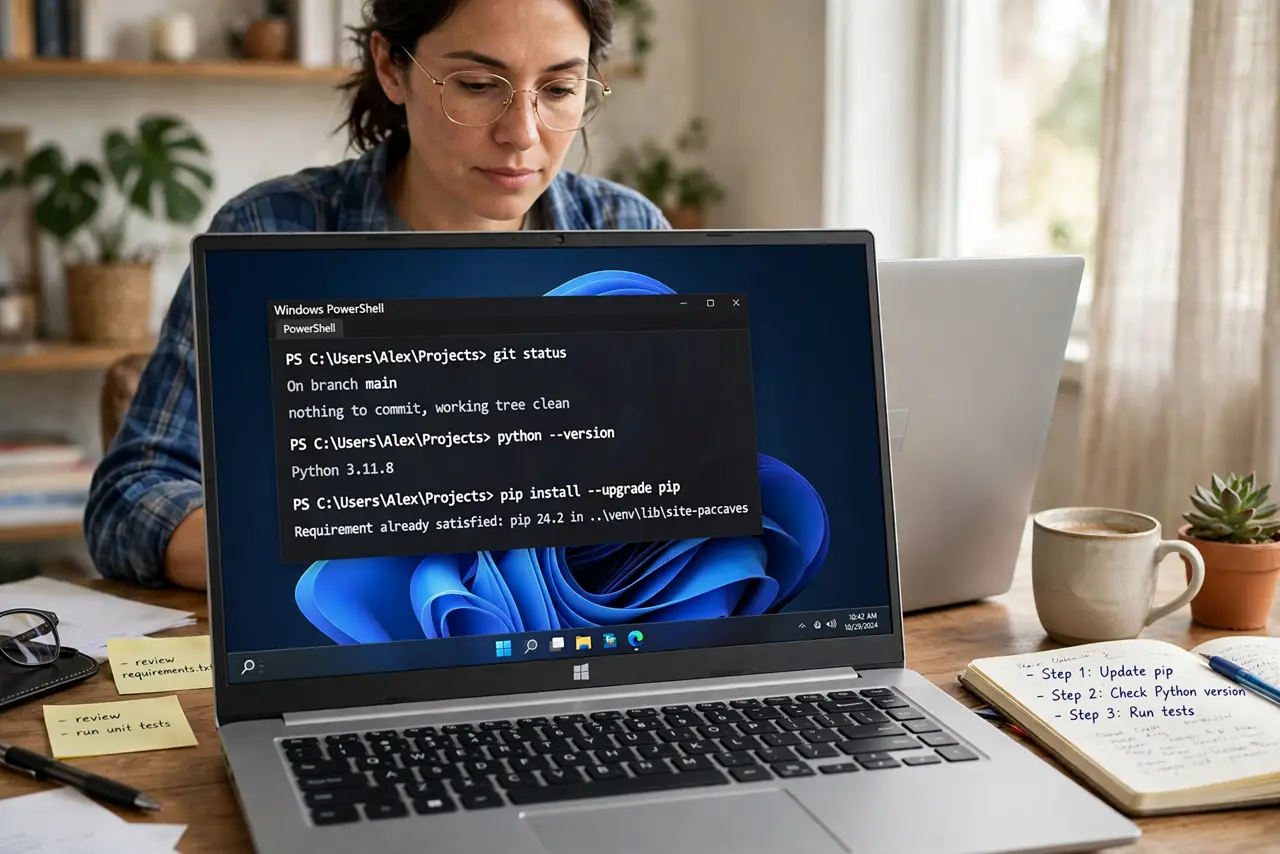
Quick fix: open Windows Terminal or PowerShell and type ssh username@hostname — Windows includes OpenSSH out of the box. Accept the host key on first connect, enter your password when prompted, and type exit to disconnect. If it hangs, check the hostname spelling and that port 22 is reachable.
Follow these steps
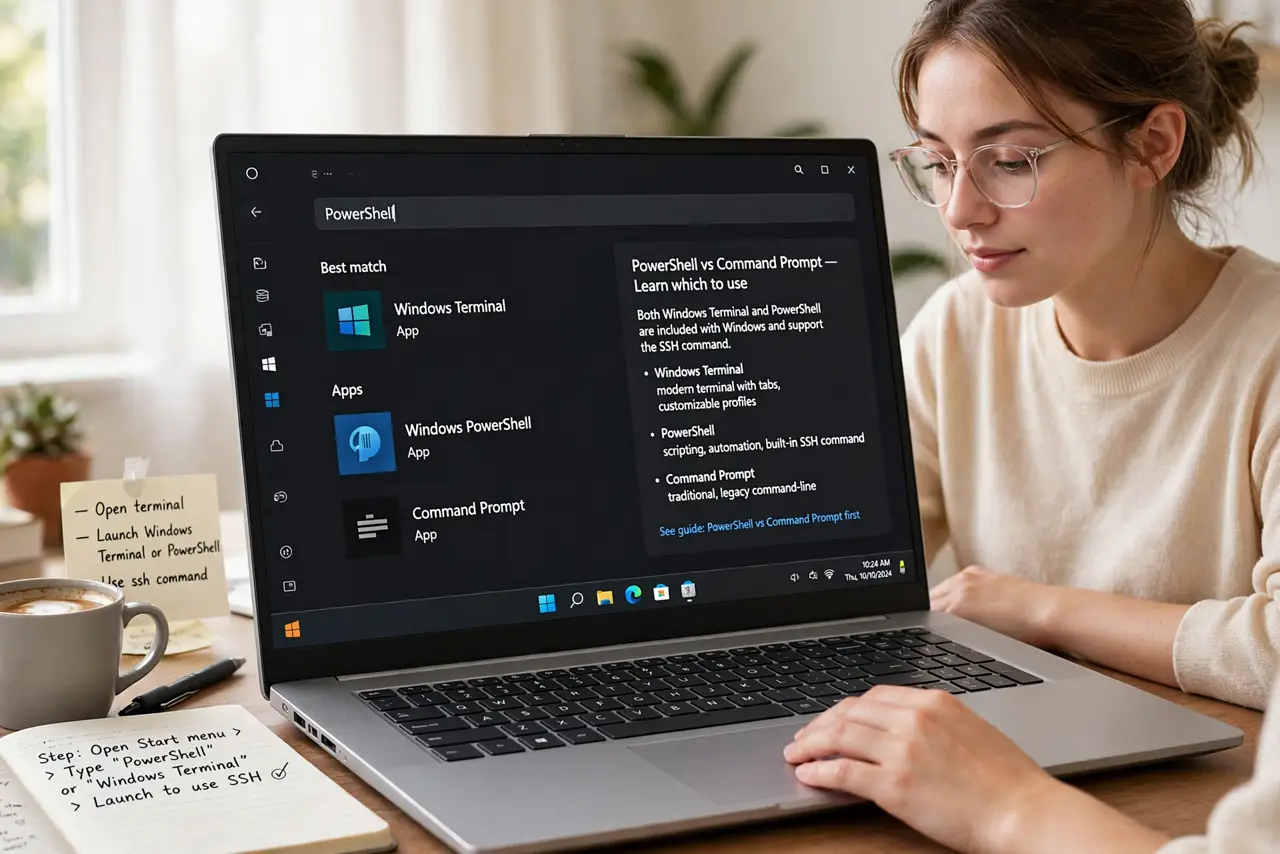
- Open a terminal. Launch Windows Terminal or PowerShell from the Start menu — both include the ssh command. If you are choosing between shells, see PowerShell vs Command Prompt first.
- Type the basic connection command. The pattern is ssh username@hostname — for example, ssh [email protected]. Username is your account on the remote machine; hostname is its address or name on the network.
- Accept the host key on first connect. The first connection asks you to confirm the server’s fingerprint — type yes. This is SSH verifying the server’s identity; after this, your PC remembers it and will warn you if it ever changes.
- Enter your password or key. Type the remote account’s password when prompted (nothing appears as you type — that is normal). Many servers use key files instead; if yours does, you will have been given a key file and instructions.
- Run commands, then exit cleanly. You are now typing on the remote machine — be careful, commands run there, not on your PC. When done, type exit to close the connection rather than just closing the window.
- Save frequent connections. If you connect to the same server often, you can store its details in an SSH config file so a short name replaces the full command. One setup, then ssh myserver just works.
What NOT to do
- Do not accept a changed host key blindly. If SSH warns the fingerprint changed unexpectedly, stop — it can mean the server was replaced or your connection is intercepted.
- Do not type destructive commands on a remote server casually. There is no undo on a server you do not own — double-check every command before Enter.
- Do not share your private key file. Keys are passwords that never expire — anyone with the file is you, as far as the server cares.
- Do not expose SSH to the internet without knowing why. Port-forwarding SSH on your router invites automated login attempts within hours.
Frequently asked questions
SSH says ‘connection timed out’ — why?
Usually the hostname is wrong, the server is off, or a firewall blocks port 22. Verify the address first; it is the cause nine times out of ten.
Is Windows SSH the same as PuTTY?
It speaks the same protocol, so it connects to the same servers. PuTTY is a separate program with a graphical interface; the built-in client is command-line only.
Can I copy files with it?
Yes — Windows also includes scp for copying files over SSH. Same login, same security, for moving files instead of typing commands.