Delay Apps That Launch at Startup
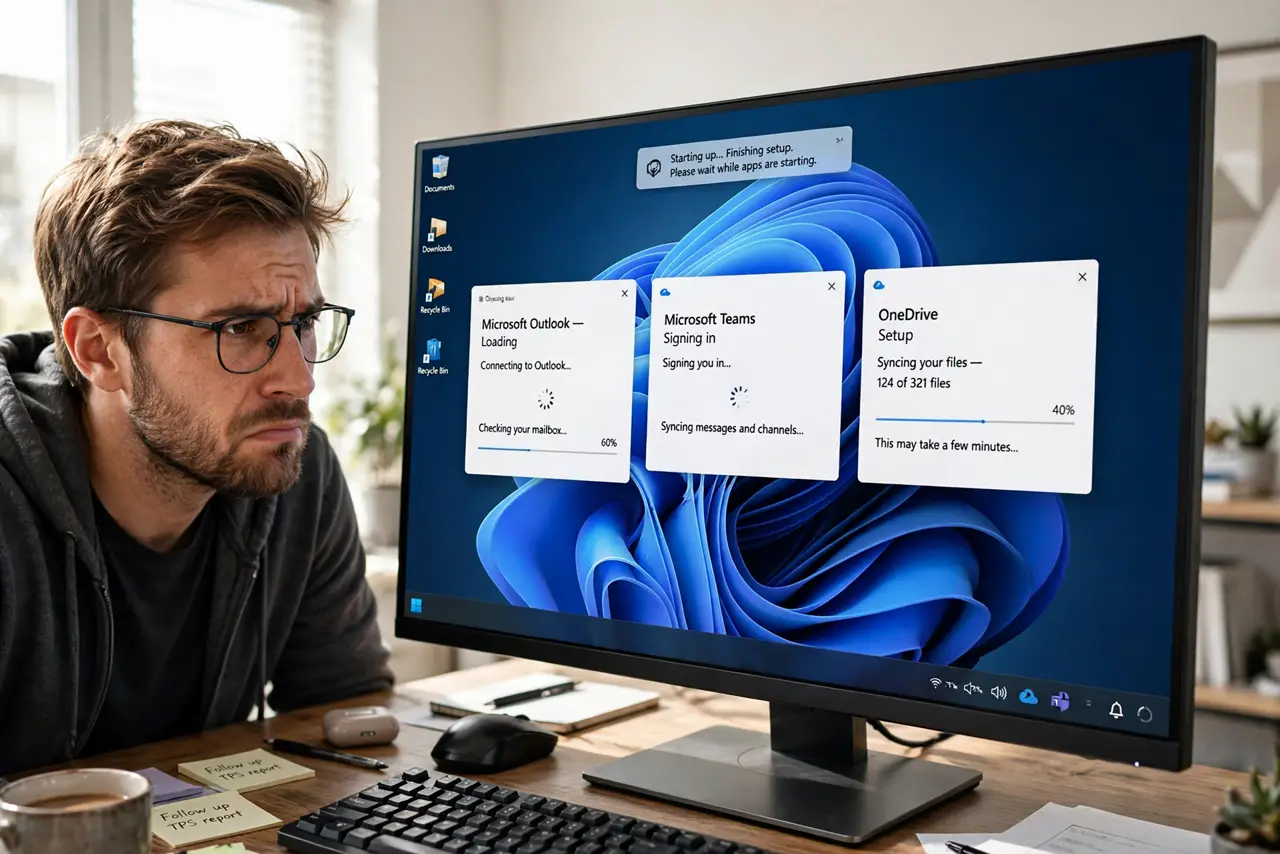
Your PC technically boots fast — then spends three minutes wheezing under ten auto-start apps. You need some of them, just not all at second zero. Windows has no built-in 'start later' button, but Task Scheduler gives you exactly that with a delay timer.
TL;DR / Quick Fix
Windows has no built-in startup delay, but Task Scheduler does the job: create a task that launches the app with a 2-minute delay at logon, then disable the app's own startup entry. Keep essentials instant and delay the nice-to-haves — chat, updaters, cloud sync. Your desktop becomes usable minutes sooner.
Follow these steps
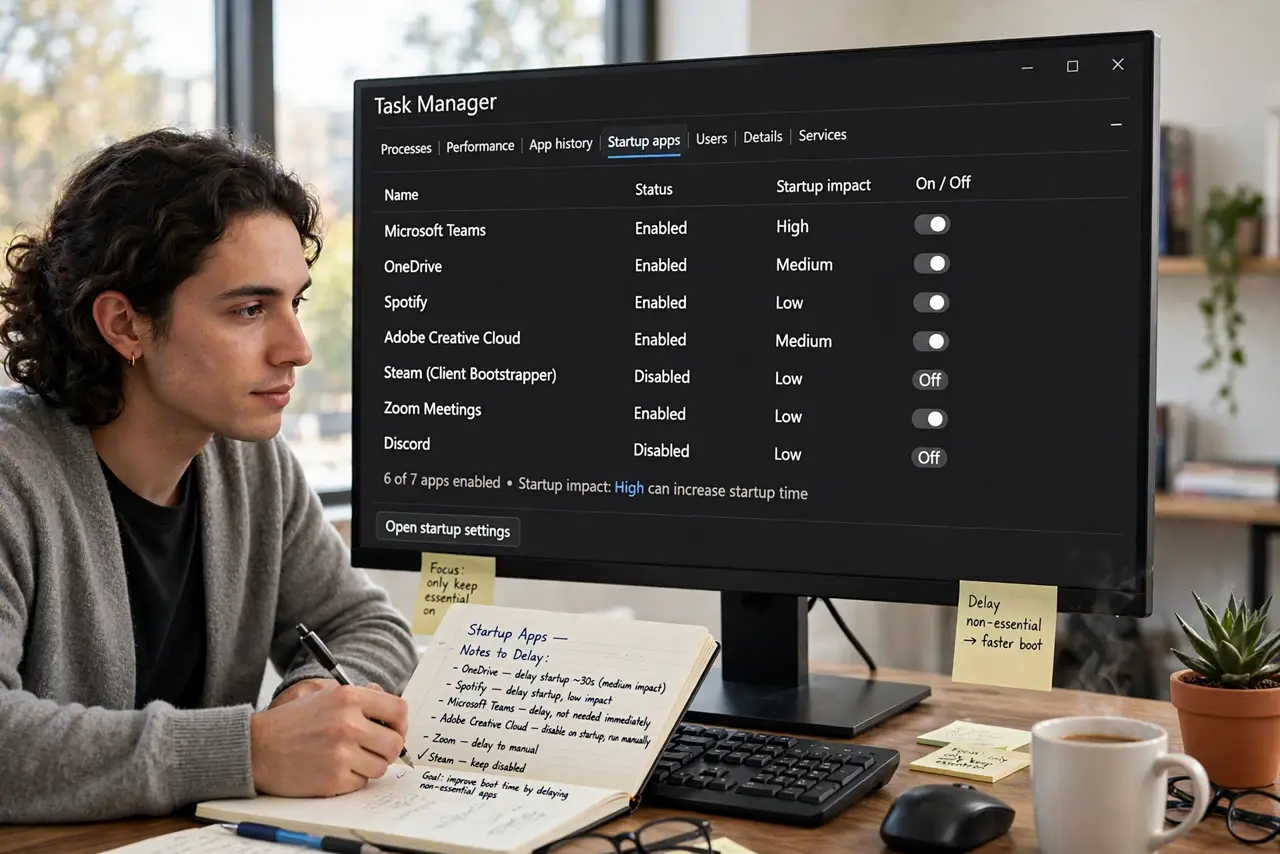
- List what launches at startup. Open Task Manager > Startup apps and note which apps you want delayed rather than disabled — chat, cloud sync, updaters.
- Disable the app's own startup entry. In the same Task Manager tab, right-click the app and choose Disable. Task Scheduler will take over its launch.
- Create a delayed task. Open Task Scheduler, create a basic task, set the trigger to 'At log on', and add a delay — two minutes is a good start.
- Point the task at the app. Set the action to start the app's .exe. Browse to its install folder if you're unsure of the path.
- Keep essentials instant. Don't delay your antivirus, backup, or accessibility tools. Delay the nice-to-haves: chat, music, cloud drives.
- Test with a restart. Reboot and time how long the desktop takes to feel usable. Adjust the delay up or down per app until login feels snappy.
What NOT to do
- Do not delay your antivirus or backup. Security and safety tools should start immediately, every time.
- Do not disable everything and call it a delay. Disabled means never starts — delayed means starts later.
- Do not set a 30-minute delay 'to be safe'. Two to five minutes covers the login crunch; longer just means forgotten apps.
- Do not use sketchy 'startup delayer' freeware. Task Scheduler is built in, free, and does the job without ads.
Frequently asked questions
Why doesn't Windows have a startup delay button?
It never shipped one — Microsoft expects Task Scheduler to cover advanced timing. The building block is there, just not the friendly button.
Will a delayed app miss notifications?
Only during the delay window. After it launches, it behaves normally — two minutes of quiet is the point.
Can I delay Microsoft Store apps?
Yes, but their .exe paths hide in WindowsApps. Launch them via a shell:AppsFolder shortcut in the scheduled task instead.