The Sticky Keys Popup Keeps Appearing
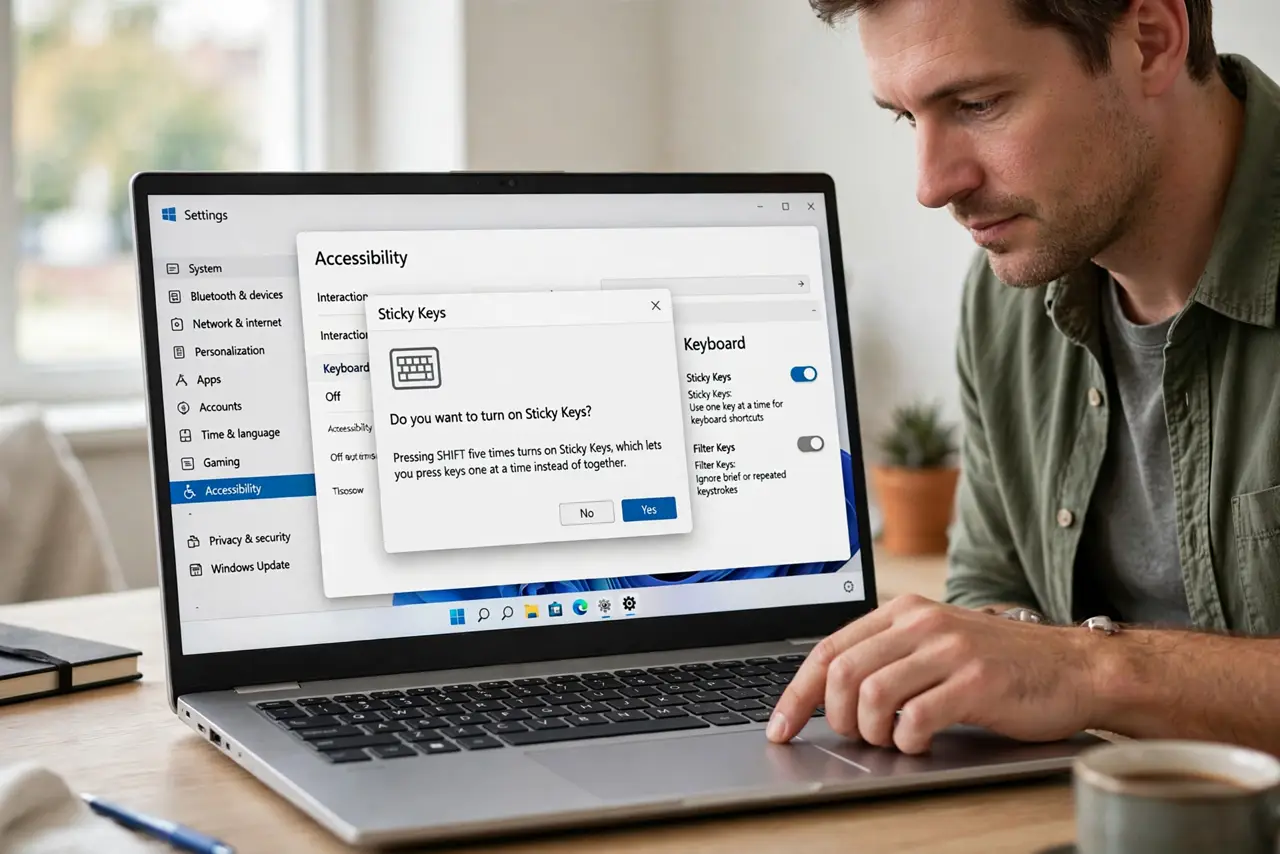
The Sticky Keys popup appears when you press Shift five times quickly, which happens easily during gaming or fast typing. It is a shortcut, not a fault, and turning off that shortcut ends the popups while keeping Sticky Keys available for those who need it. If the on-screen keyboard is your uninvited guest instead, see the on-screen keyboard popping up uninvited.
TL;DR / Quick Fix
Quick fix: Dismiss the popup and open settings. Turn off the Shift shortcut. Then work through the remaining steps in order, checking one change at a time, and stop for a technician if you see damage, swelling, or a burning smell.
Follow these steps
- Dismiss the popup and open settings. When the popup appears, choose No or close it, then open Settings, then Accessibility, then Keyboard. You will fix the trigger there, not by answering the popup each time.
- Turn off the Shift shortcut. In the Sticky Keys section, turn off the setting that lets you press Shift five times to turn Sticky Keys on. This single toggle stops the popup at its source.
- Confirm Sticky Keys itself is off. On the same page, confirm Sticky Keys is off if you do not use it. Leaving the feature on with the shortcut off is fine, but off entirely is simplest for most people.
- Test with rapid Shift presses. Press Shift five times quickly and confirm no popup appears. This test proves the shortcut is off, rather than assuming the next gaming session will be quiet.
- Check Filter Keys shortcut too. On the same Accessibility Keyboard page, check the Filter Keys shortcut setting. A similar hold-right-Shift popup can appear, and turning its shortcut off prevents a second surprise.
- Restart and test in a game or fast typing. Restart Windows, then type quickly or play briefly and watch for popups. If none appear, the shortcut fix held, and Sticky Keys stays available in settings if ever needed.
What NOT to do
- Do not disable all accessibility features to stop one popup. The Shift shortcut toggle is the precise fix, and other features may matter later.
- Do not keep clicking No on the popup. Answering it every time wastes attention, while one toggle ends it permanently.
- Do not edit the registry for this shortcut. The Accessibility settings page already exposes the toggle, safely.
- Do not assume the popup means a stuck Shift key. A stuck key would also type repeated characters, while this popup comes from rapid Shift presses alone.
Frequently asked questions
What are Sticky Keys for?
They let you press modifier keys, such as Shift or Ctrl, one at a time instead of holding them, which helps people who cannot hold several keys together.
Will turning off the shortcut remove Sticky Keys?
No. It only removes the Shift shortcut. You can still turn Sticky Keys on from Accessibility settings any time.
Why does the popup appear during games?
Games often involve rapid Shift presses for sprinting or crouching, which matches the five-press shortcut pattern.