The Stopwatch? Basics
You need to time a presentation run-through, a workout interval, or how long that compile actually takes — and your phone is across the room. Windows has a stopwatch built into the Clock app, with laps, splits, and millisecond precision. It is always there, no install needed. Here is how to use it well.
TL;DR / Quick Fix
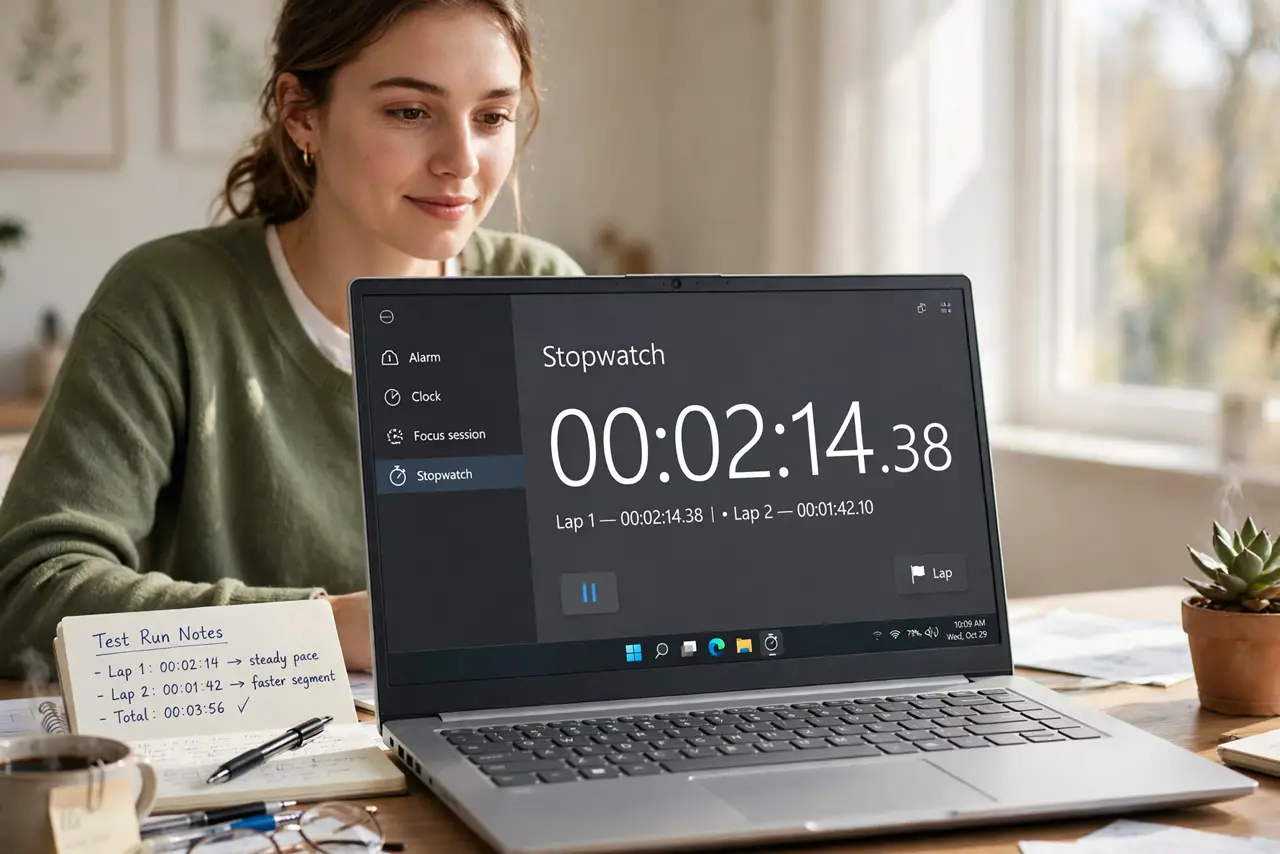
Quick fix: open the Clock app, go to Stopwatch, and hit the big start button. Click the flag icon to record laps without stopping the timer. Use Expand to pop it into a small always-on-top window, and Reset to clear it when you are done.
Follow these steps
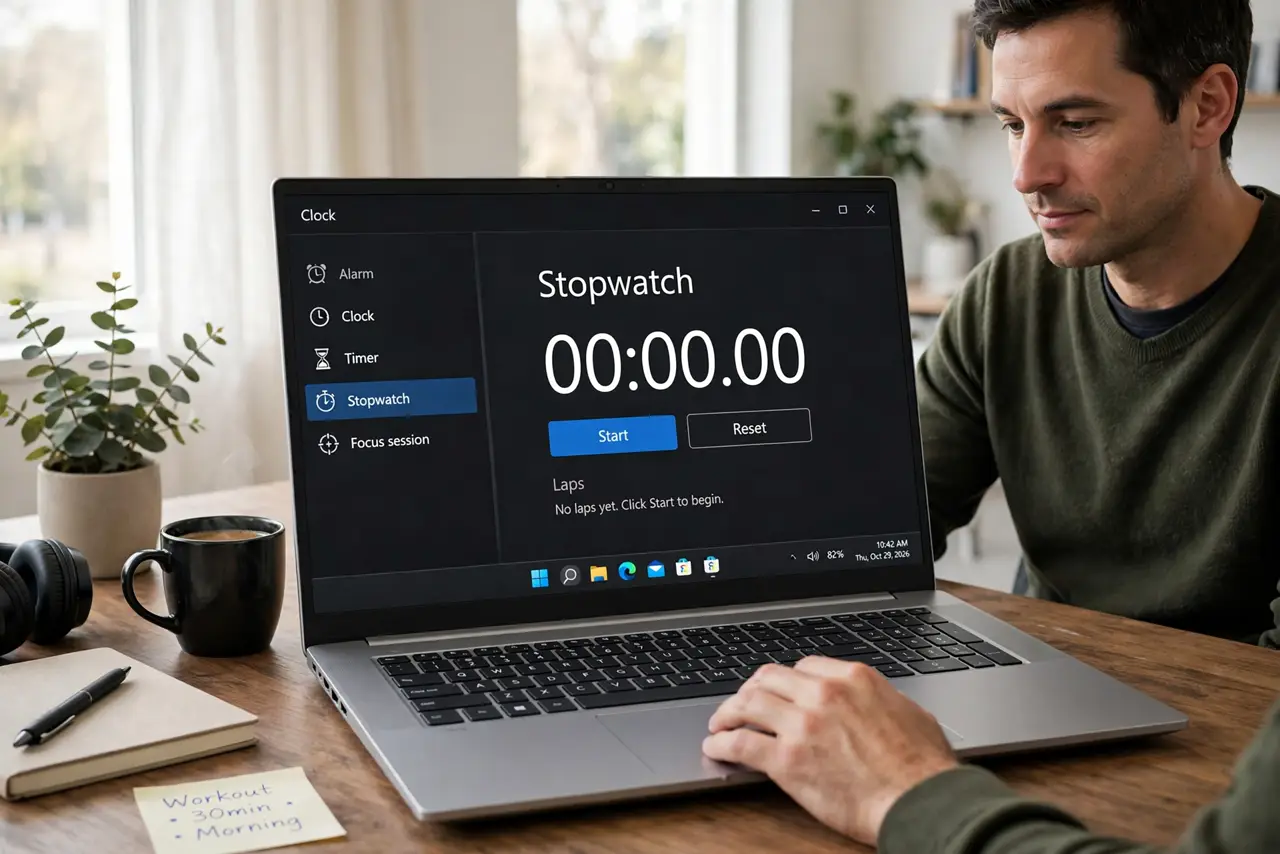
- Open the stopwatch. Search for 'Clock' in the Start menu, open the app, and click the Stopwatch tab. It sits alongside alarms, timers, and world clock — one app, four tools.
- Start, pause, and reset. The big button starts and pauses; the reset arrow clears everything back to zero. Pausing keeps your elapsed time so you can resume — reset wipes it, so pause first if you might continue.
- Record laps and splits. Click the flag icon while running to log a lap — the total keeps running while each lap time is recorded below. Perfect for timing rounds, reps, or segments of a task.
- Pop it out with Expand. Click the expand icon to shrink the stopwatch into a small floating window that stays on top of other apps. Time your work while the window stays visible in the corner.
- Mind the power settings. A stopwatch keeps counting even if the display sleeps, but a full shutdown or hibernate stops the app. For long timing sessions, keep the PC awake or use your phone instead.
- Copy or share your times. Select lap times to copy them for logs or reports. Coaches and developers: paste the splits straight into a spreadsheet for analysis.
What NOT to do
- Do not rely on it across a reboot. Restarting the PC wipes the running stopwatch — for timing that must survive restarts, use a dedicated timer app or your phone.
- Do not confuse the stopwatch with the timer. Stopwatch counts up from zero; the timer counts down to zero — pick the right tab.
- Do not let the laptop fully sleep mid-session for critical timing. Sleep pauses the app; the stopwatch is honest only while Windows runs.
- Do not forget to reset between sessions. Yesterday's laps sitting below today's make for confusing screenshots.
Frequently asked questions
Does the stopwatch run when the app is closed?
Yes — once started, it keeps running in the background. Reopen the Clock app anytime to check the elapsed time.
Can I time in milliseconds?
Yes, the display shows hundredths of a second while running. Plenty precise for sports splits and informal benchmarks.
Is there a keyboard shortcut?
Not a global one — the Clock app needs focus. For hands-free timing, your phone's stopwatch with volume-button control is easier.