Storage Sense Deletes Files From Downloads
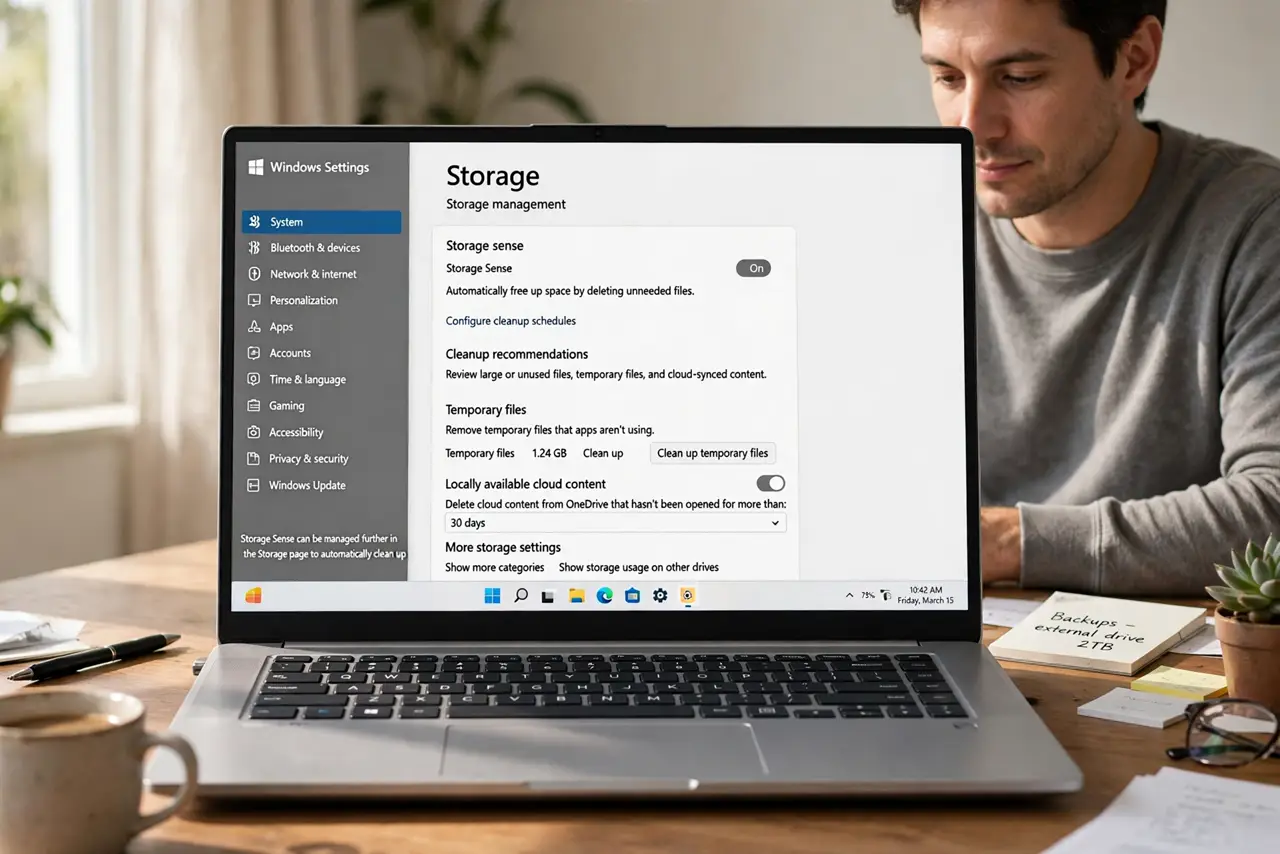
Storage Sense frees space automatically, but its Downloads cleanup can delete files you meant to keep, because Downloads is often a working folder, not a trash can. This guide turns off Downloads cleanup while keeping useful space saving. If you want general space saving instead, see freeing up space on Windows.
TL;DR / Quick Fix
Quick fix: Open the Storage Sense settings page. Turn off Downloads cleanup. Then work through the remaining steps in order, checking one change at a time, and stop for a technician if you see damage, swelling, or a burning smell.
Follow these steps
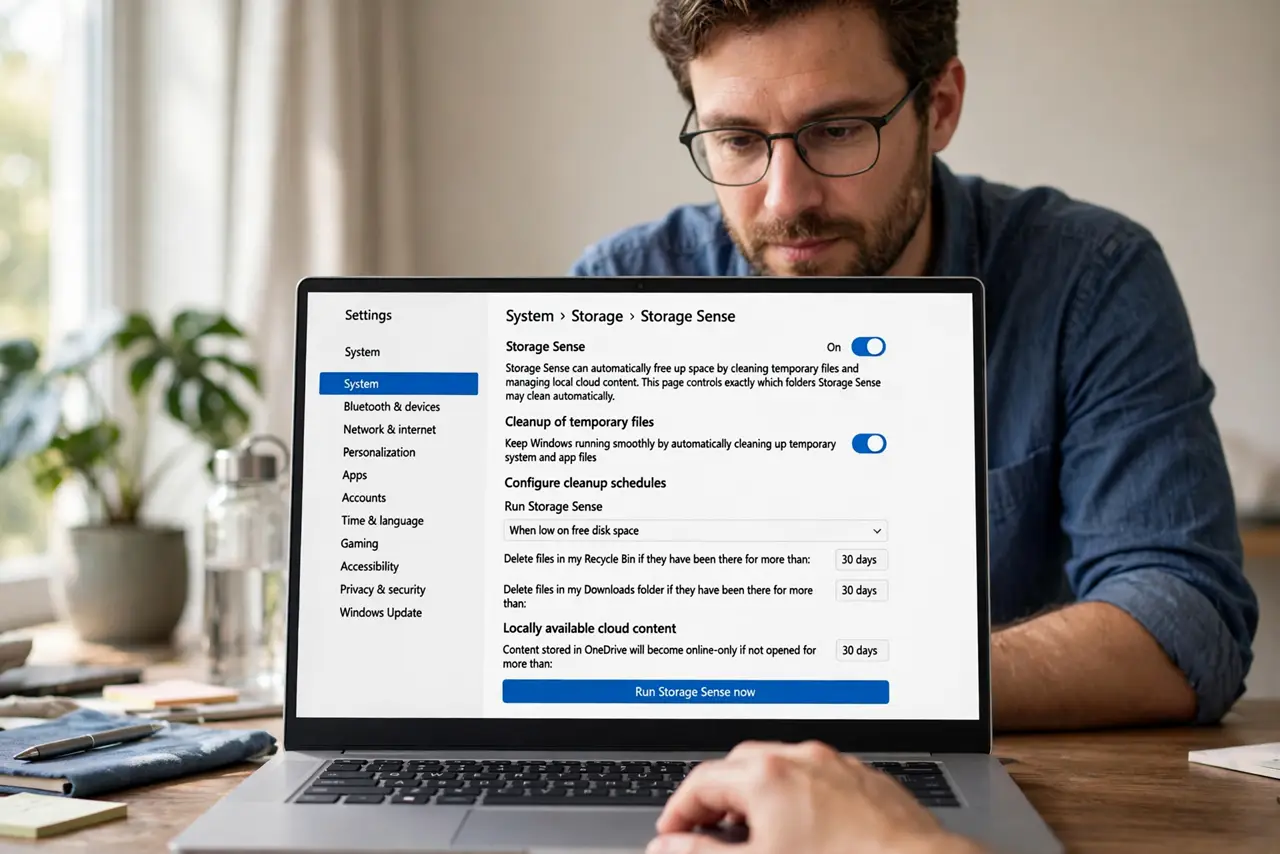
- Open the Storage Sense settings page. Open Settings, then System, then Storage, then Storage Sense. This page controls exactly which folders Storage Sense may clean automatically.
- Turn off Downloads cleanup. Find the option about deleting files in Downloads and turn it off, or set it to Never. Storage Sense will then leave Downloads alone, while still cleaning temporary files.
- Check the Recycle Bin setting too. On the same page, check how long files stay in the Recycle Bin before automatic deletion. A short period there can also remove files you meant to restore.
- Move keepers out of Downloads. Move files you want to keep from Downloads into Documents or a dedicated folder. Downloads is a cleanup target by design, so keepers belong elsewhere.
- Check what Storage Sense already deleted. Open the Recycle Bin and look for recently deleted Downloads files. Storage Sense deletions often pass through the Recycle Bin, so recent losses may be restorable.
- Run Storage Sense by hand once. Use Run Storage Sense now on the same page, then check Downloads. If nothing in Downloads vanished, the new setting is working, and you can trust automatic runs again.
What NOT to do
- Do not turn off Storage Sense entirely over Downloads. Turning off one folder keeps the useful temporary cleanup while protecting your files.
- Do not store important files only in Downloads. Downloads is treated as temporary by cleanup tools, so keepers need a real folder.
- Do not empty the Recycle Bin before checking. Recently deleted Downloads files may still be there, and emptying removes that rescue.
- Do not assume Storage Sense deleted files permanently. Check the Recycle Bin first, because that is where most automatic deletions land.
Frequently asked questions
Does Storage Sense delete files without asking?
Yes, that is its job, but only for the categories you allow, which is why checking Downloads and Recycle Bin settings matters.
Can I recover Downloads files Storage Sense deleted?
Often yes from the Recycle Bin, if it has not been emptied and the retention period has not passed.
Should I keep Storage Sense on at all?
Yes, for temporary files. It saves space quietly, and with Downloads off it is safe for most people.