Use Sudo in Windows Terminal
You are working in Windows Terminal, you type a command, and it fails: access denied, run as administrator. So you close Terminal, right-click, run as admin, navigate back to where you were, and retype everything. Windows 11 now ships a real sudo command — the same idea Linux and macOS have had forever — that elevates a single command in place. Enable it once, and the dance is over.
TL;DR / Quick Fix
Quick fix: Windows 11 now has real sudo — enable it in Settings → System → For developers, then prefix any Terminal command with sudo to run it elevated. No more right-clicking and reopening Terminal as administrator. It prompts once per session, just like Linux and macOS.
Follow these steps
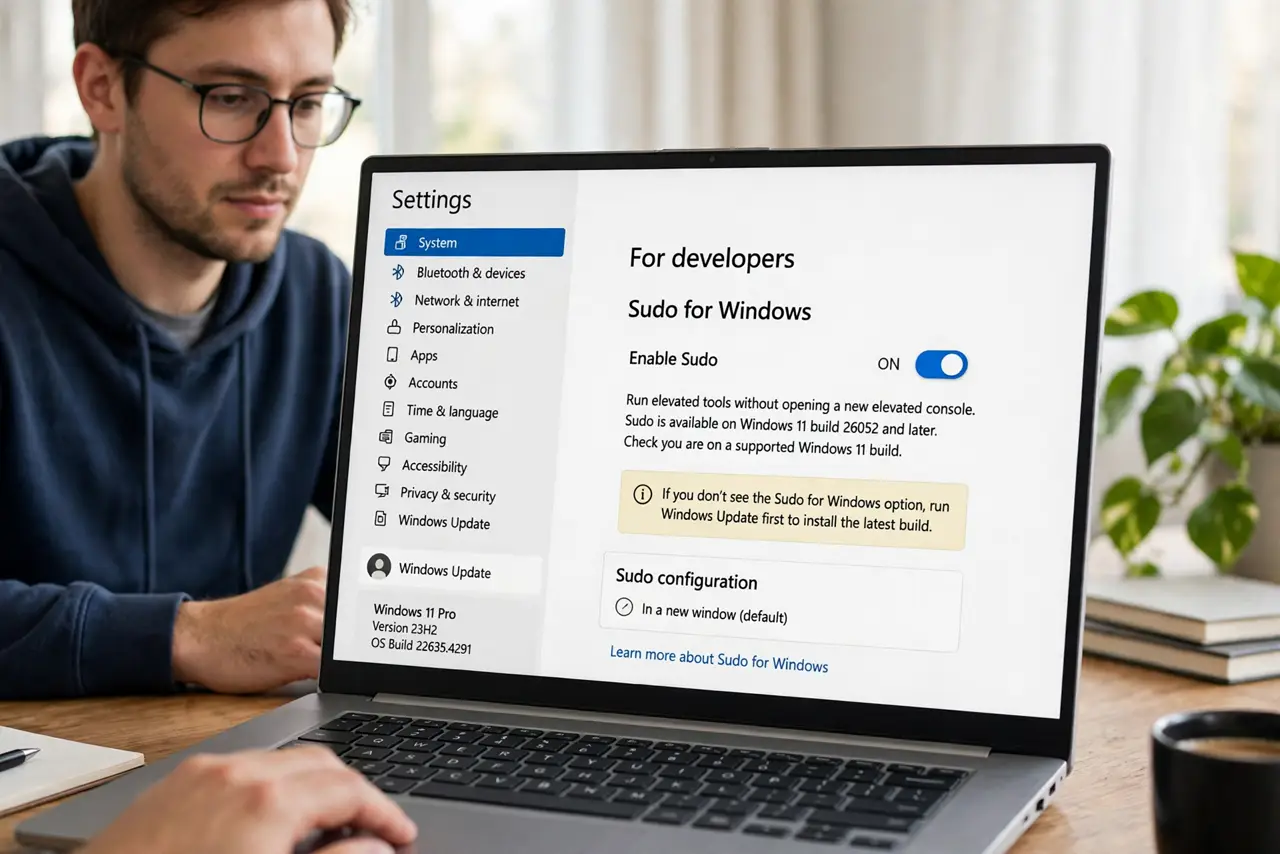
- Check you are on a supported Windows 11 build. Sudo for Windows arrived in recent Windows 11 builds — run Windows Update first if the option below does not appear. This is a Windows 11 feature; Windows 10 does not have it.
- Enable sudo in Settings. Open Settings → System → For developers and switch Enable sudo to On. Choose the default mode (In a new window is the safest) — you can change it later once you know your preference.
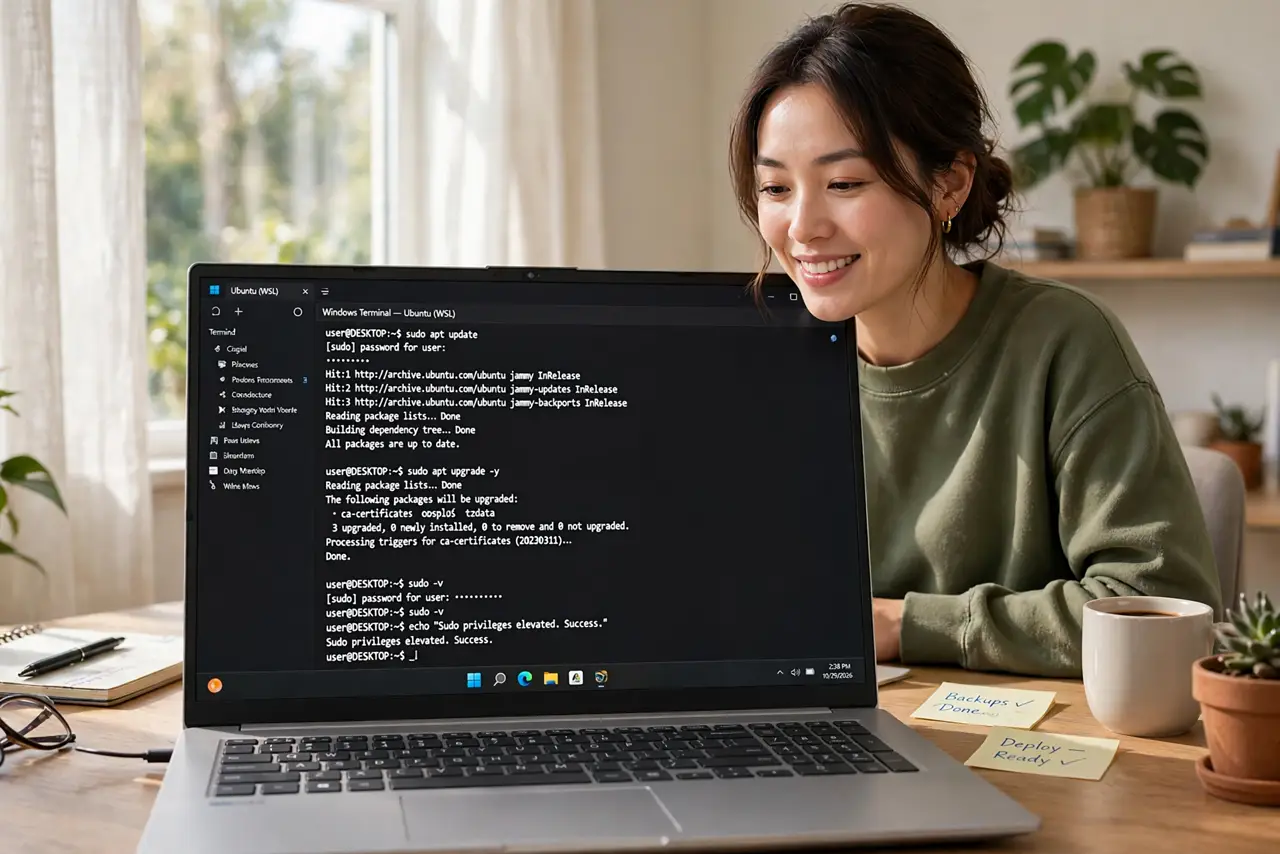
- Use it like any other sudo. In Terminal, type sudo followed by your command — for example, sudo winget install something. Windows prompts for elevation once, runs that command as administrator, and your shell stays exactly where it was.
- Understand the elevation prompt. The first sudo in a session shows the familiar UAC prompt. That is the security boundary working as intended — sudo does not bypass UAC, it just invokes it per command instead of per window.
- Combine it with the dropdown terminal. Sudo pairs beautifully with a Quake-style dropdown terminal — one hotkey summons the console, sudo elevates the one command that needs it, and you never leave your flow.
- Know when to still open an admin window. Long admin sessions (many elevated commands in a row) are still nicer in a dedicated administrator Terminal. Sudo is for the occasional elevated command, not for living as admin.
What NOT to do
- Do not disable UAC to avoid the prompt. The prompt is the protection — sudo without UAC is just a fast lane for malware.
- Do not run everything with sudo out of habit. Elevate only the commands that need it; a root shell for casual browsing is how accidents happen.
- Do not paste sudo commands from strangers blindly. Elevated commands from the internet deserve the same suspicion as any admin action — read before you run.
- Do not enable the inline mode on a shared PC. Inline sudo is convenient and slightly less isolated — on a machine others touch, keep the new-window mode.
Frequently asked questions
Is Windows sudo the same as Linux sudo?
Same idea, different plumbing — it elevates through Windows UAC rather than the Linux mechanism. The muscle memory transfers; the internals do not.
Why do I still get a UAC prompt?
By design: sudo requests elevation per command instead of per window, but UAC still guards the boundary. One prompt per session is the intended experience.
Can I use sudo in PowerShell and CMD too?
Yes — it works in Windows Terminal across shells, since it operates at the Windows level rather than inside one particular shell.