Can't Find a System Tray Icon? Fix It
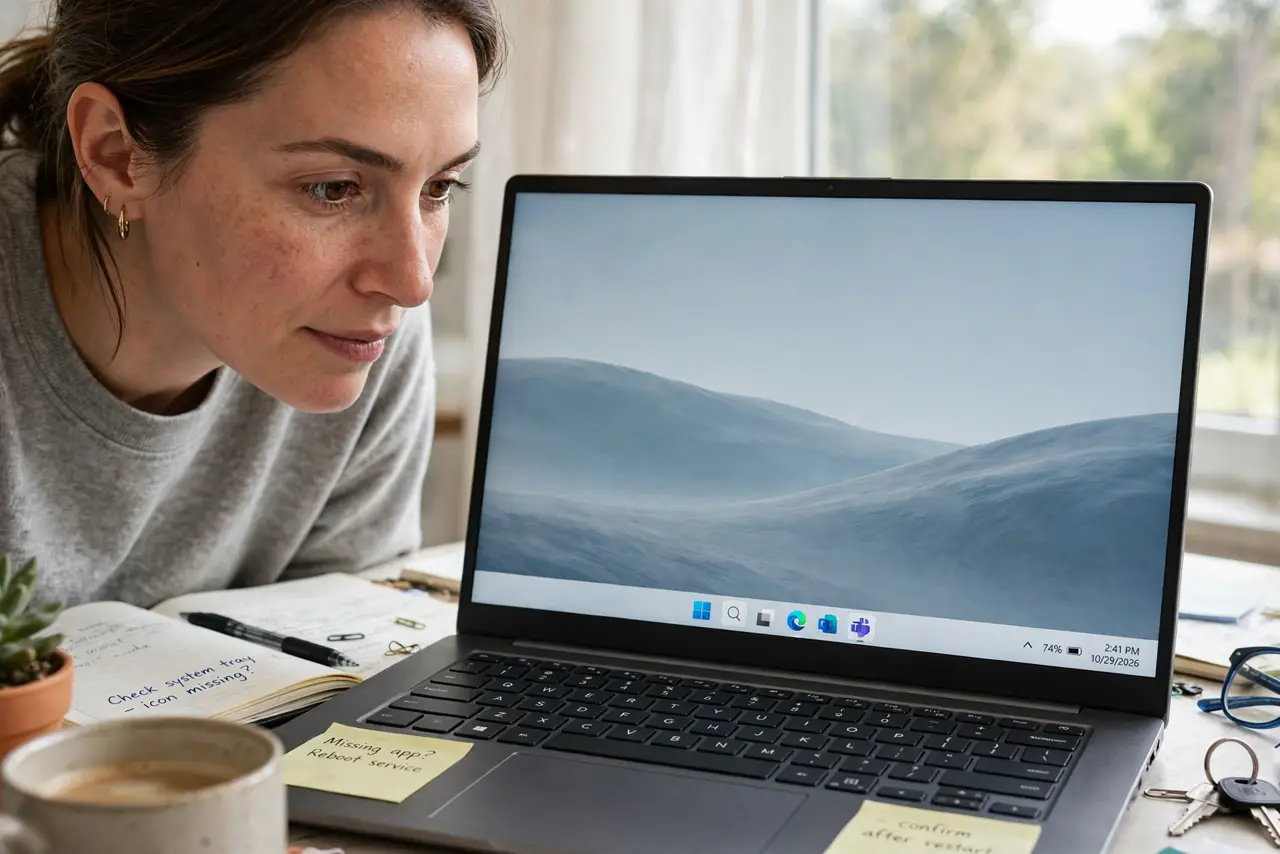
An app is running but its system tray icon is nowhere — not in the overflow, not on the taskbar, nowhere. Windows 11 moved tray icons into a per-app toggle list, and many apps also have their own show-in-tray setting that defaults to off. Checking both places finds it — with the broader taskbar customization guide for the rest of the taskbar.
TL;DR / Quick Fix
Quick fix: open Taskbar settings and look at the system tray icon list, where Windows 11 hides per-app toggles. Turn on the toggle for your app. If it is already on, open the app's own settings and enable its show-in-tray or minimize-to-tray option, then restart the app.
Follow these steps
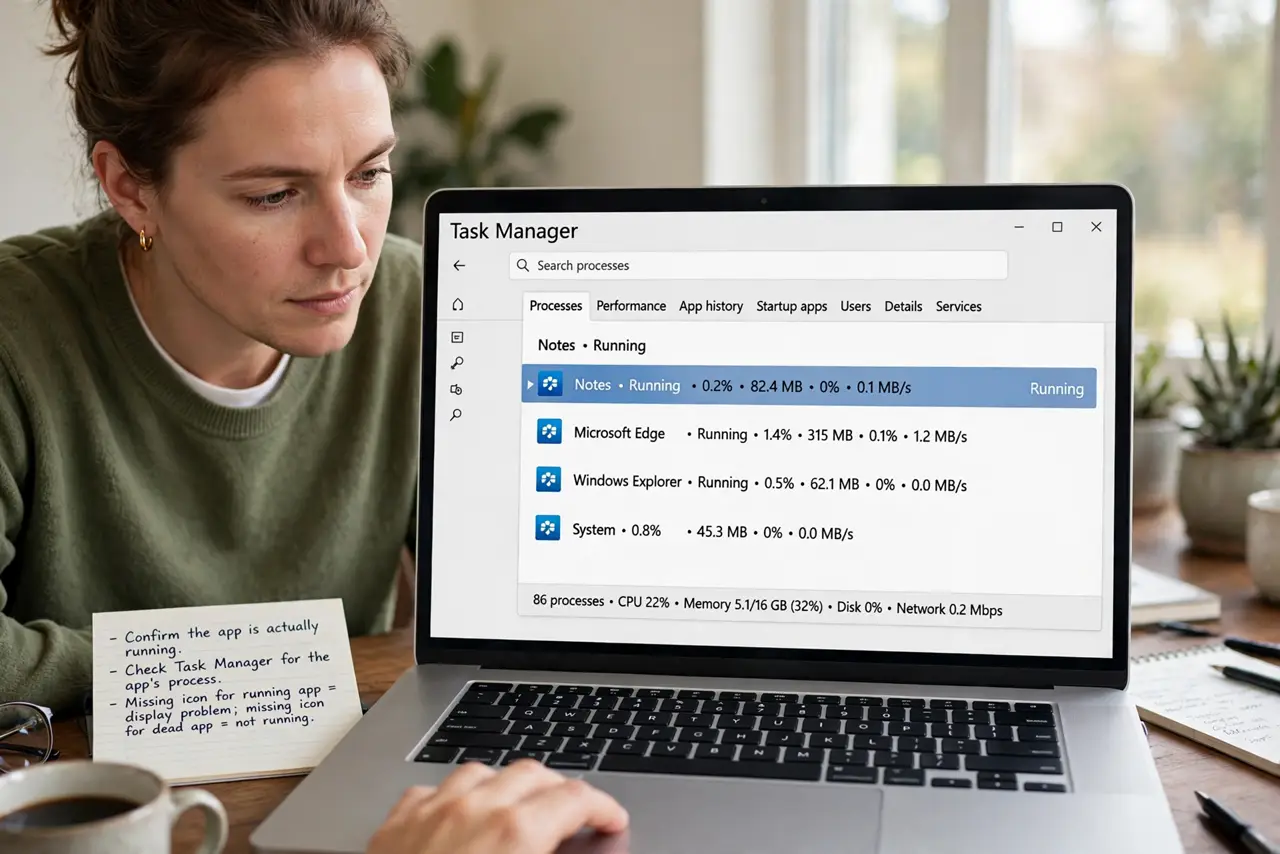
- Confirm the app is actually running. Check Task Manager for the app's process. A missing icon for a running app is a display problem; a missing icon for a dead app just means it is not running.
- Open the taskbar's tray icon settings. Go to Taskbar settings and find the system tray icons section. Windows 11 lists each app with its own toggle here, replacing the old overflow arrow behavior.
- Turn on the toggle for your app. Find your app in the list and switch its toggle on. The icon should appear in the tray corner immediately.
- Check the app's own tray setting. Open the app's settings and look for options like show tray icon, minimize to tray, or run in background. Many apps default this to off and need it enabled explicitly.
- Restart the app after enabling. Close the app completely and start it again. Tray icons register at startup, so a running app will not pick up the new setting until relaunched.
- Check for a collapsed overflow on small taskbars. On narrow taskbars or with many icons, Windows may still collapse extras. Drag the taskbar corner or reduce pinned icons to make room.
What NOT to do
- Do not reinstall the app for a missing icon. The icon is a display toggle, and reinstalling rarely changes toggle defaults.
- Do not assume the app crashed. Check Task Manager first; a running app with a hidden icon is a settings issue, not a crash.
- Do not enable every tray toggle at once. A crowded tray is harder to scan, so enable only the apps whose icons you actually check.
- Do not confuse the tray with the taskbar. Pinned taskbar icons and tray-corner icons are separate systems with separate settings.
Frequently asked questions
Where did the show hidden icons arrow go?
Windows 11 replaced the old overflow arrow with per-app toggles in Taskbar settings. The arrow is gone; the toggles are its replacement.
Why do some apps never show a tray icon?
Because the app itself must support it. If the app has no tray feature, no Windows setting can conjure the icon.
The toggle is on but the icon is missing — why?
The app probably needs a restart to register its icon, or its own internal tray option is still off.