Task View Shows Windows You Already Closed
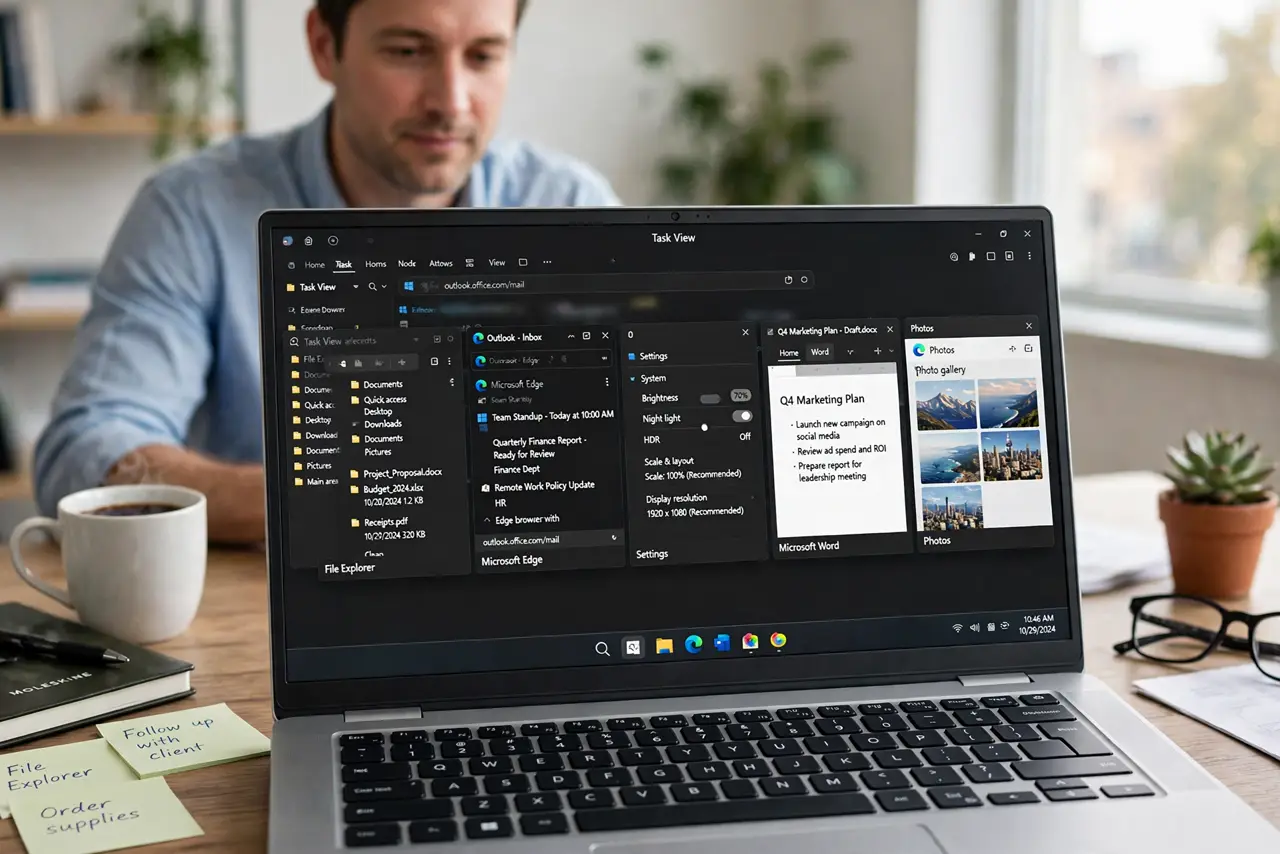
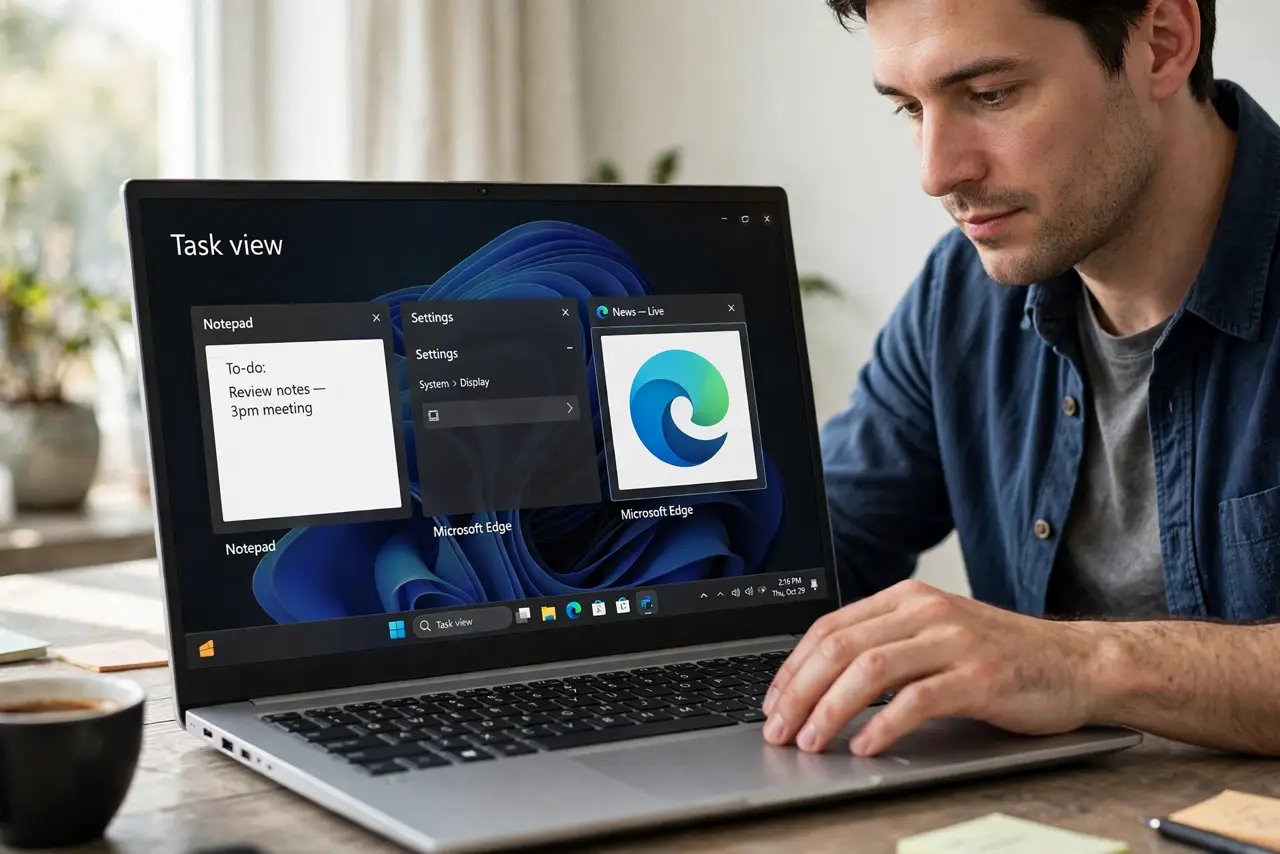
Task View is meant to show your open windows and virtual desktops, so seeing a window you thought you closed feels like a glitch. Most of the time the app is still running in the background, minimized, or the entry is a recent activity rather than a live window. This guide separates those cases before you close anything. If the problem is really about desktops, the guide on virtual desktop names resetting covers that side of Task View.
TL;DR / Quick Fix
Quick fix: Click the window to see if it is live. Check Task Manager for the app. Then work through the remaining steps in order, checking one change at a time, and stop for a technician if you see damage, swelling, or a burning smell.
Follow these steps
- Click the window to see if it is live. In Task View, click the thumbnail you think is closed. If a real window opens, the app was still running, just minimized or on another desktop, and closing it from there is the fix.
- Check Task Manager for the app. Press Ctrl, Shift, and Esc to open Task Manager, then look for the app name under Processes. A running entry means the app never closed, even if its window disappeared from view.
- Close the app properly, not just its window. Right-click the app icon on the taskbar and choose Close window, or use Task Manager and End task for a stuck app. Some apps keep running after their window closes, by design.
- Check the other virtual desktops. Open Task View and look across every desktop thumbnail at the top. A window that seems gone is often sitting on another desktop, and Alt-Tab behavior can confirm which desktop holds it.
- Turn off Timeline-style history if it confuses you. Open Settings, then Privacy and security, then Activity history, and turn off storing activity history on the device if old entries keep looking like open windows. This only affects history, not live windows.
- Restart and recount your windows. Restart Windows, open Task View, and count what is genuinely open. If a closed window reappears only after a restart, note the app name, because that app is likely set to reopen itself.
What NOT to do
- Do not end every process in Task Manager. Ending system processes can crash Windows, so end only the named app you recognize.
- Do not install a Task View cleaner. These tools promise to remove entries but often hide live windows instead of explaining them.
- Do not assume a thumbnail means the app is using power. A history entry costs nothing, while a live app does, so check Task Manager before worrying.
- Do not disable Task View itself over one confusing entry. The checks above identify the cause without losing a useful feature.
Frequently asked questions
Why does a closed browser keep appearing in Task View?
The browser may still run in the background, or the entry may be recent history. Task Manager tells you which case applies.
Does closing a window always quit the app?
No. Some apps, such as chat and music apps, keep running in the background after their window closes.
How do I stop apps reopening after a restart?
Check the app own settings for a run-at-startup option, and check Settings, then Apps, then Startup, for the same app.