Virtual Desktop Names Keep Resetting on Windows
Naming your virtual desktops, such as Work and Personal, makes switching between them far easier. When those names reset to Desktop 1 and Desktop 2, the cause is usually a sign-out, a restart after an update, or a desktop that was closed and recreated. This guide shows how to rename them properly and how to tell a reset from a closed desktop. If your desktops themselves look wrong, also check the guide on Task View showing windows you already closed.
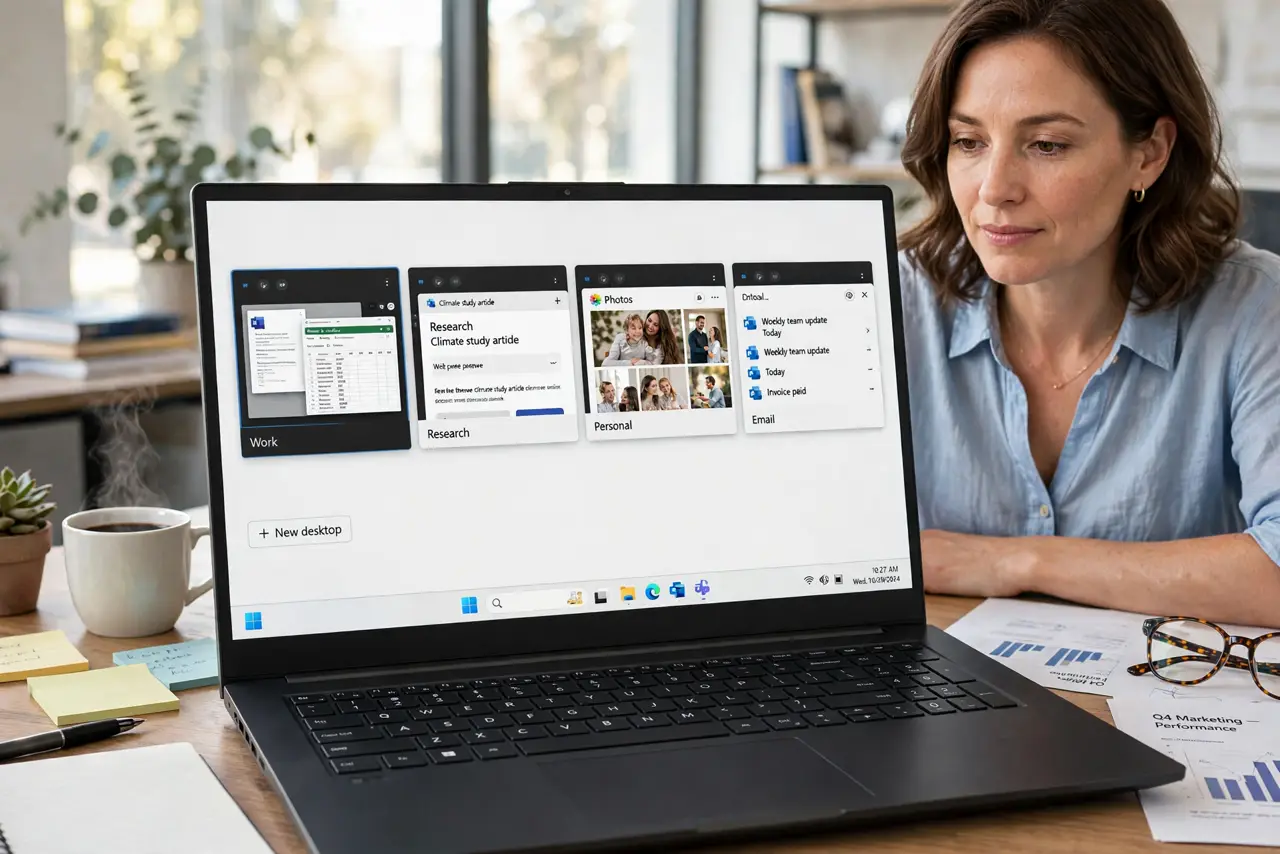
TL;DR / Quick Fix
Quick fix: Rename a desktop from Task View. Check whether the desktop was closed. Then work through the remaining steps in order, checking one change at a time, and stop for a technician if you see damage, swelling, or a burning smell.
Follow these steps
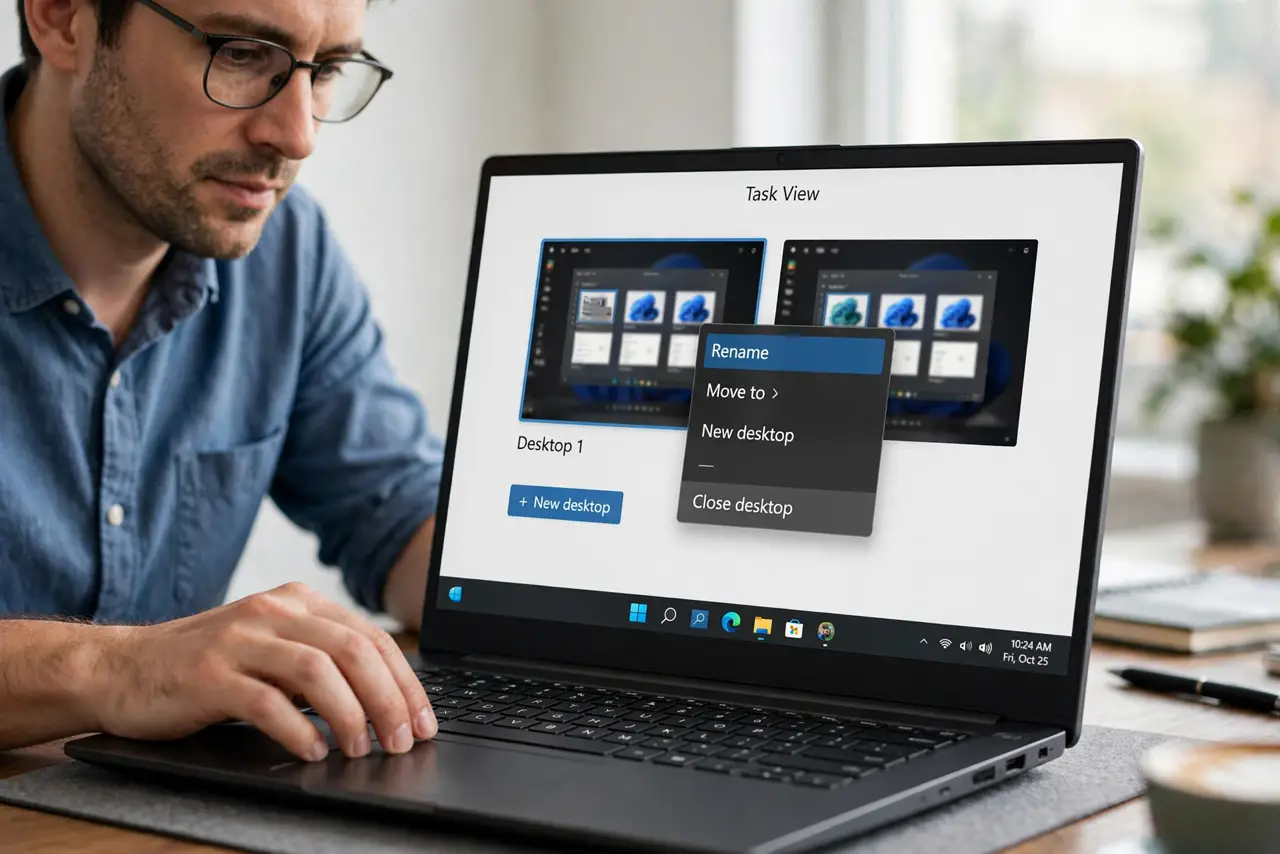
- Rename a desktop from Task View. Press the Windows key plus Tab to open Task View, right-click a desktop thumbnail at the top, and choose Rename. Type a short, plain name and press Enter, then switch away and back to confirm it stuck.
- Check whether the desktop was closed. In Task View, look at how many desktops exist now. A desktop that was closed is gone for good, and a new one always starts with a default name, which looks like a reset but is not.
- Keep the same sign-in session. Virtual desktop names live in your current session, so signing out or restarting can drop them. If names vanish after every sign-out, treat that as expected behavior and reapply names after signing back in.
- Avoid closing desktops by accident. In Task View, avoid clicking the close button on a desktop thumbnail unless you mean it. Closing a desktop moves its windows to a neighbor, and recreating it later starts with a default name.
- Reorder desktops instead of recreating them. In Task View, drag a desktop thumbnail left or right to reorder your set. Reordering keeps names and windows in place, while deleting and recreating loses both.
- Test one rename across a restart. Rename one desktop, restart Windows, and check whether the name survives. If it survives sometimes but not others, note what changed, such as an update or a sign-out, and report that pattern.
What NOT to do
- Do not install a virtual desktop manager to save names. Extra tools can conflict with Task View and lose names in new ways.
- Do not edit the registry for desktop names. There is no safe registry fix for this, and a wrong edit risks wider damage.
- Do not keep recreating desktops every day. Reordering and renaming the same set is steadier than rebuilding it from scratch.
- Do not assume a reset means your files are gone. Desktop names are labels only, and closing a desktop never deletes your documents.
Frequently asked questions
Do virtual desktop names survive a restart?
Sometimes, but not reliably. Names are tied to your session, so a sign-out or a restart can return them to defaults.
Does closing a desktop delete its windows?
No. Windows from a closed desktop move to a neighboring desktop, so your apps stay open even though the label is gone.
Can I pin an app to all desktops?
Yes. In Task View, right-click the app window and choose Show this window on all desktops, or Show windows from this app on all desktops.