Taskbar on Both Monitors?
Two monitors, one taskbar — and every time you need the clock or the system tray you are craning back to the primary screen. Windows can show the taskbar on all displays, with options for which buttons appear where. It is a small setting that makes a dual-monitor setup feel twice as usable. Here is where it hides.
TL;DR / Quick Fix
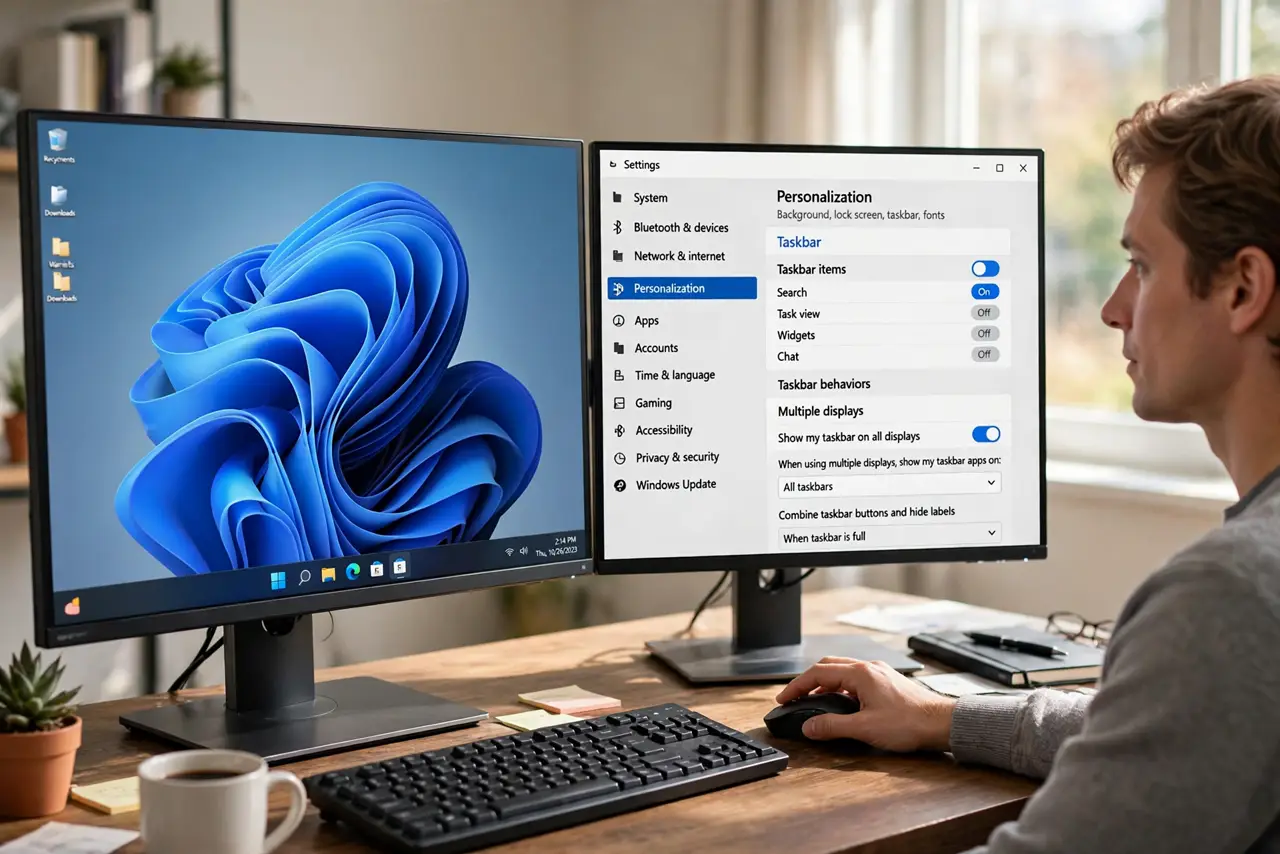
Quick fix: right-click the taskbar, open Taskbar settings, and under Taskbar behaviors turn on 'Show my taskbar on all displays.' Choose whether buttons appear on all taskbars or only where the window is open. If the second taskbar stays missing, recheck the toggle.
Follow these steps
- Open Taskbar settings. Right-click an empty spot on the taskbar and choose Taskbar settings — or find it via Settings, Personalization, Taskbar. Everything for this job lives on one page.
- Enable the taskbar on all displays. Expand 'Taskbar behaviors' and check 'Show my taskbar on all displays.' The second taskbar appears immediately — no restart needed.
- Choose the button behavior. The 'Show taskbar buttons on' dropdown decides: all taskbars, main taskbar plus where the window is open, or only where the window is open. The last option keeps each screen focused on its own work.
- Mind the system tray. The full system tray (clock, notifications, hidden icons) still lives only on the main display — the taskbar customization guide explains the layout. Secondary taskbars get a clock but not the tray.
- Set your main display deliberately. In Settings, System, Display, choose which monitor is 'main.' The main display gets the tray and the default taskbar — put it where you sit most.
- Test window dragging. Drag windows between monitors and watch the taskbar buttons follow your chosen behavior. If buttons seem stuck, re-check the dropdown — it is easy to misread.
What NOT to do
- Do not expect the full system tray on both screens. Windows keeps one tray on the main display by design — the second taskbar is buttons and clock only.
- Do not enable it and forget which display is main. Notifications and tray icons live on the main screen — set it to the monitor you actually face.
- Do not troubleshoot a missing second taskbar before checking the toggle. The setting is the cause ninety percent of the time.
- Do not use third-party taskbar tools for this one job. Windows does it natively now — extra tools add risk for zero benefit here.
Frequently asked questions
Can each monitor have different pinned apps?
No — pinned apps are shared across taskbars. The per-display choice is about which open-window buttons appear where, not the pinned icons.
The taskbar shows on the wrong monitor. How do I swap?
Change the main display in Settings, System, Display — the primary taskbar follows the main display designation.
Will this slow down my PC?
Imperceptibly. A second taskbar is trivial work for any modern system — enable it without performance worry.