HDR on Windows? The Basics
HDR promises dazzling highlights and deeper contrast on Windows — and just as often delivers a washed-out desktop where everything looks gray and wrong. The gap between the promise and the reality is usually settings, not hardware. Windows HDR needs the right display, the right toggle, and the right expectations. Here is the plain setup.
TL;DR / Quick Fix
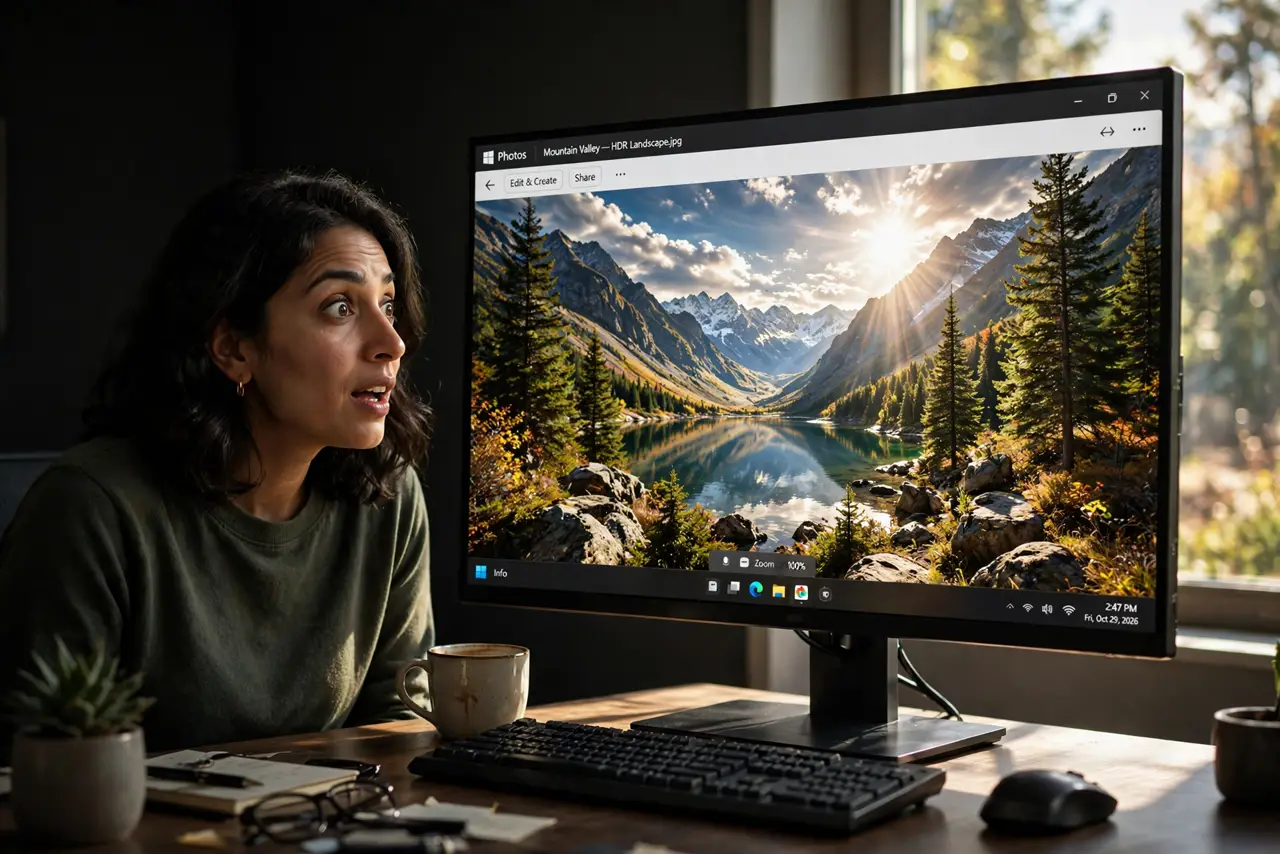
Quick fix: HDR on Windows needs a compatible display and the toggle in Settings, System, Display, HDR. If the desktop looks washed out with HDR on, that is the classic symptom — run the calibration app. Calibrate with the Windows HDR Calibration app for best results.
Follow these steps
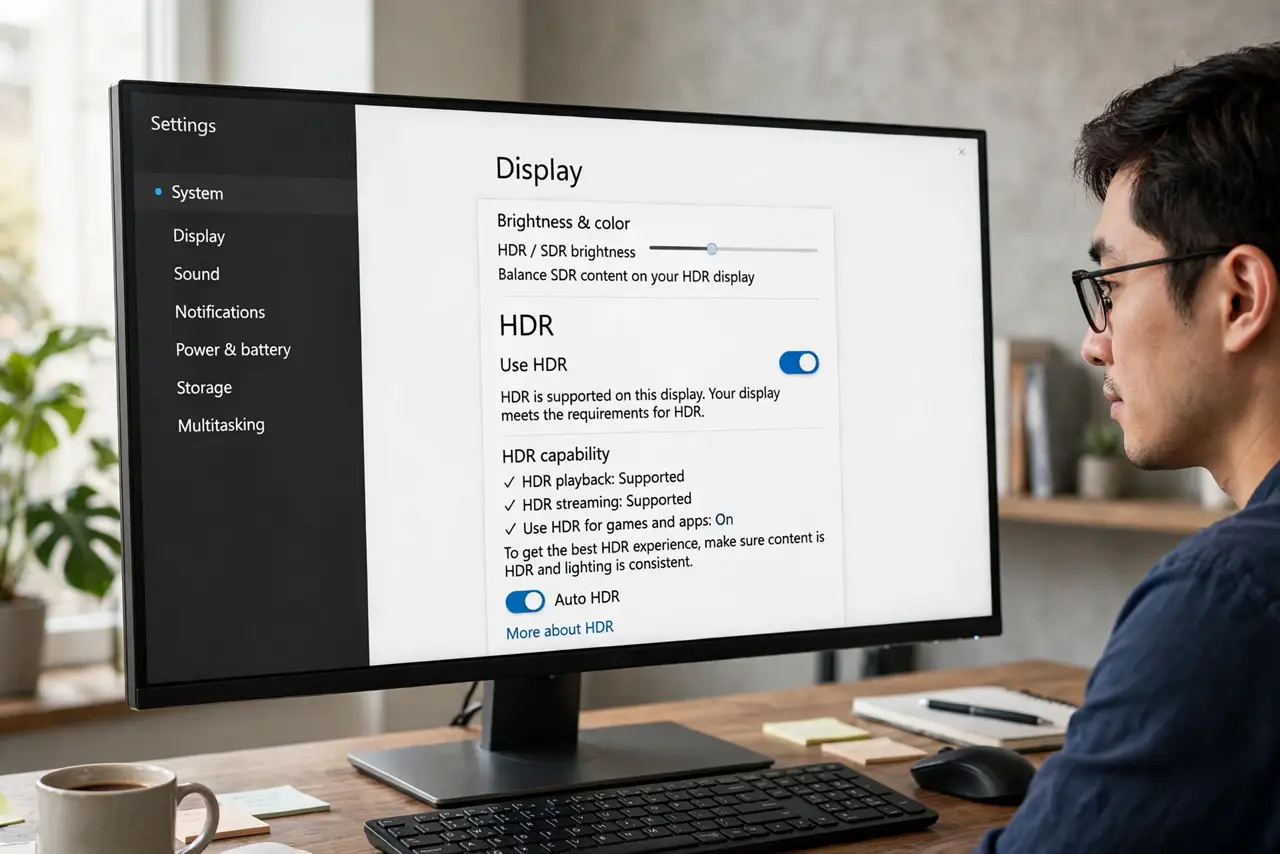
- Check your display actually supports HDR. In Settings, System, Display, click your monitor — Windows lists its HDR capabilities. If the toggle is greyed out, the display or cable is the blocker, not a setting you missed.
- Turn HDR on in the right place. Settings, System, Display, then 'Use HDR.' Windows may also offer 'Auto HDR' for games. One toggle, one place — if you are hunting through three menus, you are in the wrong one.
- Expect the desktop to look different. HDR mode changes how the SDR desktop renders, and out of the box it often looks washed out. This is normal-but-fixable, not broken — calibration is the next step, not a return label.
- Run the HDR Calibration app. Microsoft's free Windows HDR Calibration app (from the Store) walks you through setting black point and brightness. Ten minutes here fixes most 'HDR looks wrong' complaints permanently.
- Set SDR content brightness. In the HDR settings there is a slider for SDR content brightness — your desktop apps live here. Tune it until the desktop looks normal while HDR video still pops.
- Know when to leave it off. If you mostly do office work and browsing, HDR adds little and complicates colors. It shines for HDR movies and games; for spreadsheets, SDR is calmer and more accurate.
What NOT to do
- Do not enable HDR on a display that barely supports it. Fake-HDR panels (low brightness, no wide color) look worse with HDR on — check real capabilities first.
- Do not judge HDR from the desktop. The desktop is SDR content wearing an HDR costume — judge HDR from actual HDR video or games.
- Do not max every slider hoping for pop. Calibration is about balance; crushed blacks and searing whites are not 'better HDR.'
- Do not forget the cable. Old or cheap cables can silently limit the signal — a certified high-speed cable removes one variable.
Frequently asked questions
Why does everything look washed out with HDR on?
Windows is tone-mapping SDR content into HDR space with default settings that suit nobody. Run the calibration app and set the SDR brightness slider — that fixes the vast majority of cases.
Does HDR slow down my PC?
Negligibly for video; slightly for games, since Auto HDR adds processing. If a game stutters only with Auto HDR on, that is the cost.
Should I use HDR for photo editing?
Only with a properly calibrated HDR display and software that understands it. For most editing, a calibrated SDR workflow is more predictable.