Stop Grouping Taskbar Buttons
Ten browser windows collapse into one tiny icon, and finding the right tab means hovering and squinting at thumbnails. Button grouping saves taskbar space, but on a wide monitor it just adds clicks. Turning it off gives every window its own labeled button again — here is the one setting that controls it.
TL;DR / Quick Fix
Quick fix: open Settings > Personalization > Taskbar > Taskbar behaviors and set Combine taskbar buttons and hide labels to Never — each window gets its own labeled button. On Windows 11 the control is in the same place. Grouping never closes windows; it only stacks them under one icon.
Follow these steps
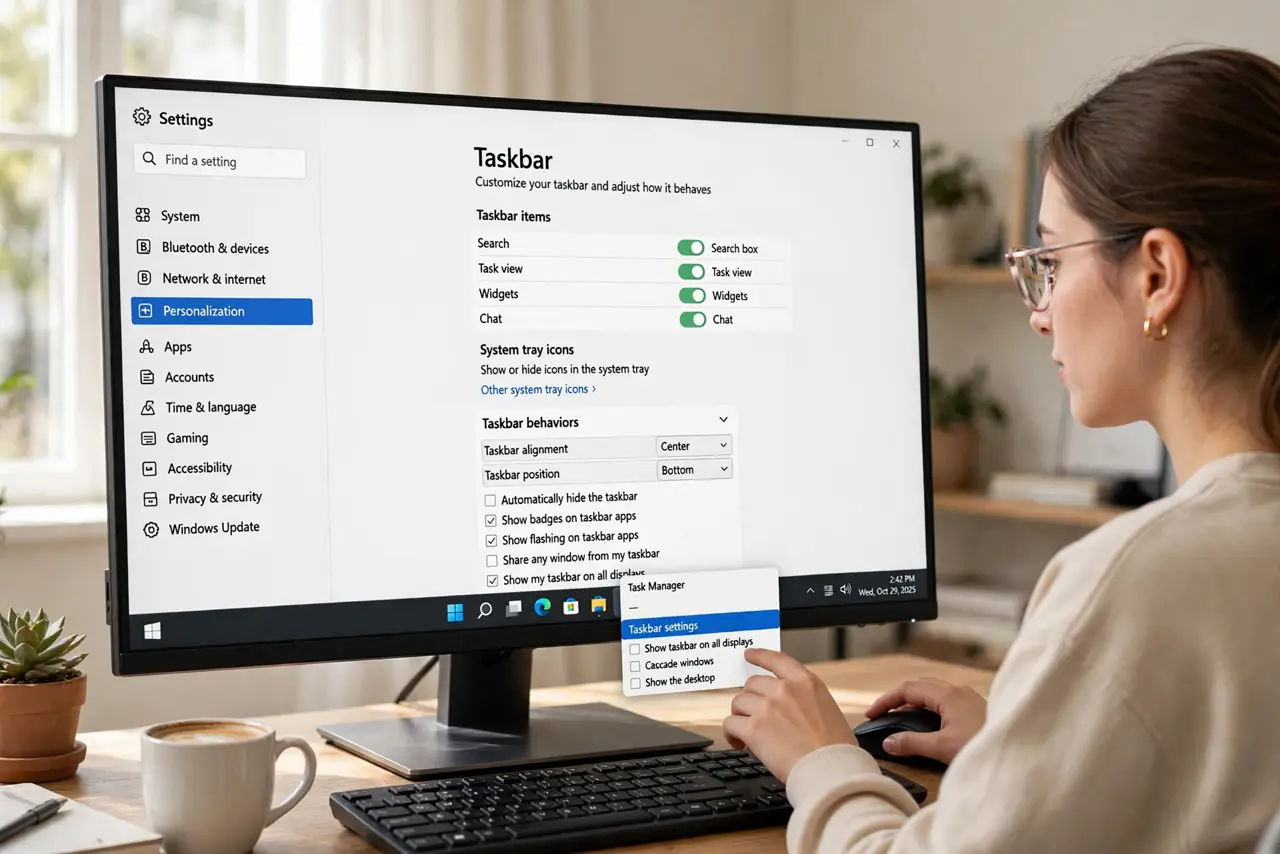
- Open Taskbar behaviors. Right-click the taskbar, choose Taskbar settings, and expand the Taskbar behaviors section at the bottom.
- Set combining to Never. Find 'Combine taskbar buttons and hide labels' and choose Never from the dropdown. Each open window immediately gets its own button.
- Pick labels or no labels. The same dropdown offers 'When taskbar is full' and 'Always'. Never shows labels; the middle option groups only when space runs out — a good compromise.
- Check other taskbars on multi-monitor setups. The setting below it, 'Combine taskbar buttons on other taskbars', controls secondary monitors. Set it to match if you use two screens.
- Give it a restart if buttons look stuck. Open Task Manager, restart Windows Explorer, and the new grouping applies cleanly.
- Remember grouping never loses windows. Grouped windows are all still open under the one icon. Right-click it or hover to see every window — nothing was closed.
What NOT to do
- Do not use registry scripts from random forums for this. The setting exists in plain Settings — scripts are unnecessary risk.
- Do not confuse taskbar buttons with Start menu pins. This setting affects running windows, not the pinned icons.
- Do not set it to Never on a tiny screen and then complain about crowding. On small displays, 'When taskbar is full' is the sane middle ground.
- Do not expect the change on the lock screen. The taskbar only exists on your desktop — grouping is irrelevant elsewhere.
Frequently asked questions
What is the difference between combining and hiding labels?
Combining stacks windows under one icon; hiding labels removes the text. The Never option disables both, giving every window a full labeled button.
Will ungrouped buttons slow down my PC?
No. It is purely cosmetic — the same windows run either way, just displayed differently.
Why did grouping turn itself back on after an update?
Major updates sometimes reset taskbar preferences. Revisit Taskbar behaviors after a feature update and set it again.