Taskbar Icons Won't Stay in Order? Fix It
You pin your apps in a careful order — browser, mail, files — and the next morning they have shuffled themselves like cards. Taskbar icons usually drift because the taskbar is unlocked, the display resolution changed, or Windows re-pinned things during an update. When you customize the taskbar deliberately, the order sticks far better.
TL;DR / Quick Fix
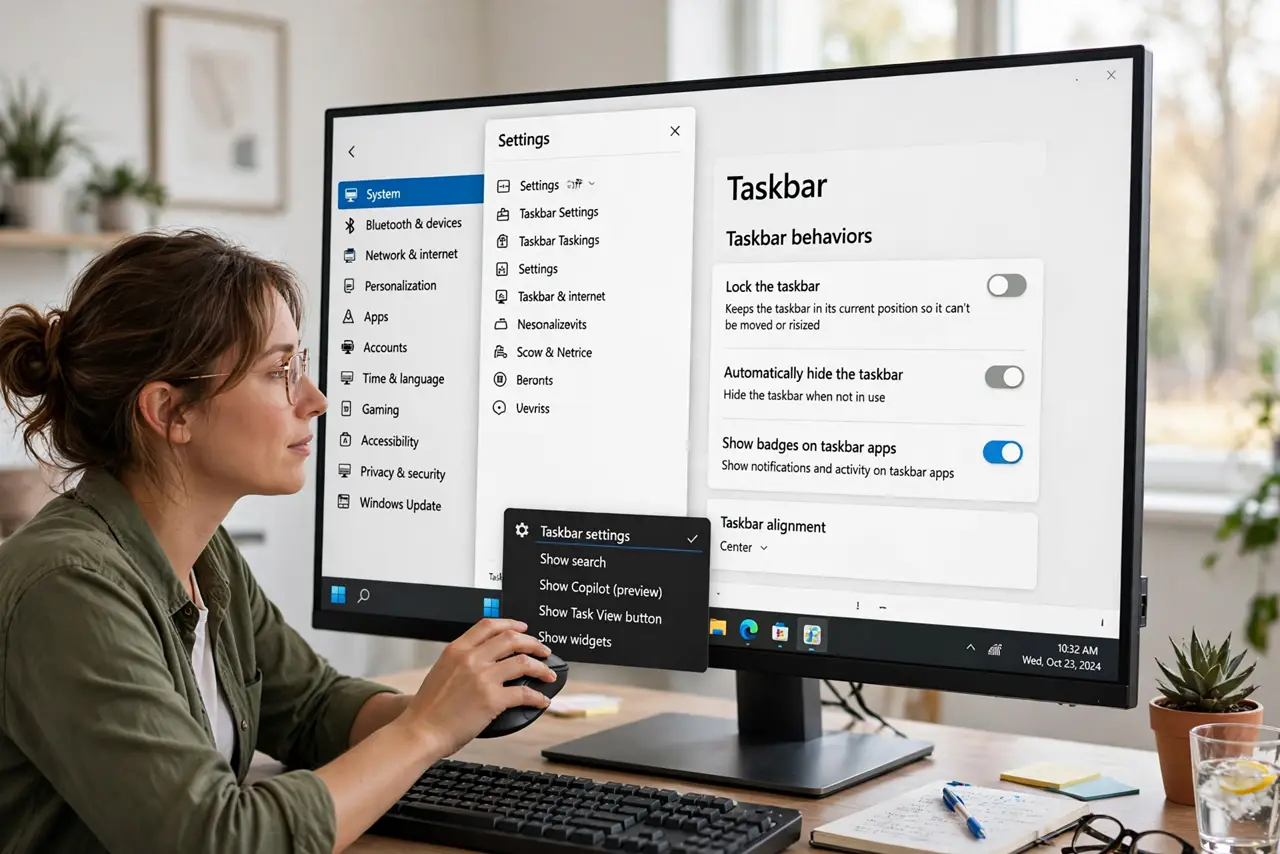
Quick fix: right-click the taskbar, open Taskbar settings, and turn on Lock the taskbar — a floating taskbar lets icons drift. Unpin and re-pin your icons in the order you want. Docking or unplugging a monitor can still shuffle them; re-pin once your display setup is stable.
Follow these steps
- Lock the taskbar first. Right-click an empty spot on the taskbar, choose Taskbar settings, and expand Taskbar behaviors. Turn on Lock the taskbar — an unlocked taskbar lets icons drift with accidental drags.
- Unpin and re-pin in your order. Right-click each drifting icon and choose Unpin from taskbar. Then open each app and pin them again one by one, left to right, in the exact order you want.
- Keep your display setup stable. Docking a laptop or unplugging a monitor changes the resolution, which reshuffles icons. Re-pin after your monitor arrangement is final, not before.
- Check the display scaling. Settings > System > Display > Scale should stay at one value. Scaling that flips between 100% and 125% is a classic icon shuffler.
- Restart File Explorer once. Open Task Manager, find Windows Explorer, and choose Restart. This reloads the taskbar cleanly without touching your pins.
- Re-pin after big updates. Feature updates sometimes reset pinned order. After an update finishes, check the order once and re-pin anything that moved.
What NOT to do
- Do not drag icons around on an unlocked taskbar and expect them to stay. Lock it first, arrange second.
- Do not install a third-party taskbar shuffler to fix this. Extra tools add their own bugs on top of the ordering problem.
- Do not confuse pinned icons with running apps. Running apps appear temporarily at the end — only pinned icons keep a fixed home.
- Do not edit the registry for this. Icon order is a settings-and-pinning issue, not a registry one.
Frequently asked questions
Why do my taskbar icons move after I undock my laptop?
Undocking changes the screen resolution and scaling, and Windows re-flows the taskbar to fit. Re-pinning while docked in your usual setup keeps the order stable.
Does locking the taskbar freeze the icon order forever?
It stops accidental drags, which cause most drift. Resolution changes and major updates can still shuffle things — re-pin after those.
Why did an update unpin my apps?
Feature updates occasionally reset the pinned list. Your apps are still installed; pinning them again takes a minute.