Show Seconds on the Taskbar Clock
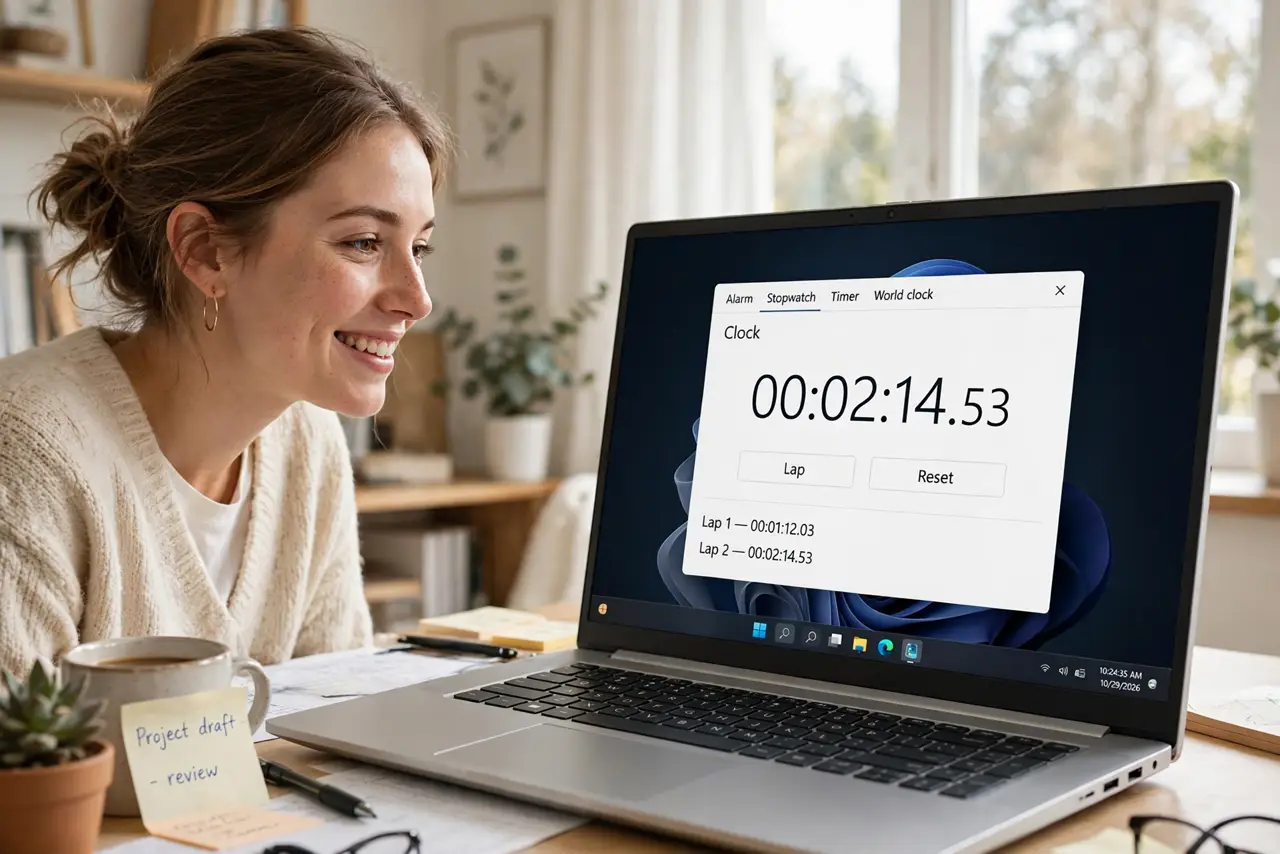
You are timing a presentation, a microwave experiment, or a speedrun, and the taskbar clock shows hours and minutes — no seconds. Windows can show seconds in the taskbar clock with one settings toggle. Tiny change, surprisingly handy when precision matters.
TL;DR / Quick Fix
Quick fix: open Settings, then Personalization, then Taskbar, and turn on 'Show seconds in system tray clock.' The seconds appear immediately. It uses a touch more power — negligible on desktop, barely noticeable on laptops. Precision, always visible. One toggle, zero downside for most users.
Follow these steps
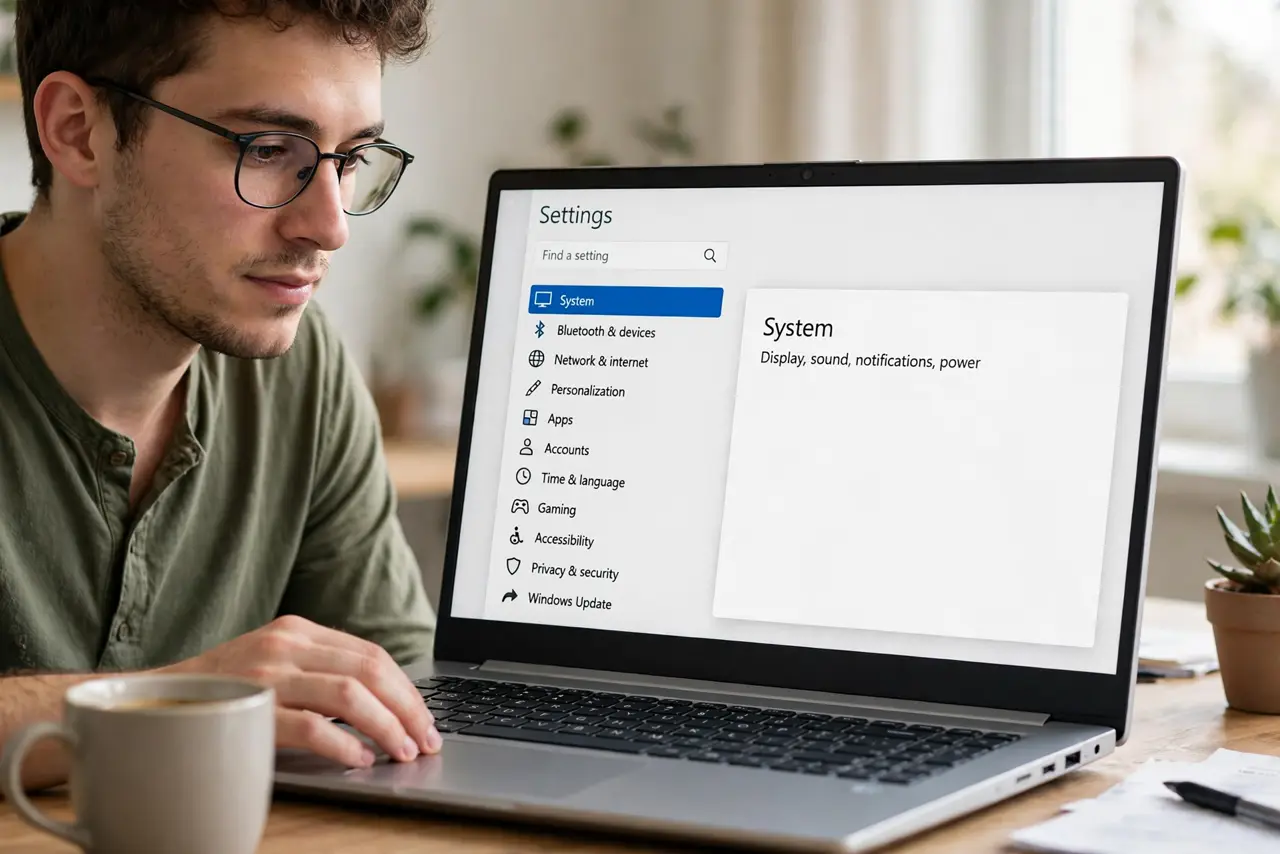
- Open Settings. Press Windows+I to open Settings. You can also right-click the taskbar and choose Taskbar settings to jump straight there.
- Go to Taskbar settings. Navigate to Personalization, then Taskbar. Scroll to the taskbar behaviors and clock section — the clock options live near the bottom.
- Turn on seconds. Toggle 'Show seconds in system tray clock' on. The taskbar clock immediately gains its seconds display — no restart, no logout.
- Know the tiny tradeoff. Updating every second uses marginally more power — Microsoft hid the toggle partly for this reason. On a desktop it is nothing; on battery it is still negligible for most.
- Use it for timing. Seconds in the corner turn the taskbar into a always-visible stopwatch reference — presentations, cooking, workouts, all gain precision.
- Turn it off just as easily. Toggle it back off anytime. It is a pure preference — no consequences, no residue.
What NOT to do
- Do not expect it on older Windows. The toggle needs a recent Windows 11 build — fully update first if it is missing.
- Do not confuse it with the full date. Seconds and date are separate toggles — enable each independently.
- Do not worry about the power warning. The extra drain is trivial — Microsoft's caution is about fleet scale, not your laptop.
- Do not look for it in the old Control Panel. It lives in the modern Settings app only — the Control Panel clock options are legacy.
Frequently asked questions
Why can't I see the seconds option?
Your Windows 11 build is too old — the toggle arrived in a later update. Run Windows Update and check again.
Does it show seconds on all monitors?
Yes — the clock with seconds appears on every taskbar where the clock shows, across monitors.
Can I also show the day of the week?
Not natively in the taskbar — the clock shows time and date. Third-party tweaks exist, but the built-in options stop at seconds.