Schedule Night Light
You work late and the screen blasts blue-white light into your eyes until bedtime — then sleep will not come. Night Light warms the display's colors in the evening, cutting the blue light that messes with sleep. Scheduling it means the warming happens automatically at sunset, no remembering required.
TL;DR / Quick Fix
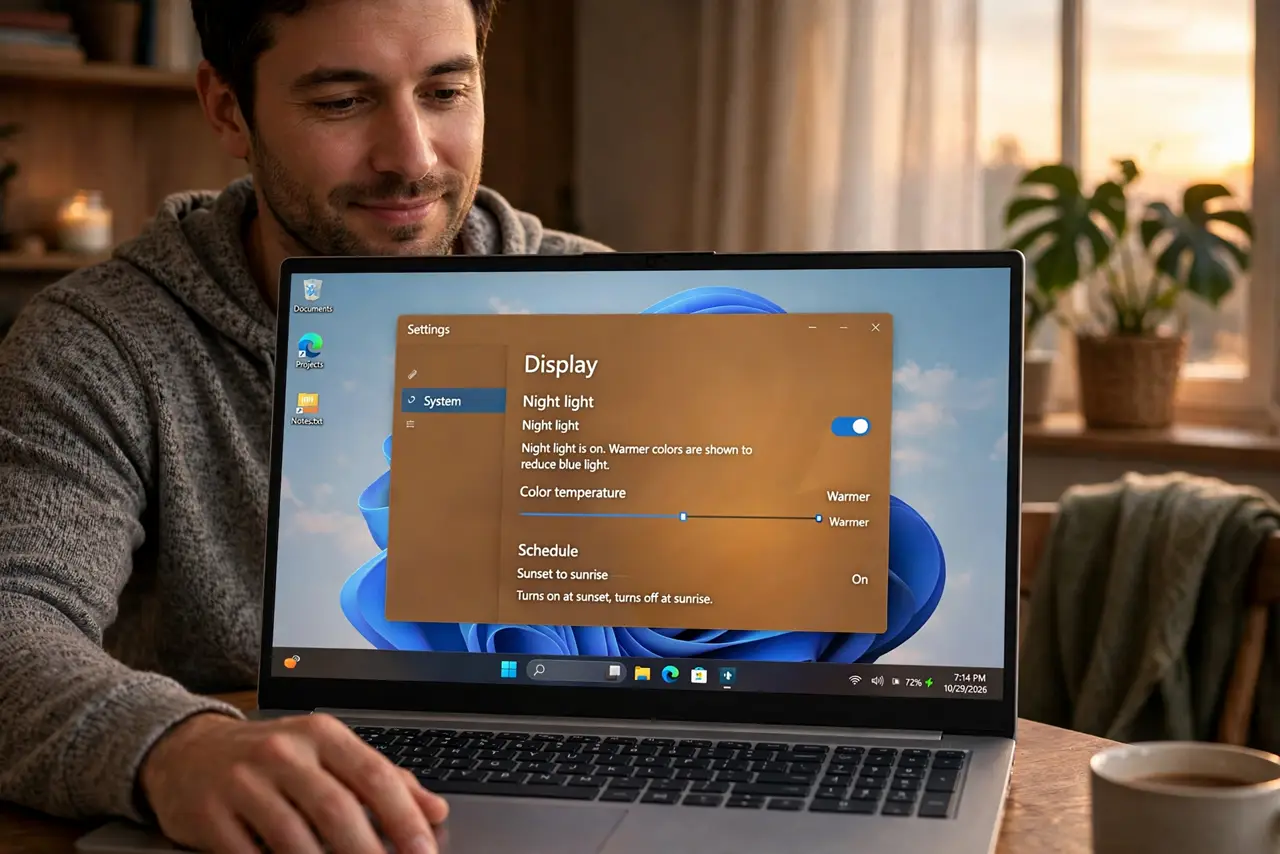
Quick fix: open Settings, then System, then Display, and turn on Night Light. Click its settings to schedule it from sunset to sunrise and adjust the warmth strength. The screen warms automatically each evening — set it once and forget it.
Follow these steps
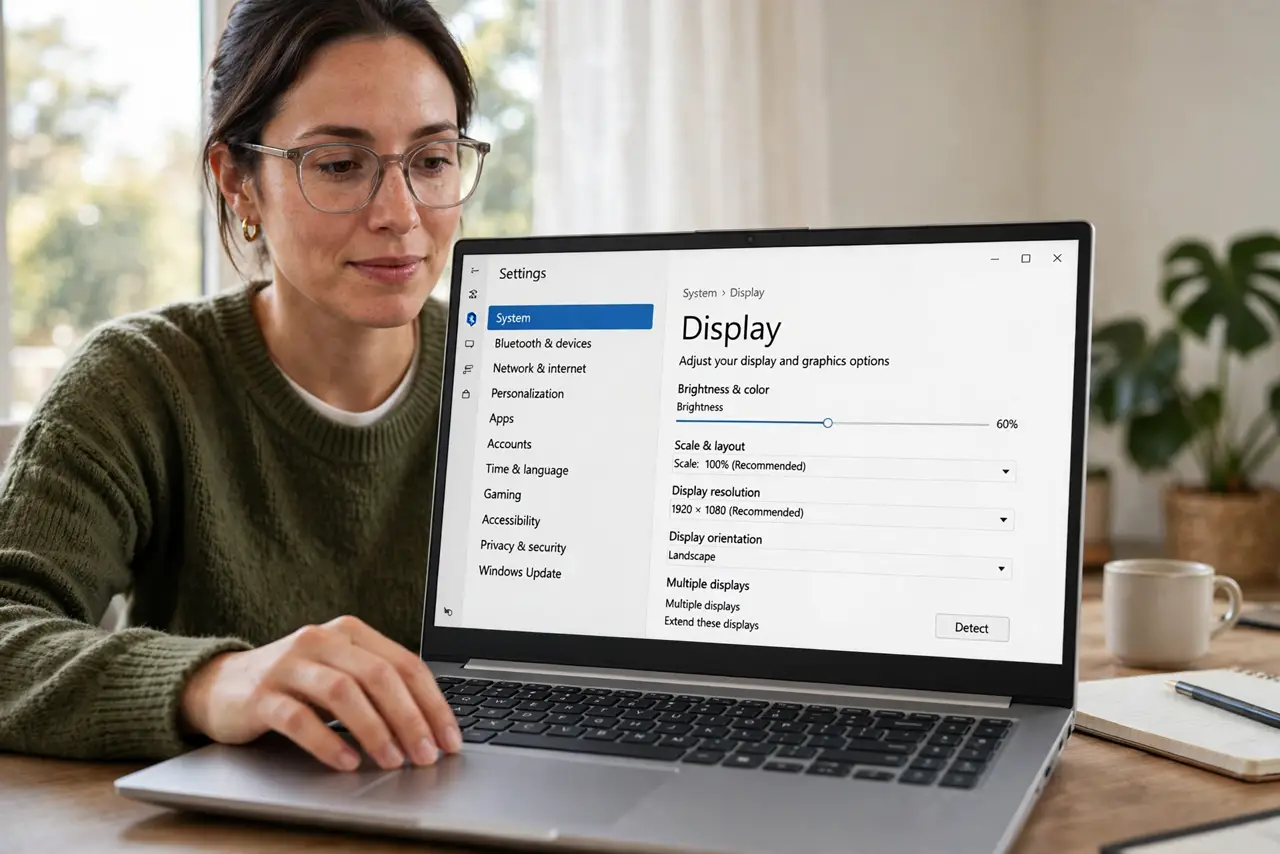
- Open Display settings. Go to Settings, then System, then Display. Night Light sits right in the display options — one of the most useful toggles Windows hides in plain sight.
- Turn on Night Light. Flip the Night Light switch on. The screen immediately warms — that amber shift is the feature working, reducing blue light output.
- Set the schedule. Click the Night Light settings and choose Sunset to sunrise for automatic timing, or set custom hours matching your evening. Automatic beats remembering.
- Adjust the strength. The warmth slider controls how amber it gets. Start in the middle — strong enough to matter, subtle enough to keep working comfortably.
- Pair with evening habits. Night Light helps, but screens still stimulate — dim the room lights too, and put the phone down earlier. The feature is one piece of sleep hygiene, not the whole puzzle.
- Turn it off for color work. Evening photo editing or design needs true colors — toggle Night Light off temporarily from quick settings. Accuracy and sleep are different modes.
What NOT to do
- Do not expect miracles alone. Night Light reduces blue light; it does not make midnight screen marathons healthy — habits matter more.
- Do not set it and forget color work. Warmed colors lie — toggle off for any color-critical evening task.
- Do not crank warmth to maximum. Extreme amber strains readability — the middle of the slider is the sweet spot.
- Do not confuse it with brightness. Night Light changes color temperature, not brightness — dim the screen separately for late nights.
Frequently asked questions
Does Night Light really help sleep?
It reduces blue light, which affects melatonin — helpful, though less scrolling helps more. Think of it as one good habit among several.
Why didn't it turn on at sunset?
Location services must be on for sunset timing — Windows needs to know where sunset is. Or just set manual hours.
Can I schedule different times per day?
No — one schedule for all days. Pick hours covering your latest typical evening; weekends are close enough.