Turn Off Taskbar Hover Previews
Every time the mouse drifts over the taskbar, little window thumbnails pop up and steal your attention — or your cursor. Those hover previews come from two separate visual-effects switches, and turning off the wrong one changes nothing. Here is how to silence them properly without losing anything useful.
TL;DR / Quick Fix
Quick fix: open Advanced system settings > Performance > Settings and uncheck 'Enable Peek' — hovering taskbar icons then shows plain text instead of window thumbnails. A second switch, 'Save taskbar thumbnail previews', controls the mini window images. Turning both off also calms an older PC.
Follow these steps
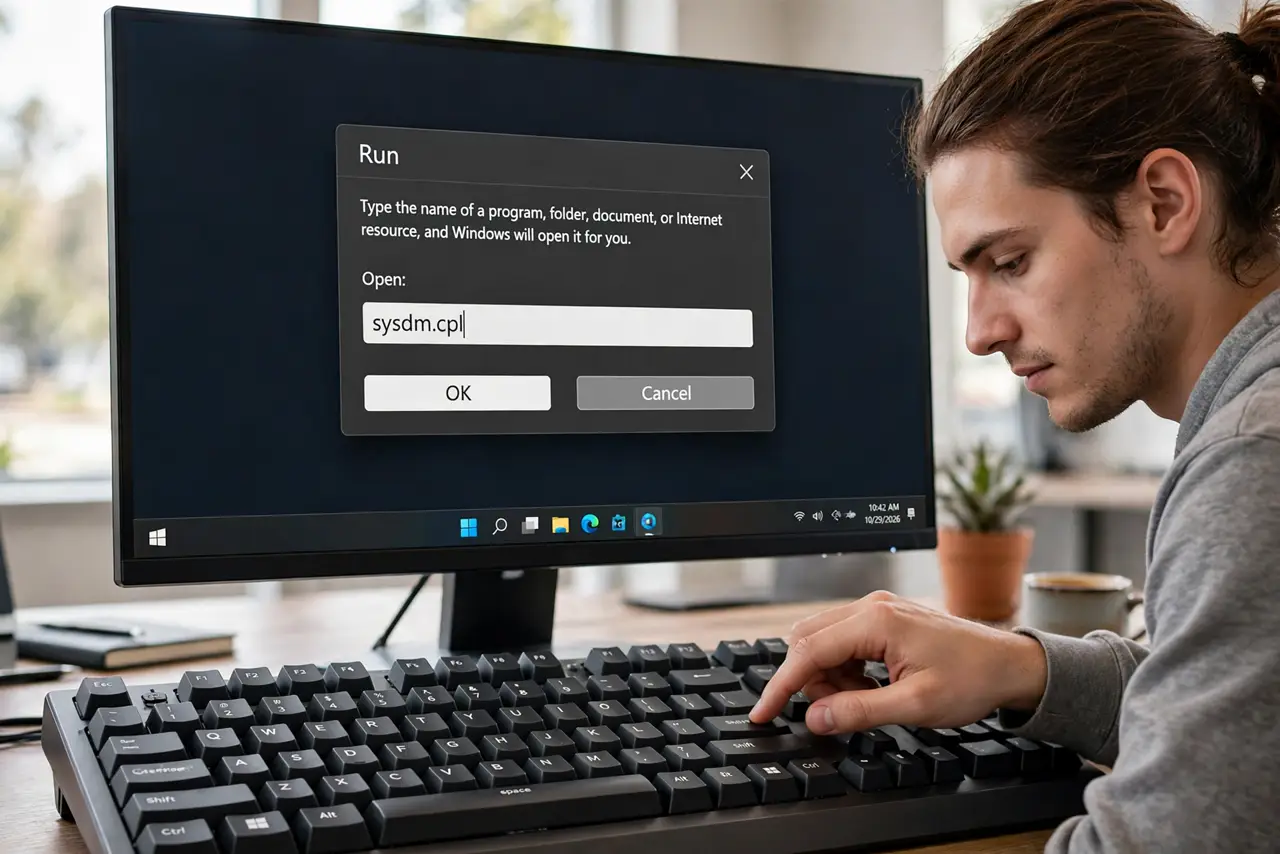
- Open Performance Options. Press Win + R, type sysdm.cpl, and press Enter. Go to the Advanced tab and click Settings under Performance.
- Uncheck Enable Peek. In the Visual Effects list, clear the 'Enable Peek' checkbox. This stops the desktop preview that appears when hovering the far-right corner.
- Uncheck Save taskbar thumbnail previews. Clear this second checkbox in the same list. This is the one that kills the little window images over taskbar icons — hover then shows a plain text label.
- Click Apply, then OK. Both changes apply immediately. Hover a taskbar icon to confirm you now get text instead of thumbnails.
- Leave the rest of the effects alone. The other checkboxes control animations and fonts. Changing only these two keeps Windows looking normal otherwise.
- Restart Explorer if previews linger. Open Task Manager, restart Windows Explorer, and any cached previews clear out.
What NOT to do
- Do not edit the registry for this. Both switches live in Performance Options — registry edits are unnecessary.
- Do not confuse these with notification toasts. Toasts come from apps in Settings > System > Notifications, a different system entirely.
- Do not turn off every visual effect hoping for speed. Disabling all of them makes Windows look broken for almost no gain on modern PCs.
- Do not expect Alt+Tab to change. Alt+Tab thumbnails are separate — these switches only affect taskbar hover.
Frequently asked questions
Does turning off previews speed up my PC?
Slightly on very old hardware, since Windows renders fewer live thumbnails. On a modern PC the difference is invisible — do it for calm, not speed.
What is the difference between Peek and thumbnail previews?
Peek shows the desktop when you hover the taskbar corner; thumbnails show mini window images over icons. Two switches, two behaviors.
Will a Windows update turn them back on?
Occasionally, yes — major updates can reset visual effects. A thirty-second revisit to Performance Options fixes it.