The Taskbar Search Box Is Missing
The search box on the taskbar vanished, leaving no obvious way to search from the keyboard's home row. It is almost always a taskbar setting that got flipped, a policy on a work PC, or the box hiding on a small screen. The setting takes ten seconds to check — and the taskbar customization guide covers the rest of the taskbar's options.
TL;DR / Quick Fix
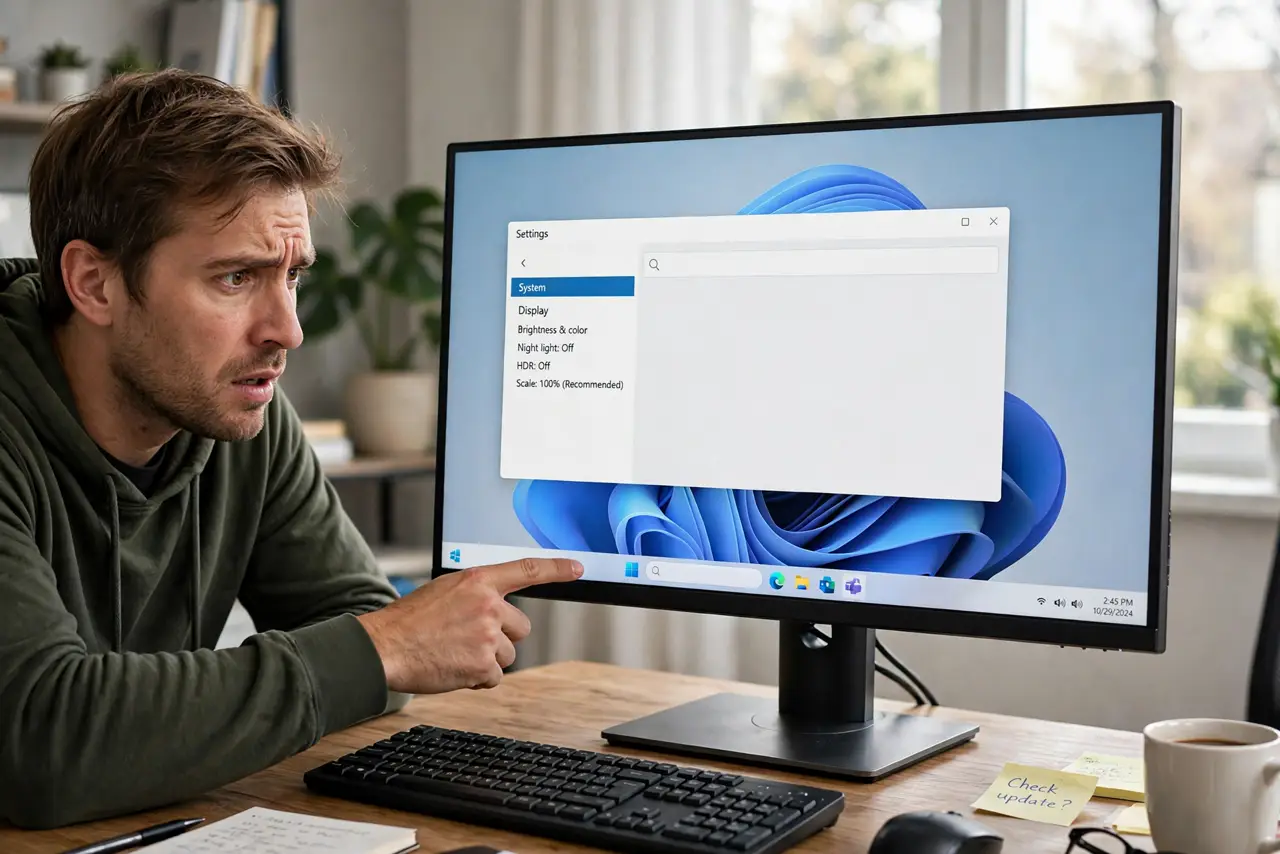
Quick fix: right-click the taskbar, open Taskbar settings, and set Search to Search box. If the option is missing or grayed out, a work policy may control it, so check with your IT admin. On very small screens the box may only offer the icon or hidden modes.
Follow these steps
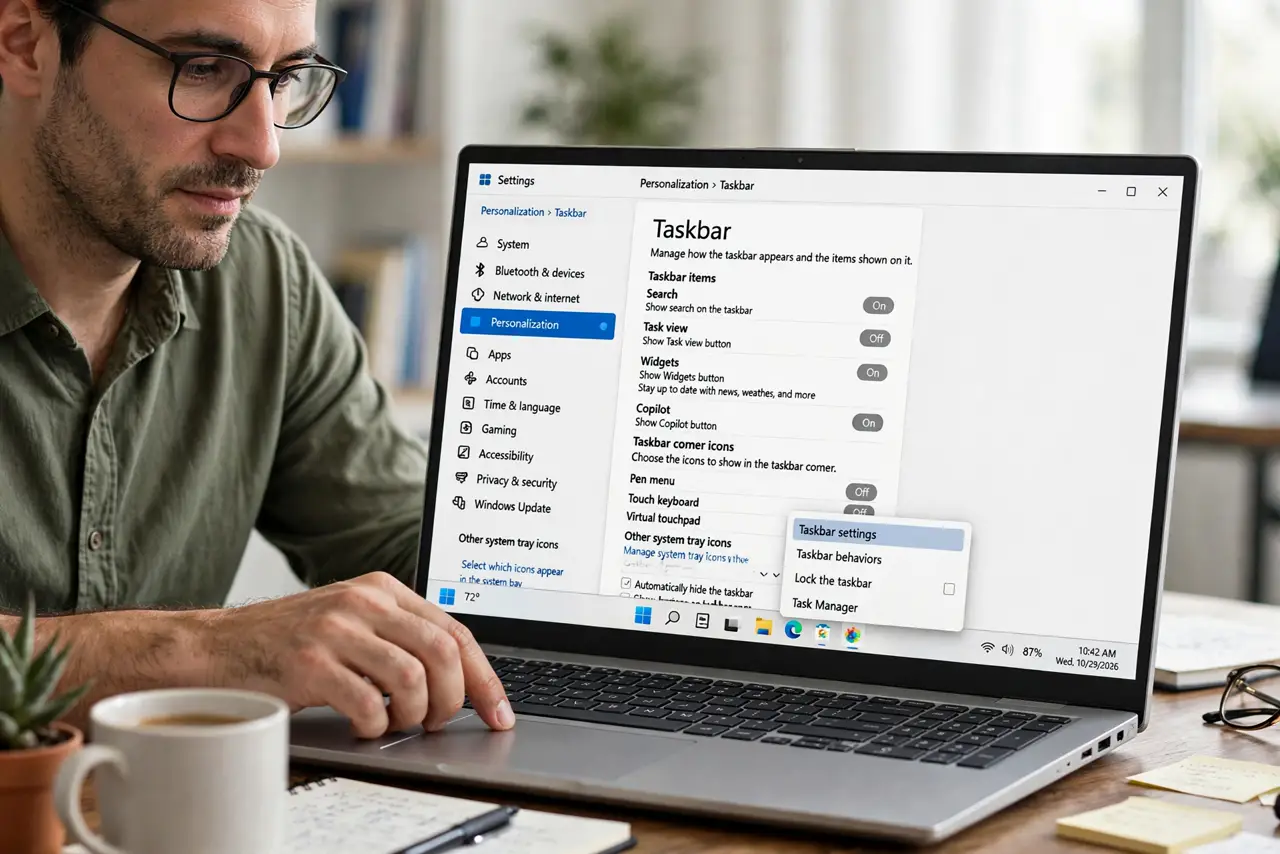
- Right-click the taskbar and open its settings. Right-click an empty spot on the taskbar and choose Taskbar settings. This page holds every visibility toggle for the taskbar's built-in widgets.
- Set Search to the box style. Find the Search entry and set it to Search box. Windows also offers Search icon and Hide, so confirm you picked the full box, not the icon.
- Check whether a policy controls it. If the Search entry is missing or grayed out, a group policy on a work or school PC is likely enforcing it. Personal fixes cannot override an admin policy, so ask IT.
- Try the keyboard shortcut as a workaround. Press the Windows key and just start typing. That opens Start search directly and works even while the taskbar box is missing.
- Check for a corrupted taskbar on one profile. If the setting looks right but the box never appears, test on a fresh user profile. A box that appears there means your main profile's taskbar state is damaged.
- Restart Explorer after changing the setting. Restart the Explorer process so the taskbar redraws with the new setting. The box should appear immediately after the redraw.
What NOT to do
- Do not edit the registry to force the search box. The Settings toggle is the supported path, and registry forcing can conflict with policies.
- Do not assume search itself is broken. The taskbar box is just a launcher; Windows-key typing proves the search engine underneath still works.
- Do not install a third-party search replacement first. Fix the built-in box before adding new software to the problem.
- Do not ignore the small-screen limitation. On very narrow displays Windows may only allow the icon style, which is by design, not a bug.
Frequently asked questions
Why did my search box disappear after an update?
Updates sometimes reset taskbar customizations to defaults. The setting is usually still there, just flipped back.
Can I get the search box on a work PC?
Only if your IT policy allows it. If the toggle is grayed out, the decision belongs to your administrator.
Does the search box slow down my PC?
Negligibly. The search index runs either way; the box itself is just a text field.