The Second Monitor Has No Taskbar
A second monitor without a taskbar makes switching apps on that screen awkward, even though Windows can show a taskbar on every display. The setting is usually off, or the taskbar is set to show only on the main display. This guide turns it on and checks the behavior. If the second monitor itself has no picture, see second monitor showing no signal instead.
TL;DR / Quick Fix
Quick fix: Open the taskbar settings page. Turn on taskbars on all displays. Then work through the remaining steps in order, checking one change at a time, and stop for a technician if you see damage, swelling, or a burning smell.
Follow these steps
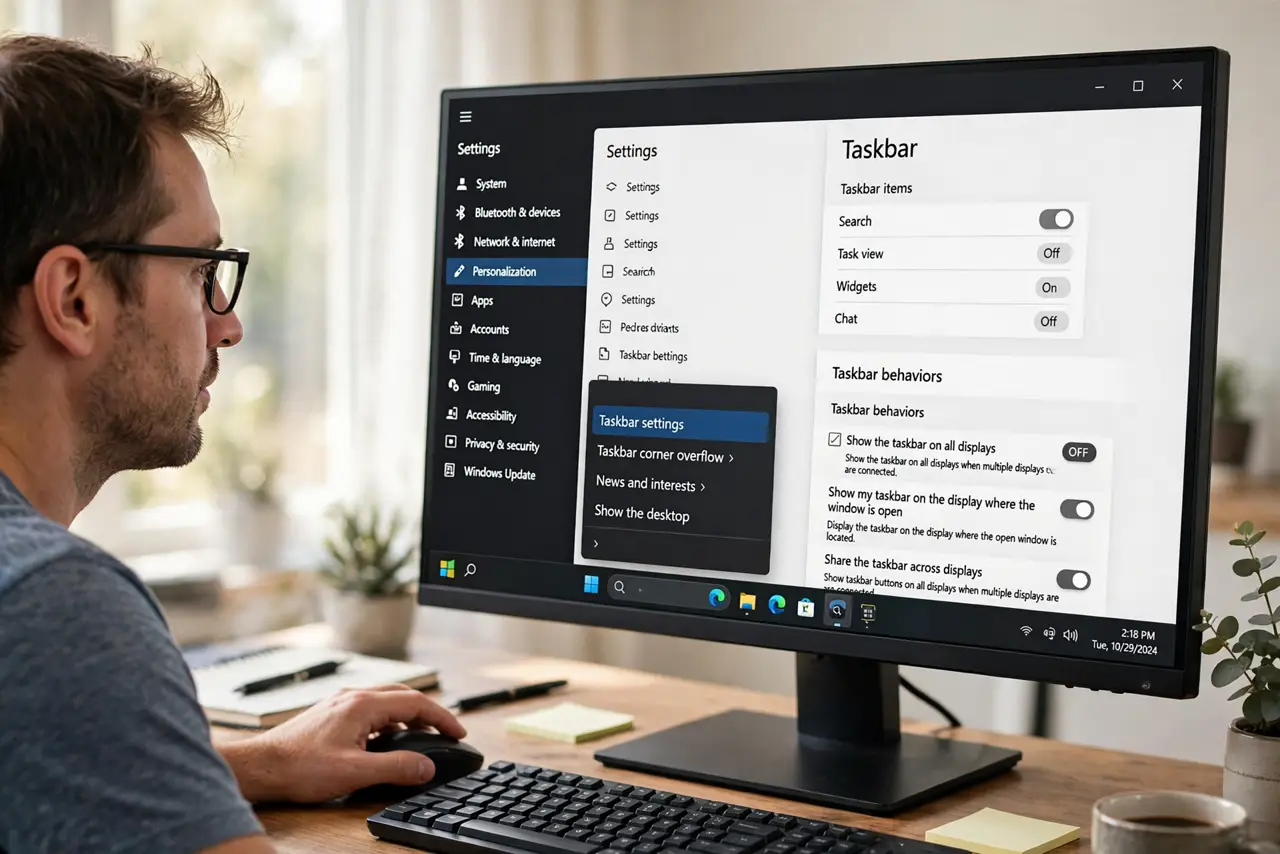
- Open the taskbar settings page. Right-click an empty part of the main taskbar and choose Taskbar settings. The taskbar behavior section at the bottom holds the multi-display options.
- Turn on taskbars on all displays. In Taskbar behaviors, tick Show my taskbar on all displays. A taskbar should appear on the second monitor right away, with no restart needed.
- Choose how buttons appear. In the same section, set When using multiple displays, show taskbar apps on to your preference, such as All taskbars or Taskbar where window is open. The second choice keeps each taskbar focused on its own screen.
- Check the second monitor is extended. Open Settings, then System, then Display, and confirm the second monitor is set to Extend these displays. A duplicated or single-display setup will not show a separate taskbar, because there is no second desktop to show it on.
- Confirm which display is main. In the same Display page, note which monitor is marked as the main display. The main display always has a taskbar, so if your preferred screen lacks one, set it as main or turn on all-displays taskbars.
- Restart Explorer if it still hides. Press Ctrl, Shift, and Esc for Task Manager, find Windows Explorer, right-click it, and choose Restart. The taskbars refresh, which restores one that a glitch hid.
What NOT to do
- Do not drag the taskbar to the second monitor. The taskbar cannot be dragged between screens, so the all-displays setting is the real control.
- Do not set the second monitor as main just for a taskbar. Turning on all-displays taskbars keeps your main display choice intact.
- Do not reinstall graphics drivers for a missing taskbar. This is a taskbar setting, not a driver problem, in almost every case.
- Do not assume the second monitor is broken. If it shows windows fine, the screen works and only the taskbar setting is off.
Frequently asked questions
Can the second taskbar show a different clock?
No. The clock and system tray appear on the main taskbar, while other taskbars show app buttons.
Why does the taskbar vanish when I open a game?
Full-screen apps can cover the taskbar. That is normal, and the taskbar returns when you leave full screen.
Does this setting survive a restart?
Yes. Once on, taskbars on all displays stay on until you change the setting.